
Visualize+: Setting Alerts
Setting up alerts and managing your notifications ensures that you never miss critical updates. By customizing your delivery preferences, you can stay informed about important events like upcoming appointments, new messages, client activities, and billing updates in a way that works best for your schedule.
IN THIS ARTICLE:
Types of alerts
Within Visualize+, you can set up alerts to send via email. Alerts are for questions only. If you want to get the results of a dashboard sent to you, click here.
There are several types of alerts that you can set:
- Results alerts: Visualize+ can send you an alert on a schedule when one of your questions returns any result. This kind of alert is also helpful if you have a question that usually doesn't return any results, but you want to know when the question does return results.
- Goal line alerts: These alerts require a goal line to be set on a bar, line or area chart. They are useful when you're tracking a metric and want to know when you reach a certain number or when the number goes below a certain threshold.
- Progress bar alerts: These alerts require the progress bar visualization. This alert can tell you when a single number reaches a goal.
Creating an alert
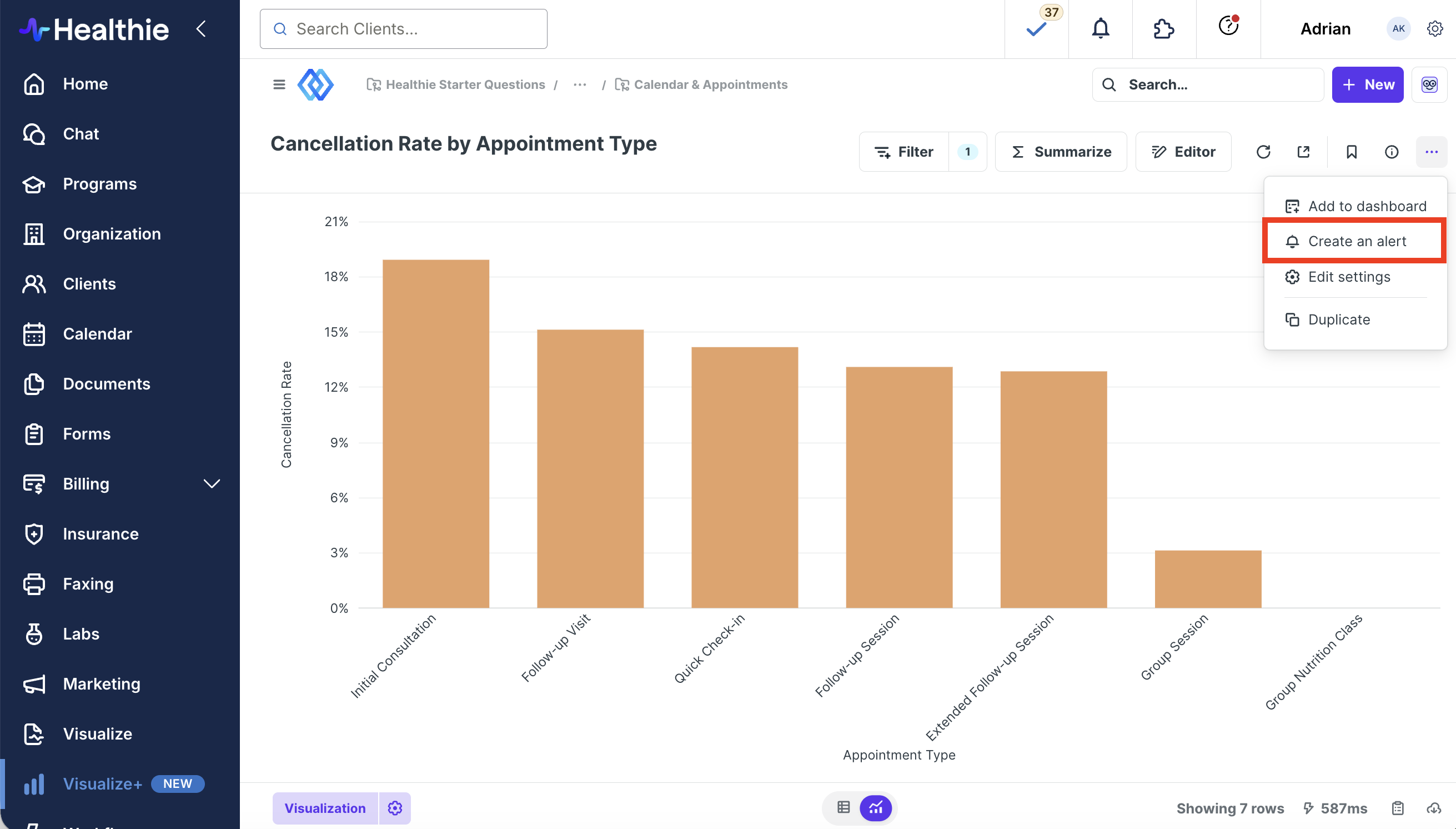
- Navigate to a saved question > click [...] in the top right corner
- Select Create an alert
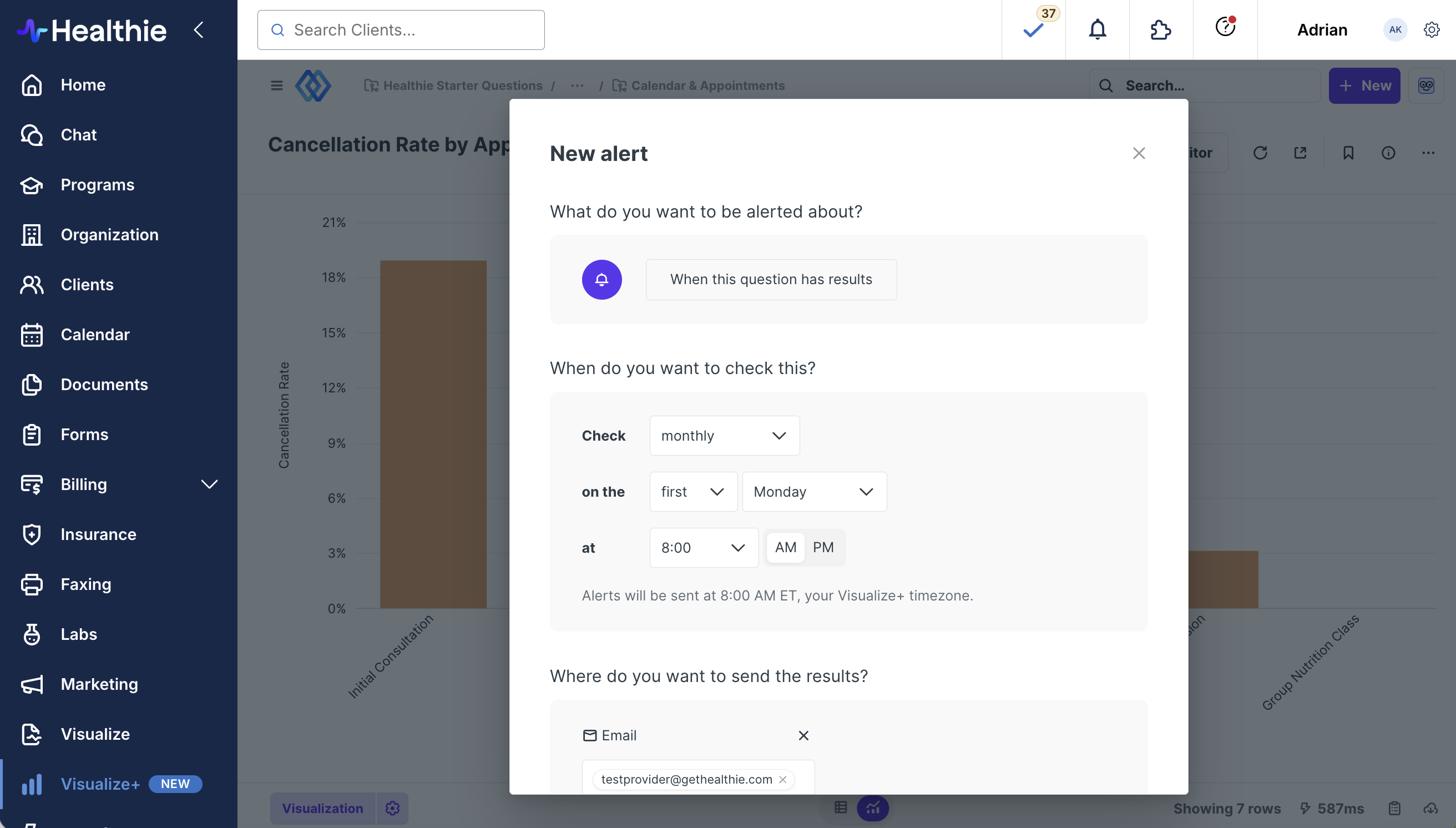
- Select frequency (by the minute, hourly, daily, weekly, monthly or on a custom schedule)
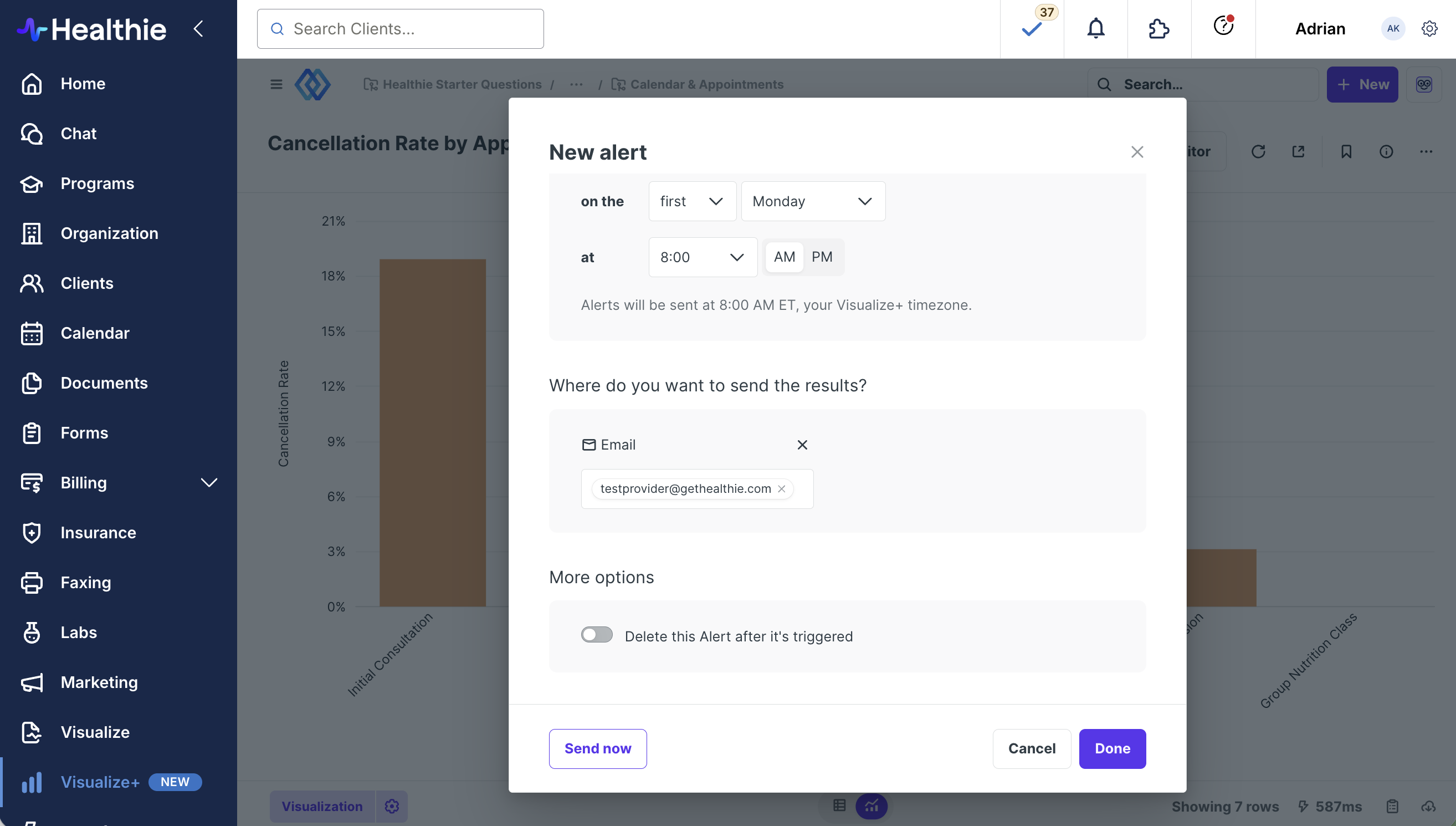
- Add additional email address for alerts, if desired
- Configure any additional options i.e. "Only send the alert once"
- Click Done
Important Notes:
- We advise against including PII and PHI in question alerts. These are sent by email, which is not end-to-end encrypted.
- Your alert options will depend on the visualization type and whether you have a goal line set.
Creating a goal line alert
A goal line alert requires a bar, line, or area chart with a goal line. Goal line alerts are useful when you're doing things like tracking daily appointments and you want to know when you reach a certain number of appointments/day.
To create an alert when a time series crosses a goal line:
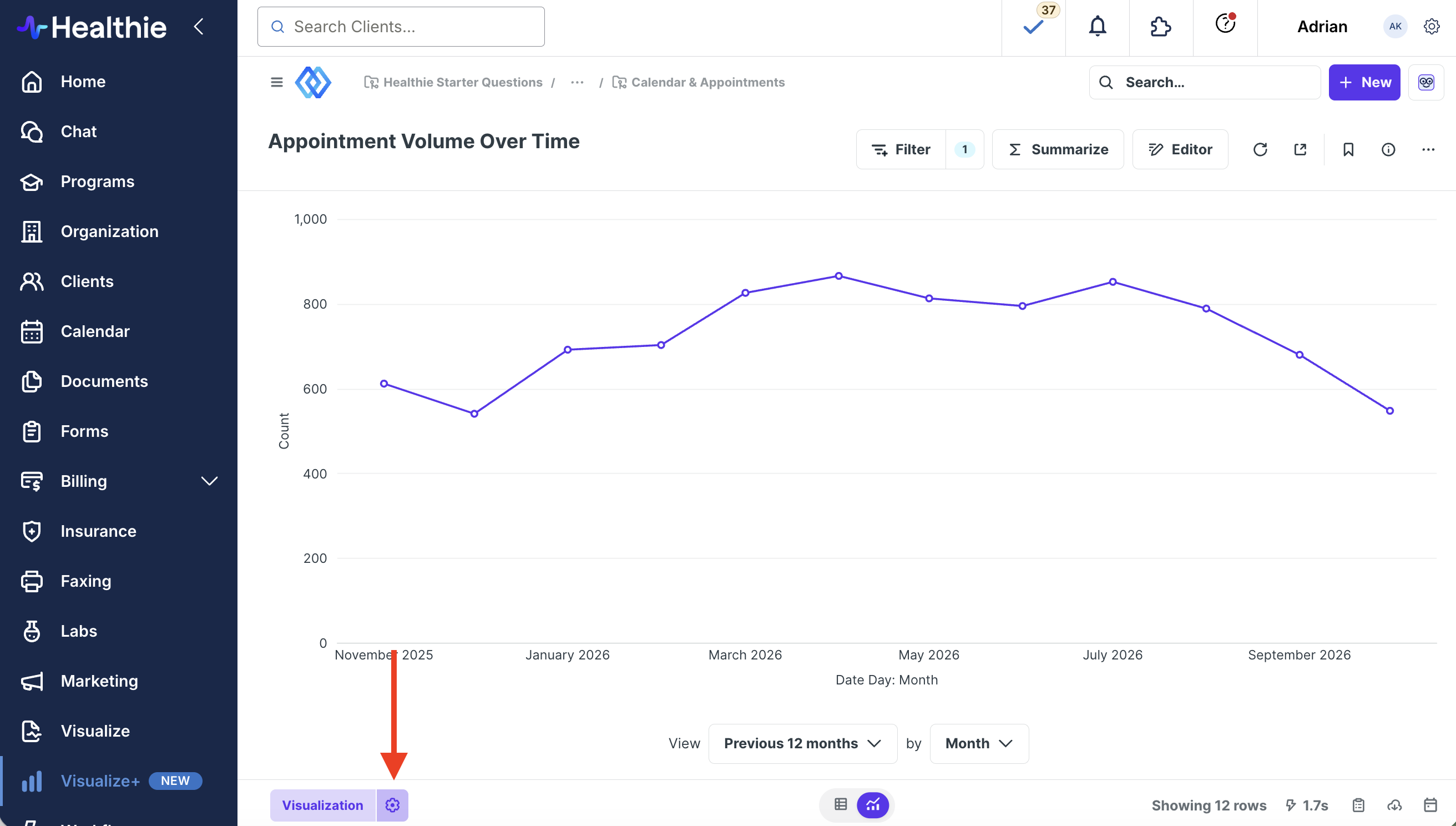
- Create a line, area, or bar chart displaying a number over time.
- Open up the visualization settings by clicking the gear icon in the bottom-left.
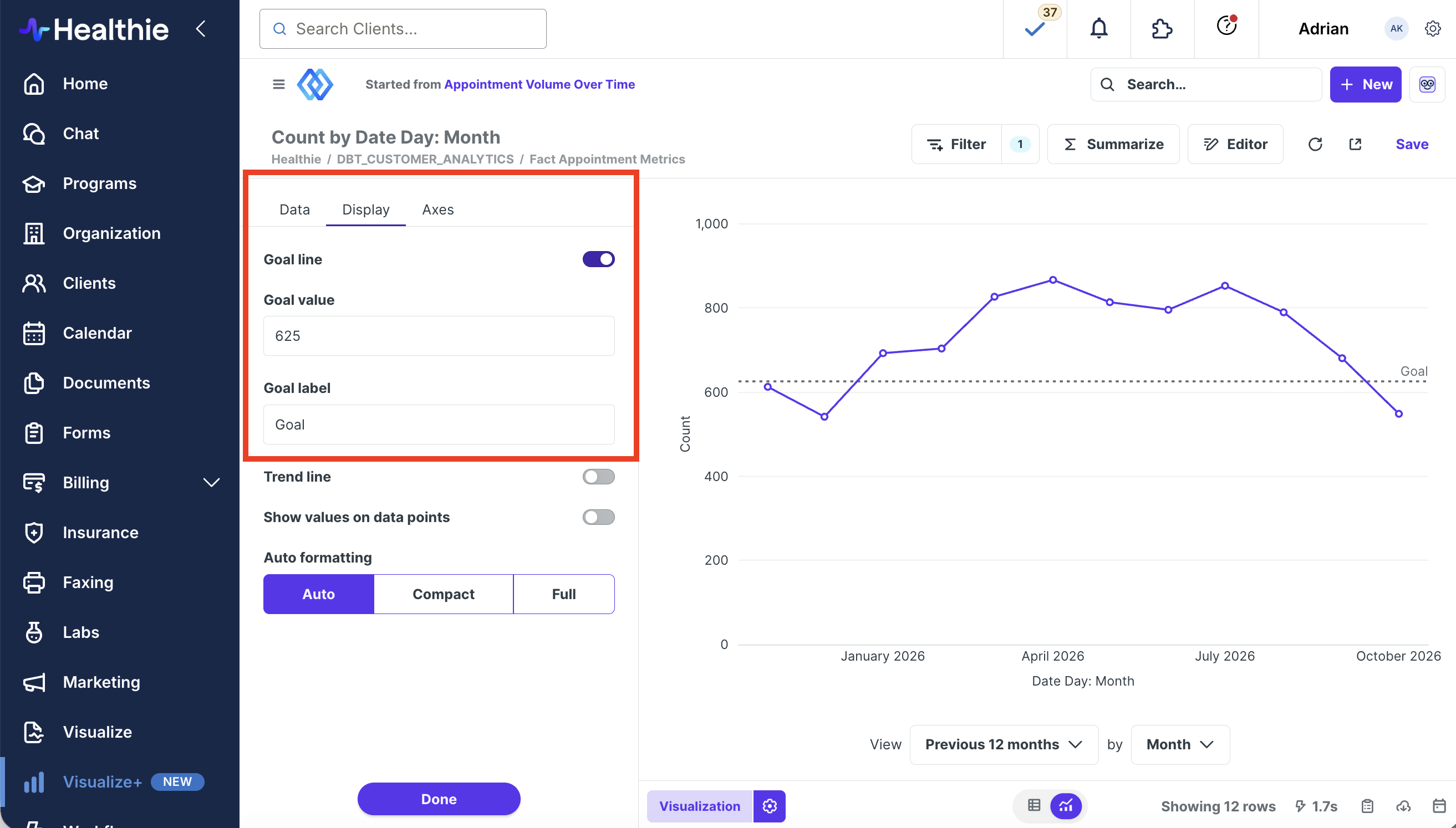
- In the Display tab, turn on the Goal line setting.
- Choose a value for your goal (and optionally a label) and click Done.
-
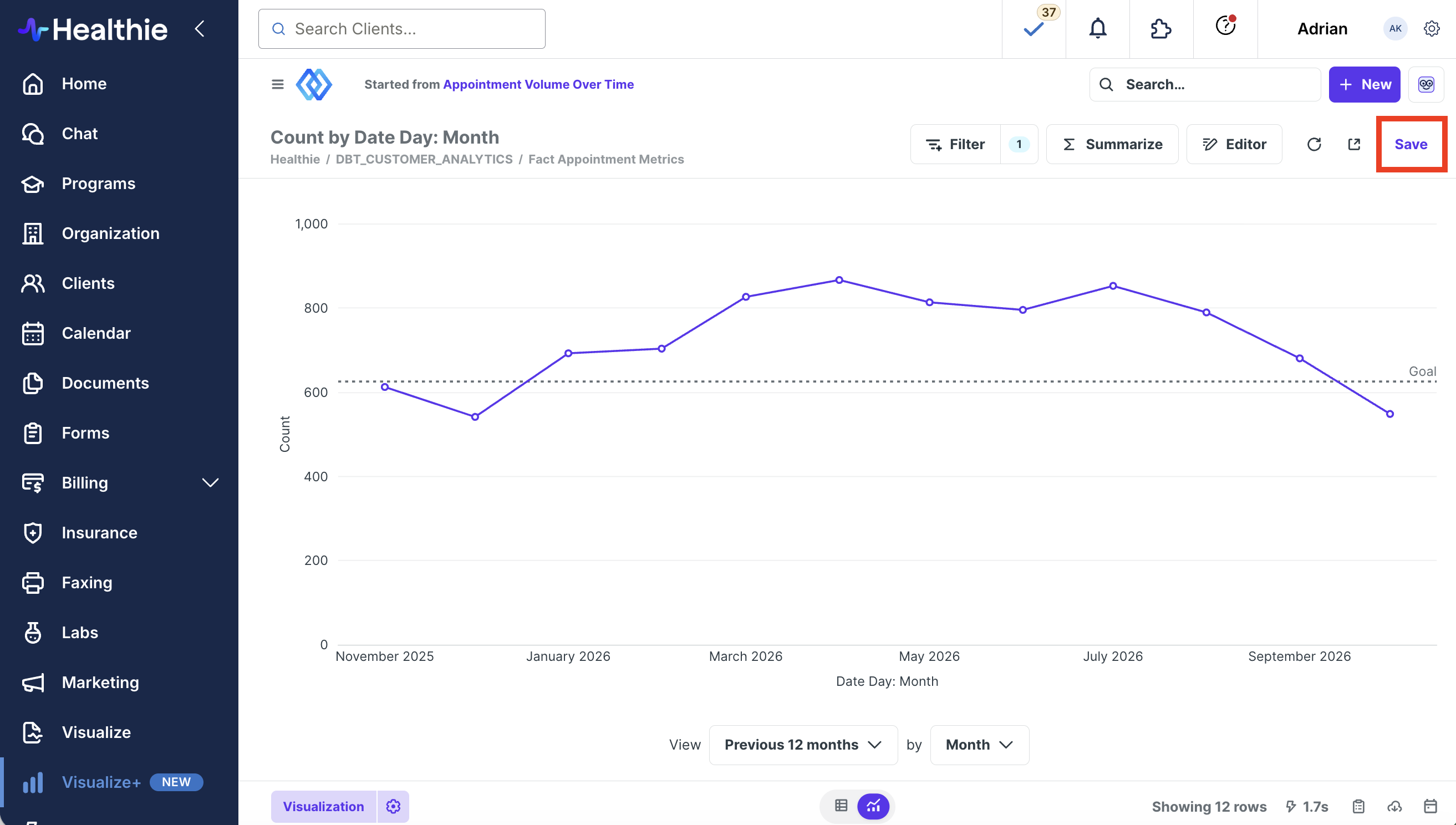
Save the question.
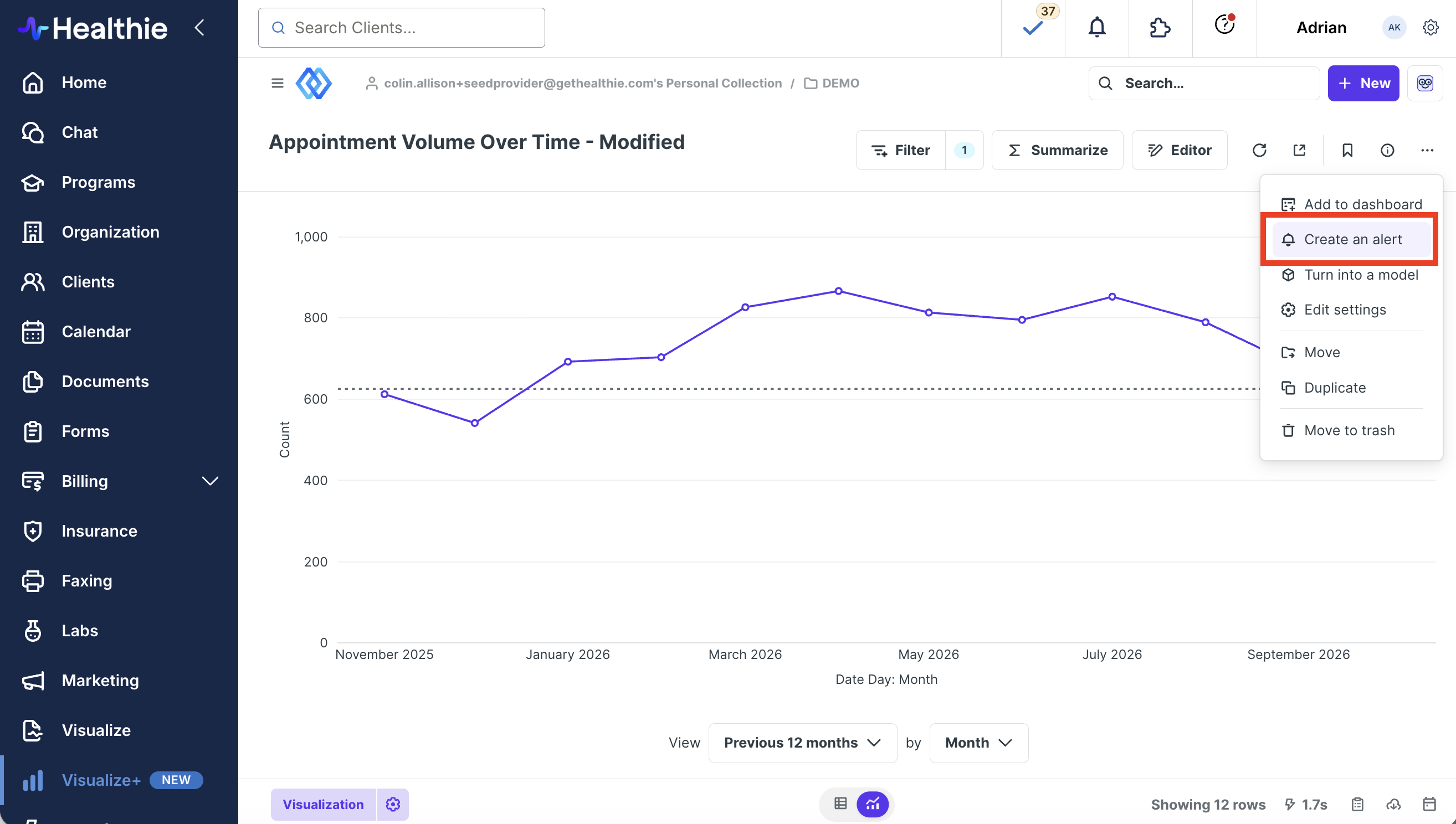
Click the [...] in top and select "Create alert"
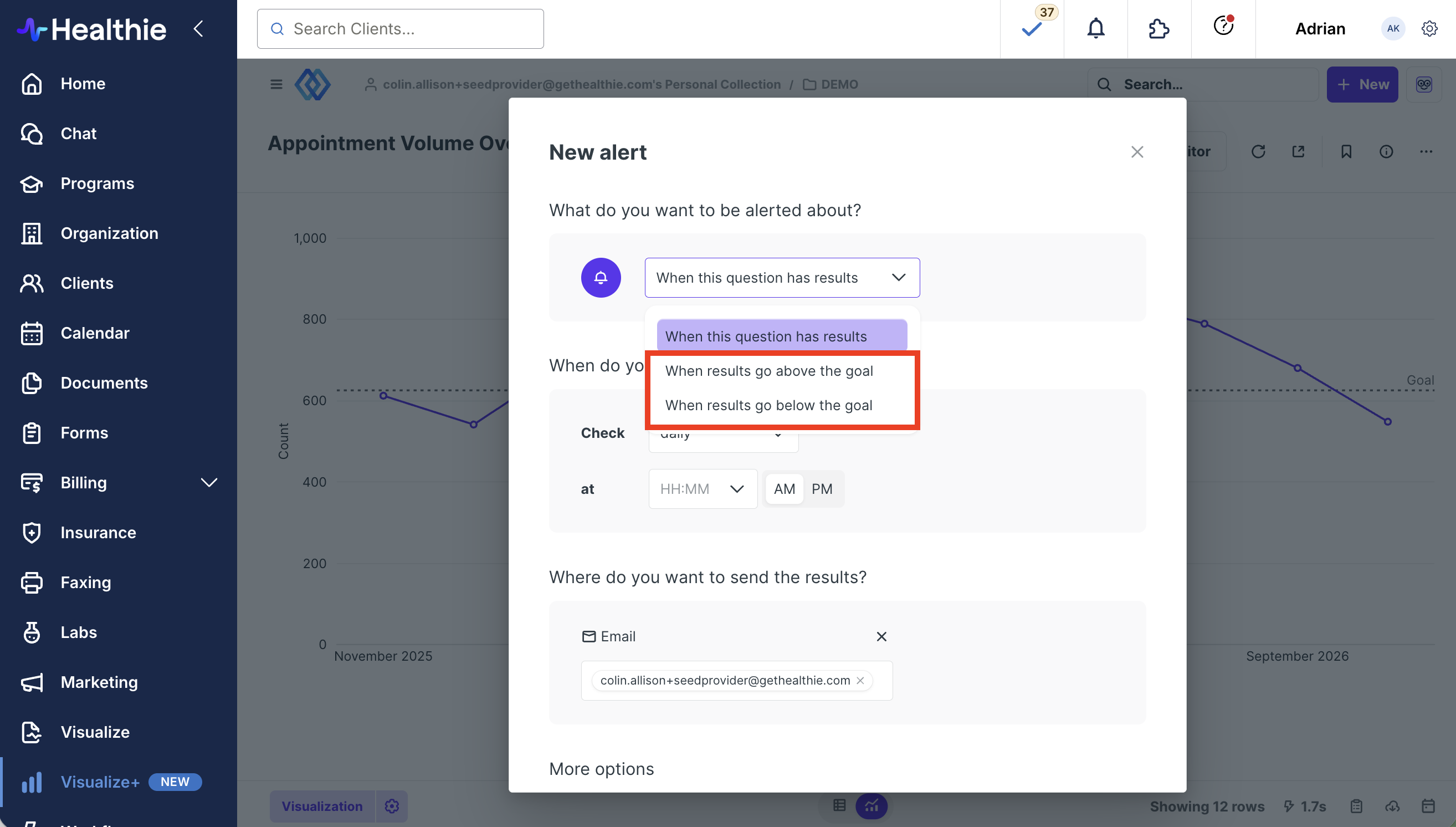
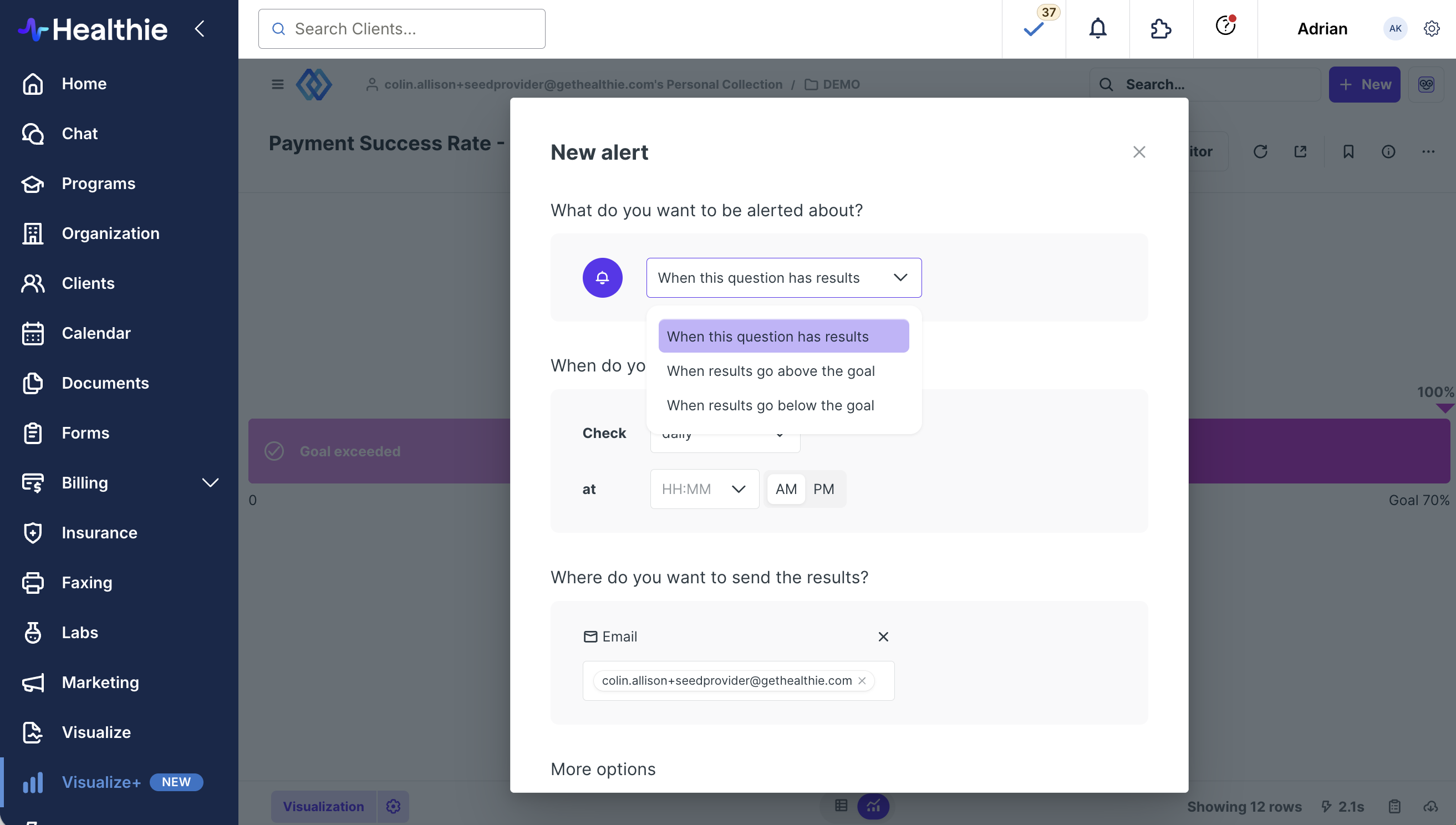
You can choose:
- Whether you want Visusalize+ to alert you when the time series goes above the goal line or when it goes below the goal line.
- Whether you want Visualize+ to alert you every time the time series crosses a goal line, or only the first time it crosses the goal line.
- How often you want Visualize+ to check to see if the goal line has been crossed.
- Select the schedule and recipients for the alert, and click "Done"
Creating a progress bar alert
Requires the progress bar visualization. If you want to set up an alert when a single number reaches a goal, you can use a progress bar visualization.
To set up a progress bar alert:
- Create a question that returns a single number as its result.
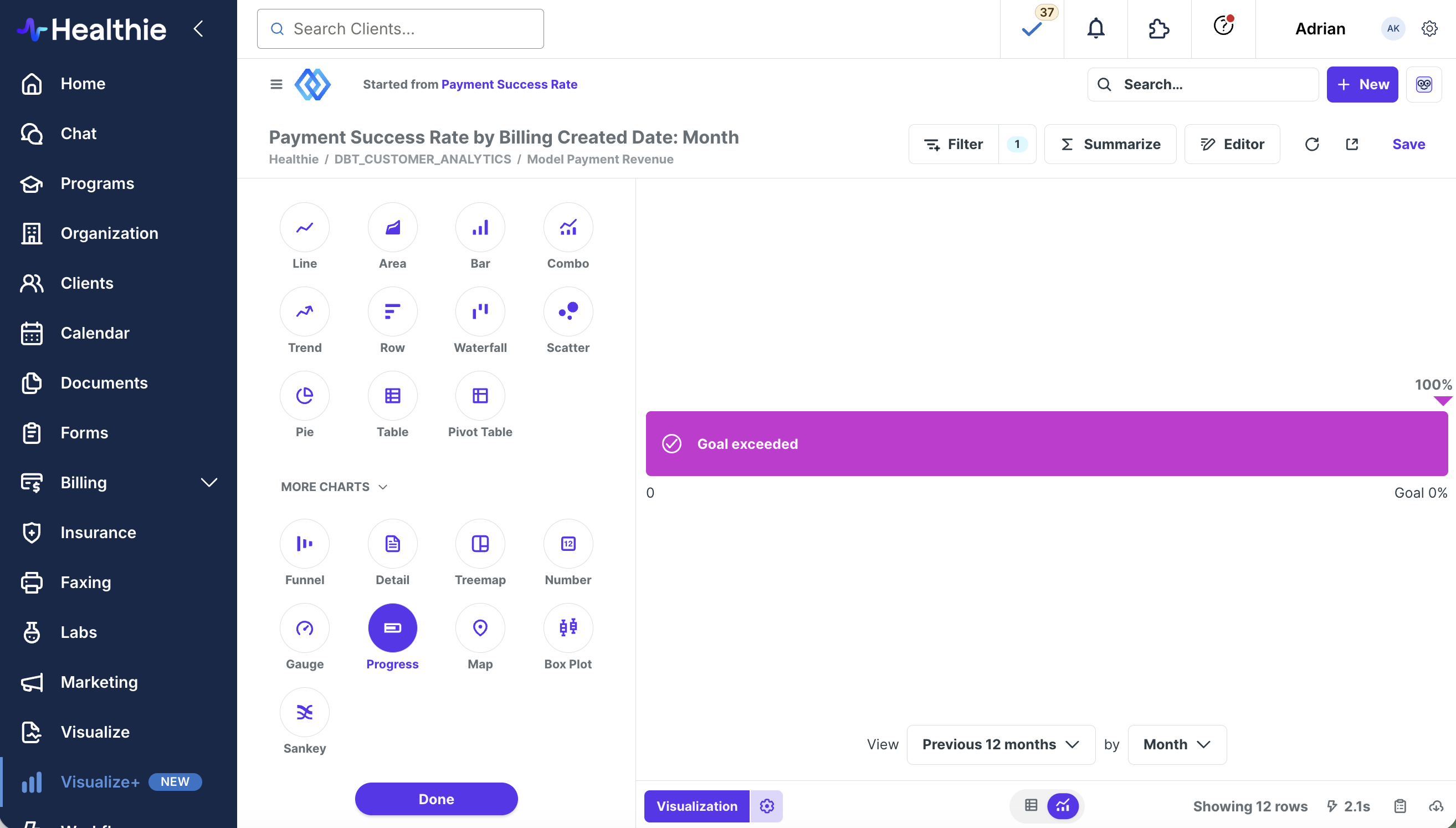
- Choose the Progress Bar visualization type.
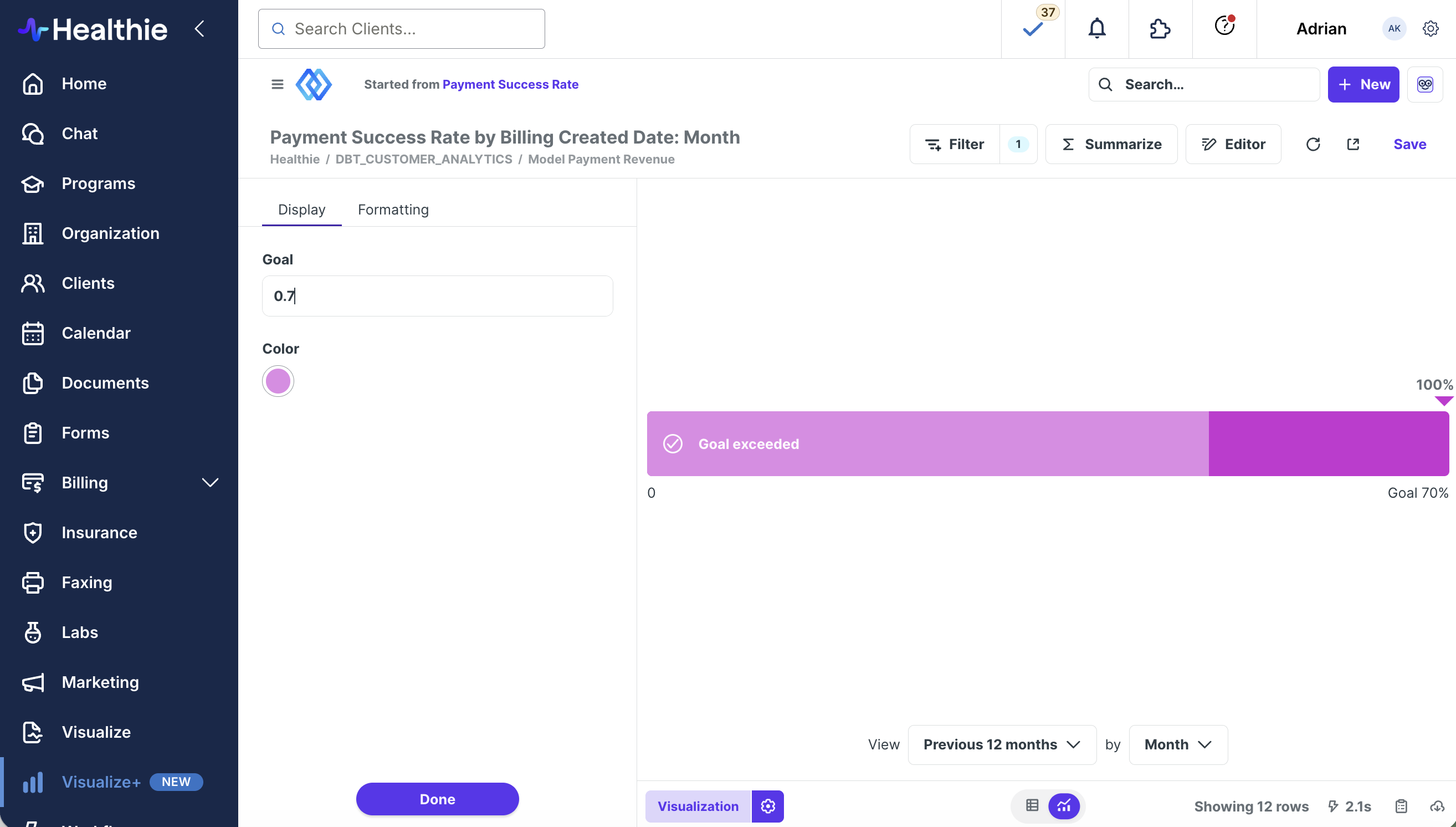
- Click the gear icon to select a goal value.
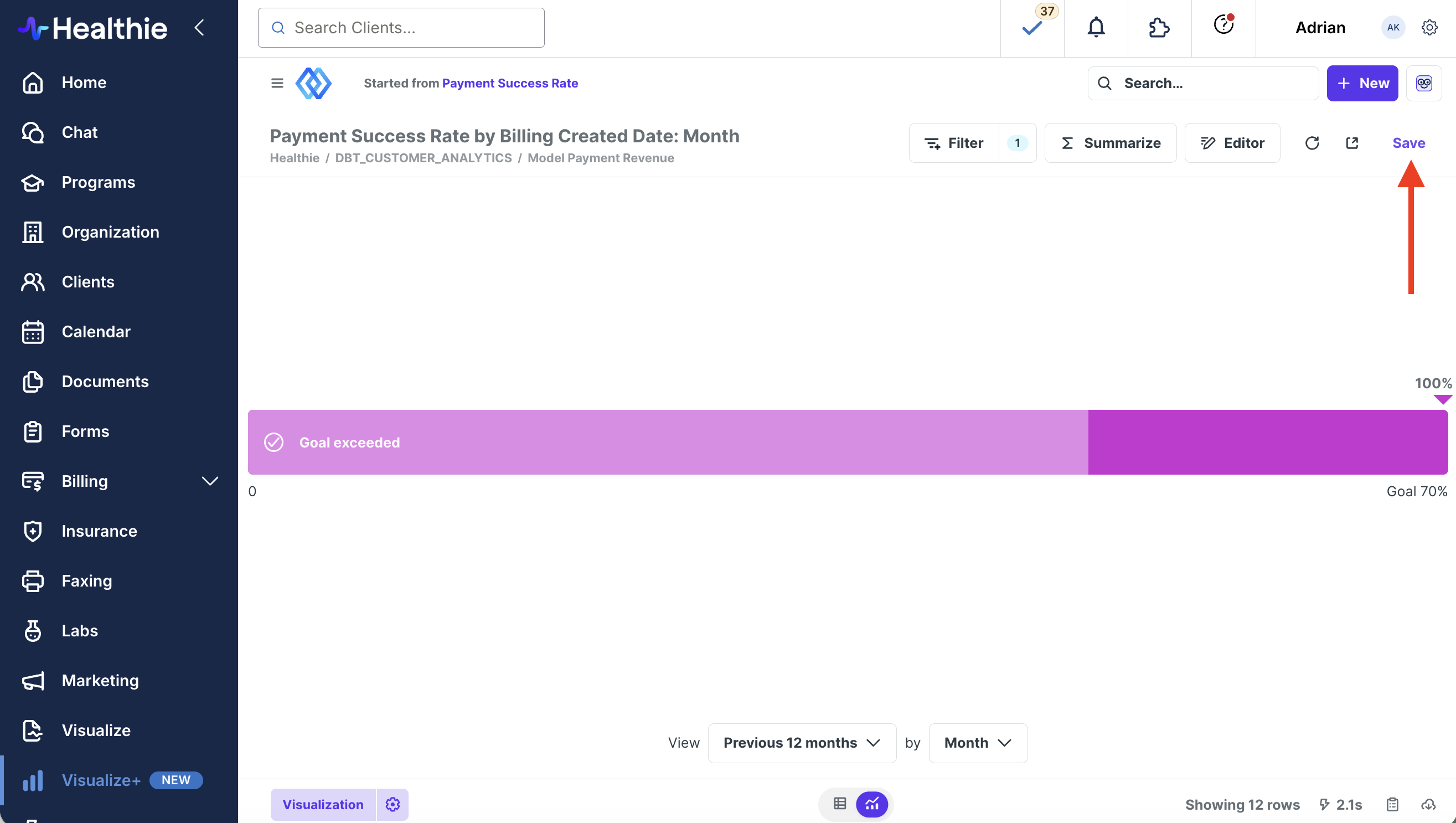
- Save your question.
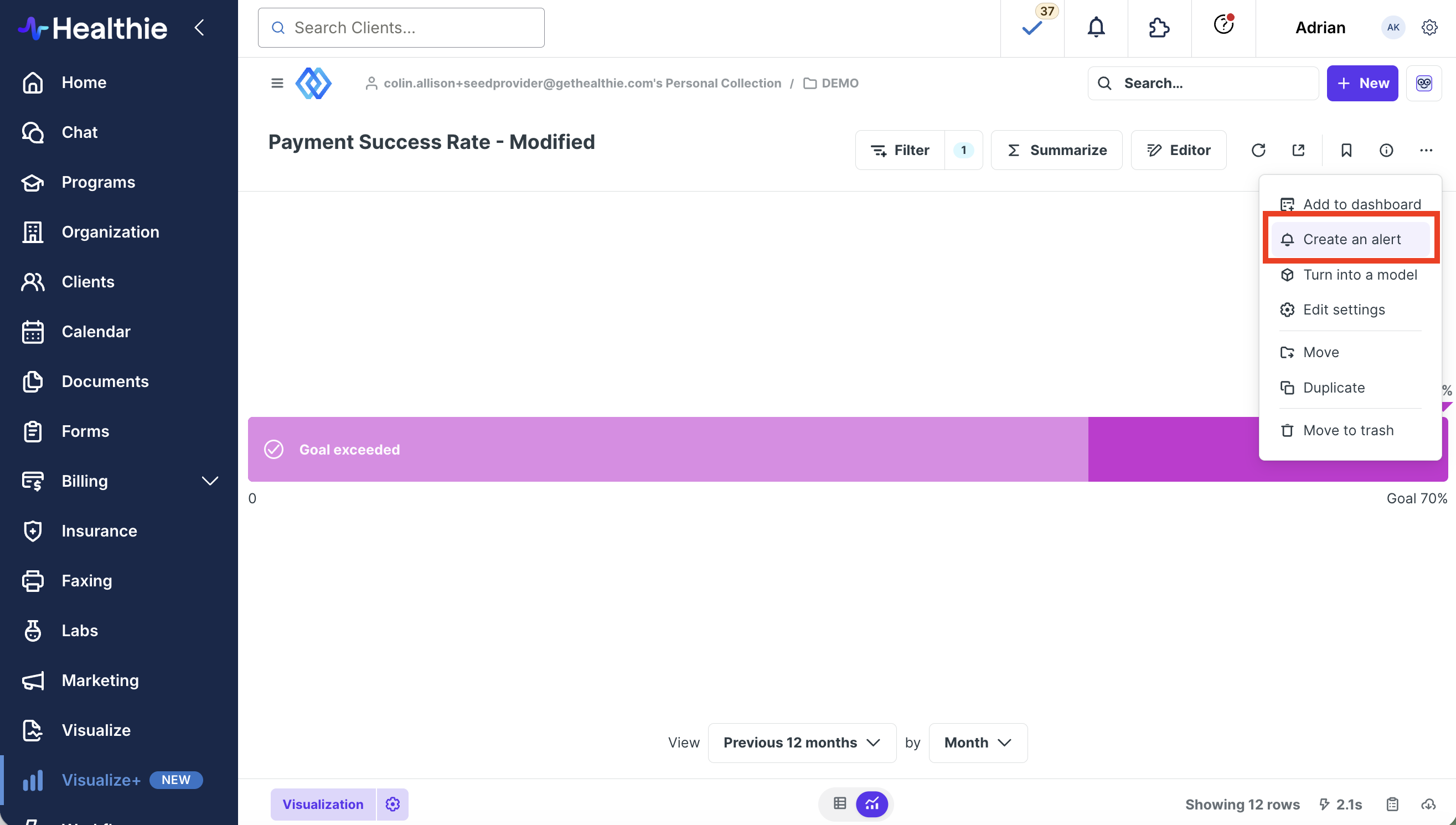
- Create an alert by clicking the [...] in top right.
You'll see the options for when you want to get alerts about this progress bar:
- Whether to alert when the progress bar reaches the goal line or below the goal,
- Whether to alert only the first time the progress bar reaches the goal line, or every time
- How often you want Visualize+ to check to see if the goal has been reached.
Editing or deleting an alert
You can easily edit, delete and unsubscribe from alerts:
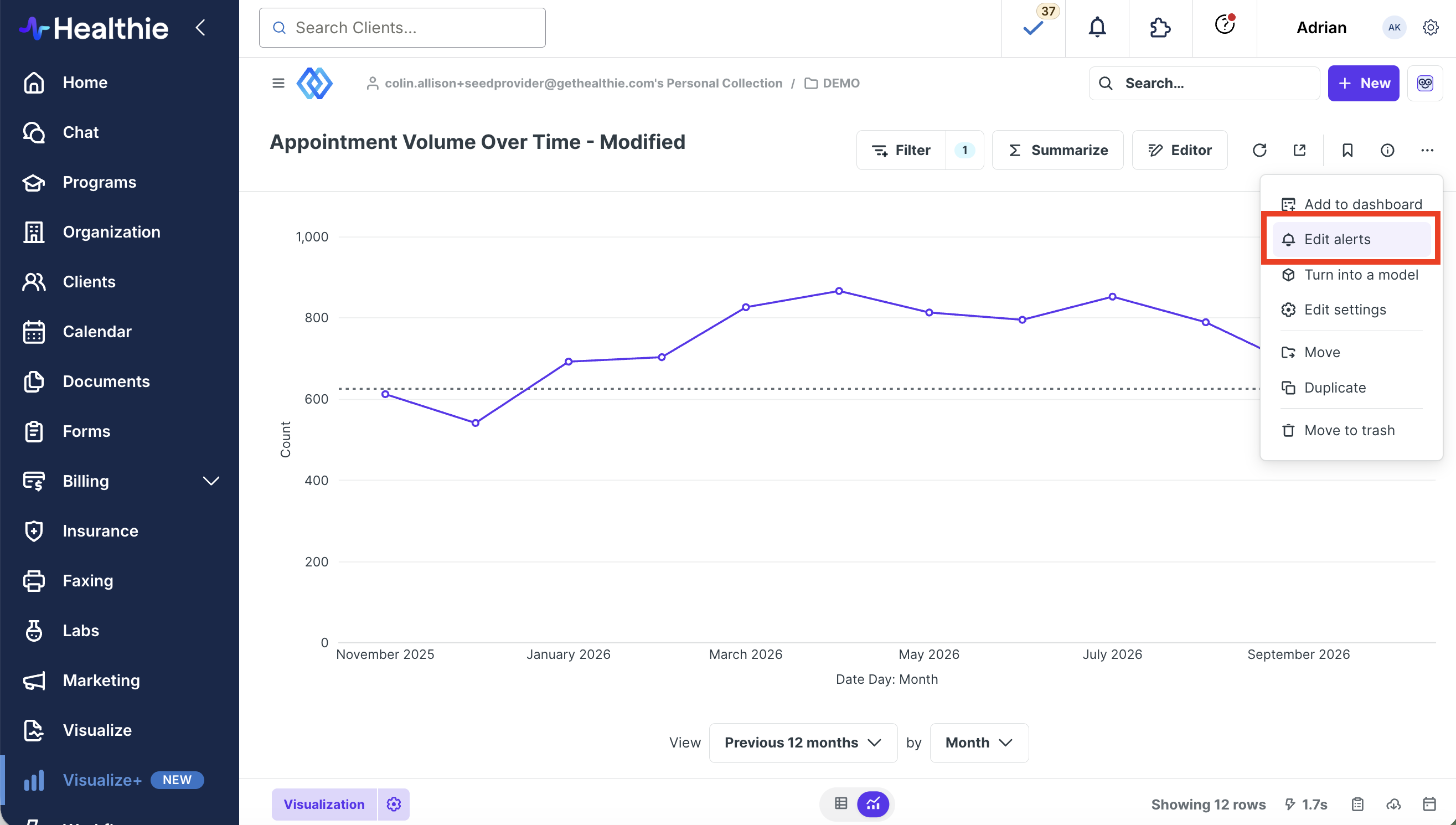
- Click "..." in the top right of your question > Edit alerts
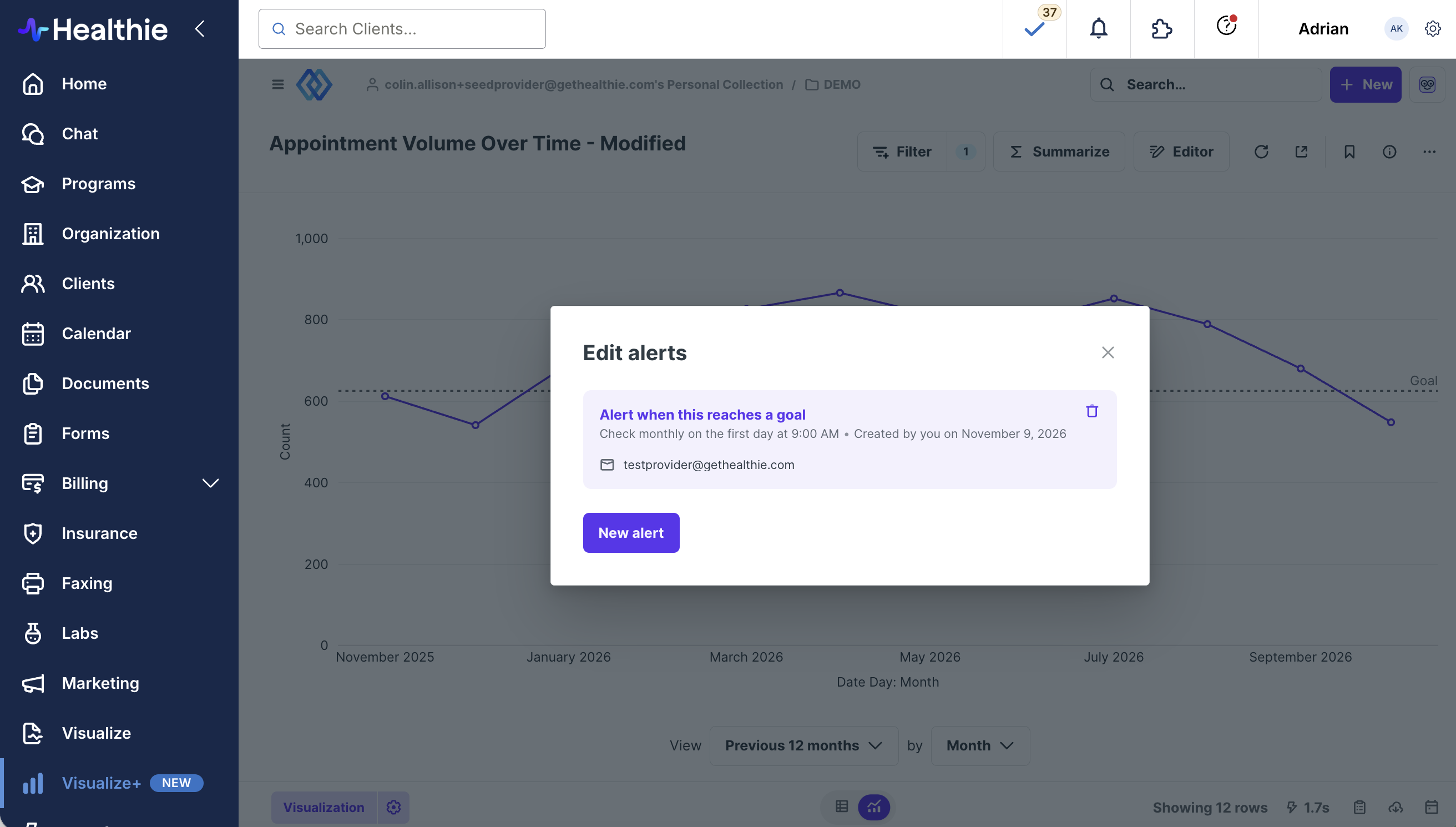
- Click on the alert to make changes, or click the trash can icon to delete
Alert expiration
Some circumstances will automatically change or delete alerts:
- A goal line is removed from the question powering a "Goal line" alert. The alert will change to a "Results" type alert.
- If the question is deleted, Visualize+ will delete any alerts set up for that question.
Alerts will continue to work even if the person who set up the alert no longer has an active account.