
Visualize+: Sharing With Your Team
Sharing information within your organization helps your team reach project goals on time. Securely share folders and documents with other members of your organization, ensuring everyone has the exact access they need to succeed.
Copying a direct link to a dashboard or question
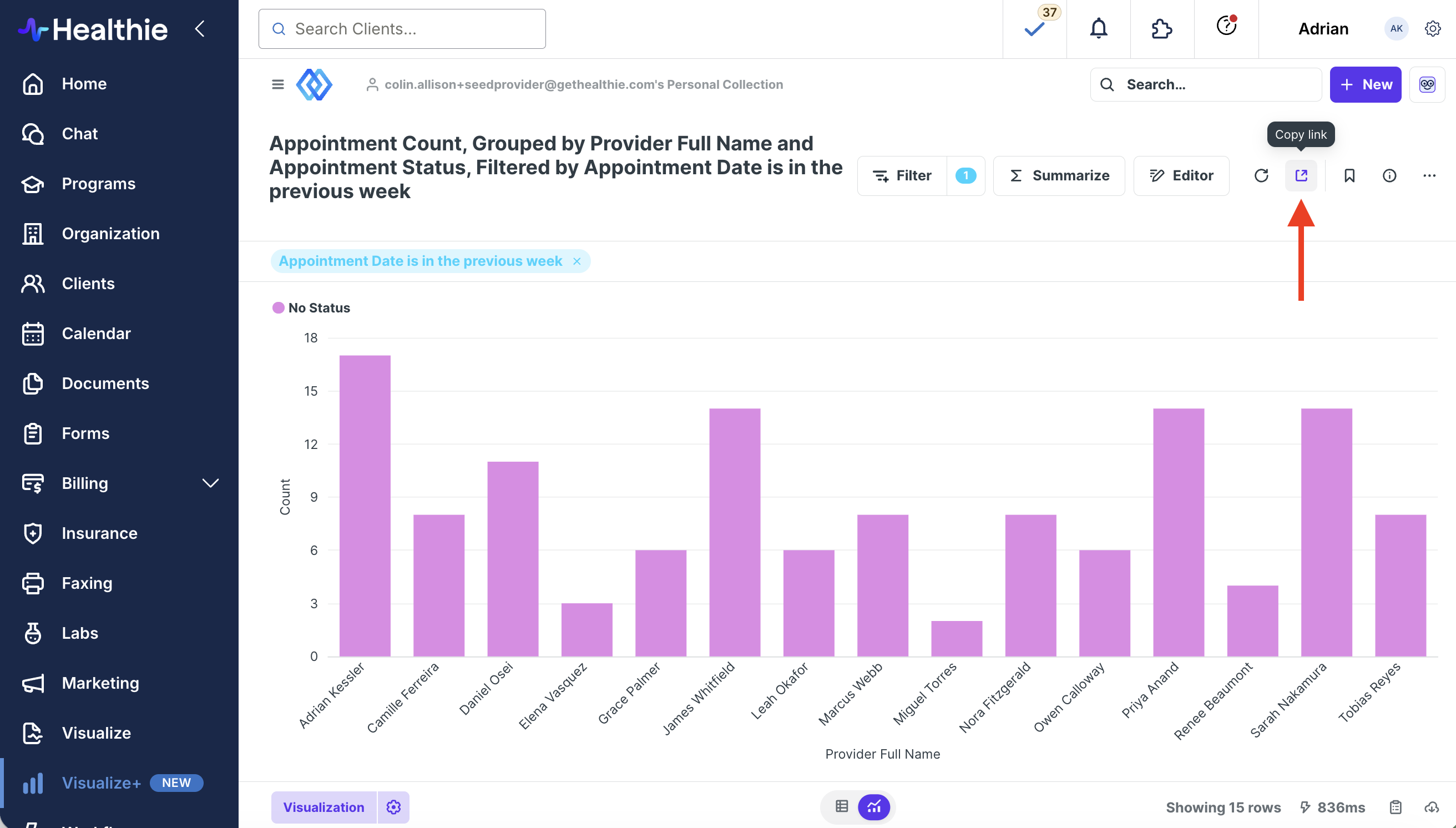
You can simply copy the URL of a saved question or dashboard by clicking on the arrow icon and sending it to a team member.
Note: The recipient must have access to the folder in which the dashboard or question is located in order to view the URL. Public links cannot be created to share with non-users and team members cannot see other’s personal collections.
What team members see
When colleagues open a shared folder or document, their specific access level applies to ensure information remains secure.
- Viewing and Editing: Team members can view shared items. Colleagues with editing permissions can also rename, move, share, and delete shared folders and documents.
Using the Published Reports folder
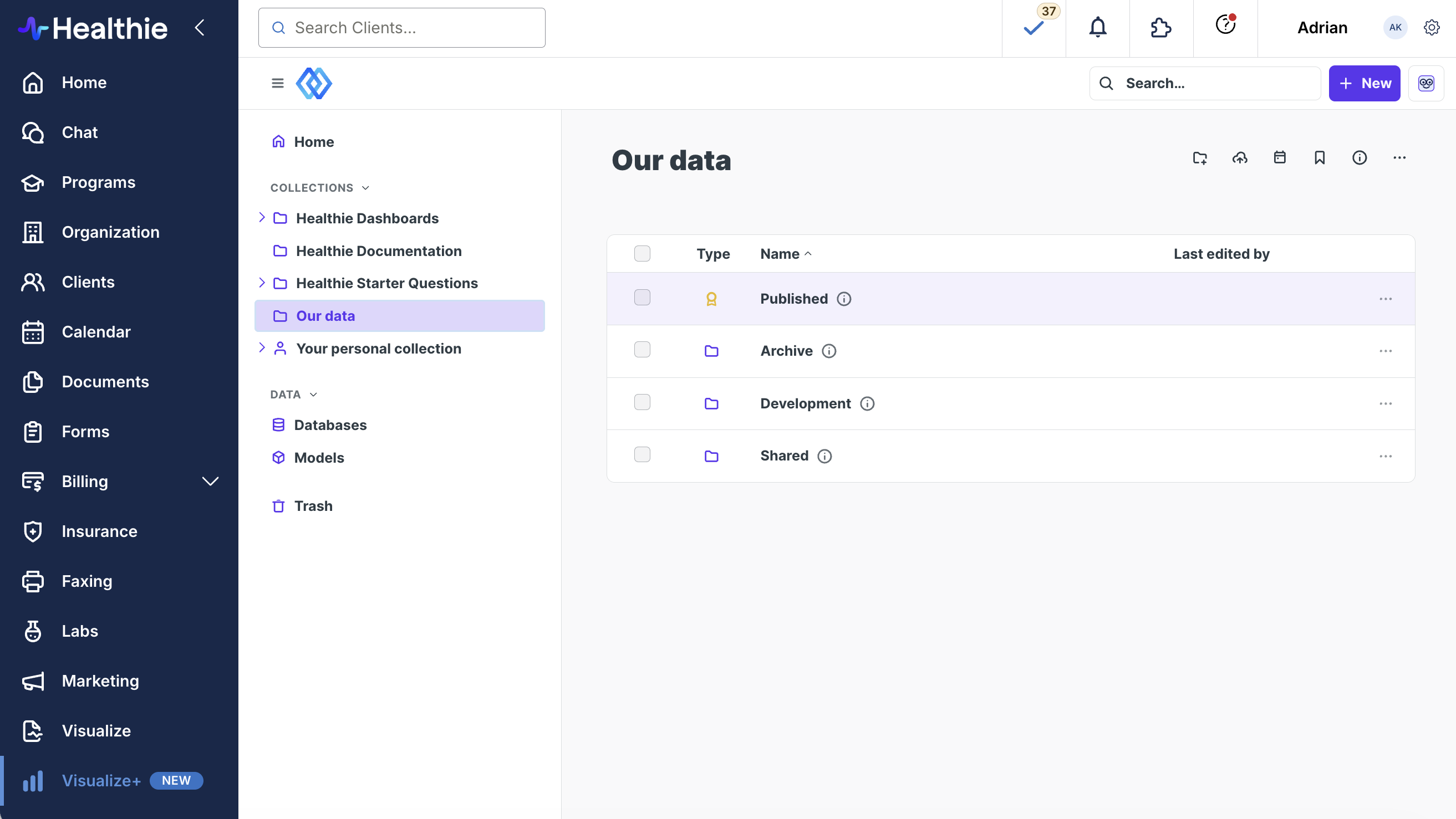
We recommend using the Published Reports folder as the destination for finalized work. Once your work is complete, accurate, and ready for your team to use, move it into this folder. This signals that the report is finalized and ready to serve as a reliable source of truth.
Using the Our Data folder in Your Workspace
Keep your teams perfectly aligned by utilizing your organization's shared folder space. Within the "Our data" folder you'll see:
- Published
- Archived
- Development
- Shared .
For workflow recommendations, click here.