
Visualize+: Custom Expressions
This guide will walk you through using Custom Expressions to create advanced calculations and derived metrics in the Question Builder. Custom expressions are intended for the more technical user.
What are Custom Expressions
Custom expressions are powerful formulas you can build within the Question Builder similar to formulas in spreadsheet software like Excel or Google Sheets that allow you to ask more complicated questions.
When to use Custom Expressions
You will want to use custom expressions instead of the standard summarize panel when your project goals require derived metrics. For instance, if you need to calculate a no-show rate, find the days between client visits, or determine conditional counts, custom expressions give you the control you need to achieve those goals.
Basic Expression Syntax
Writing a custom expression is straightforward once you know the basic building blocks:
- Referencing column names: You can refer to your existing data fields to use them in your calculations.
- Operators: Use standard mathematical operators (like addition, subtraction, multiplication, and division) to perform calculations.
- Functions: Use provided functions to evaluate data and return new values based on your criteria.
There are two basic types of expressions: Aggregations and Functions.
- Aggregations take values from multiple rows to perform a calculation i.e. finding the average value from all values in a column. Aggregations functions can only be used in the Summarize section.
- Functions do something to each value in a column i.e. searching for a word in each value (contains) or rounding each value up to the nearest integer (ceil).
Custom Expressions to Create Filters, Metrics and Custom Columns
Custom expressions are versatile and can be applied in several areas of the Question Builder:
- Custom columns: Add a brand new column to your data by calculating values, such as calculating a no-show rate by dividing the number of no-shows by the total appointments.
- Filters: Narrow down your data by filtering results where a calculated value exceeds a certain threshold.
- Metrics a.k.a. Summaries: Use your expression as a custom metric to summarize your data, helping you view high-level performance at a glance.
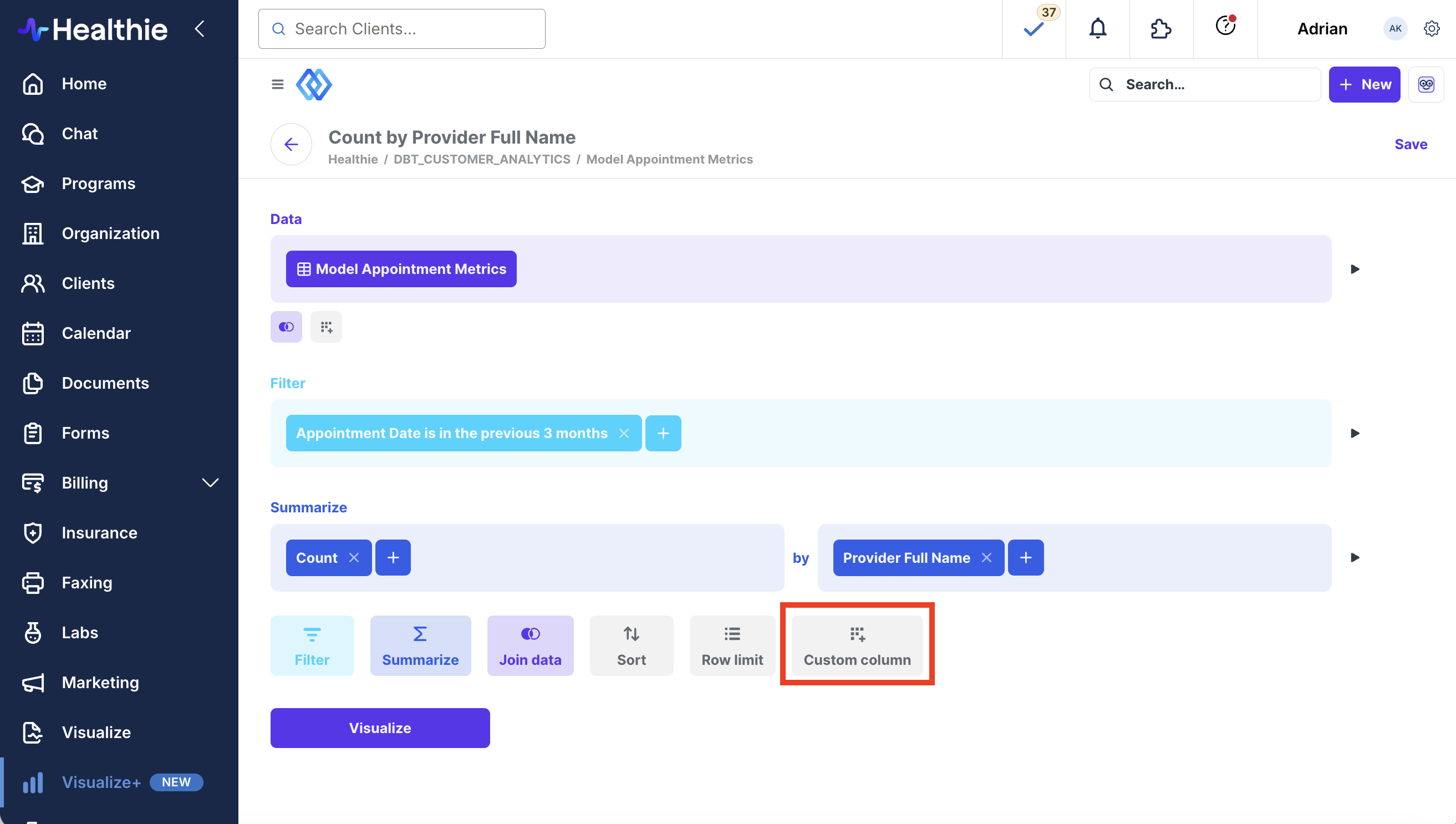
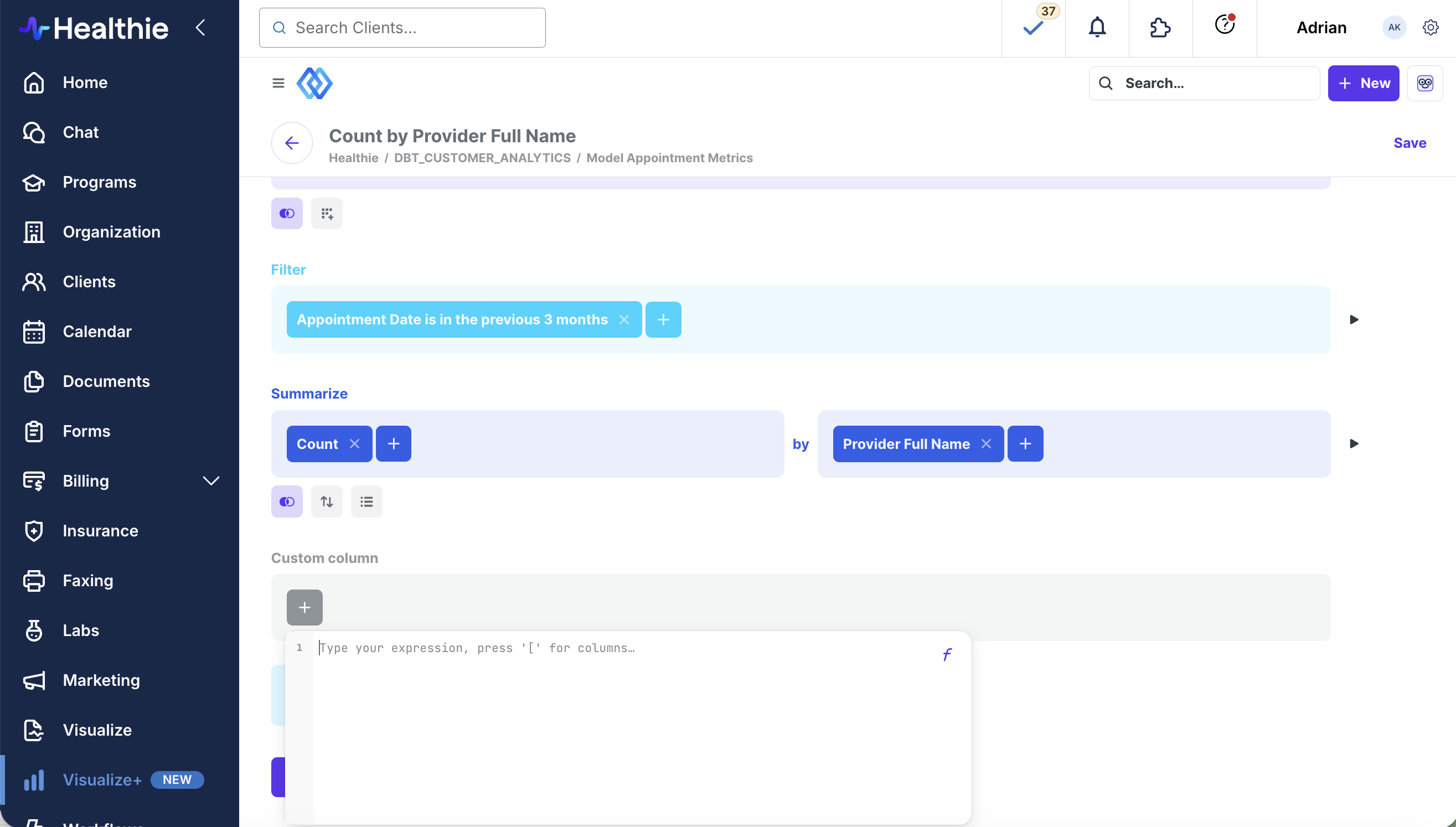
Using the Function Browser
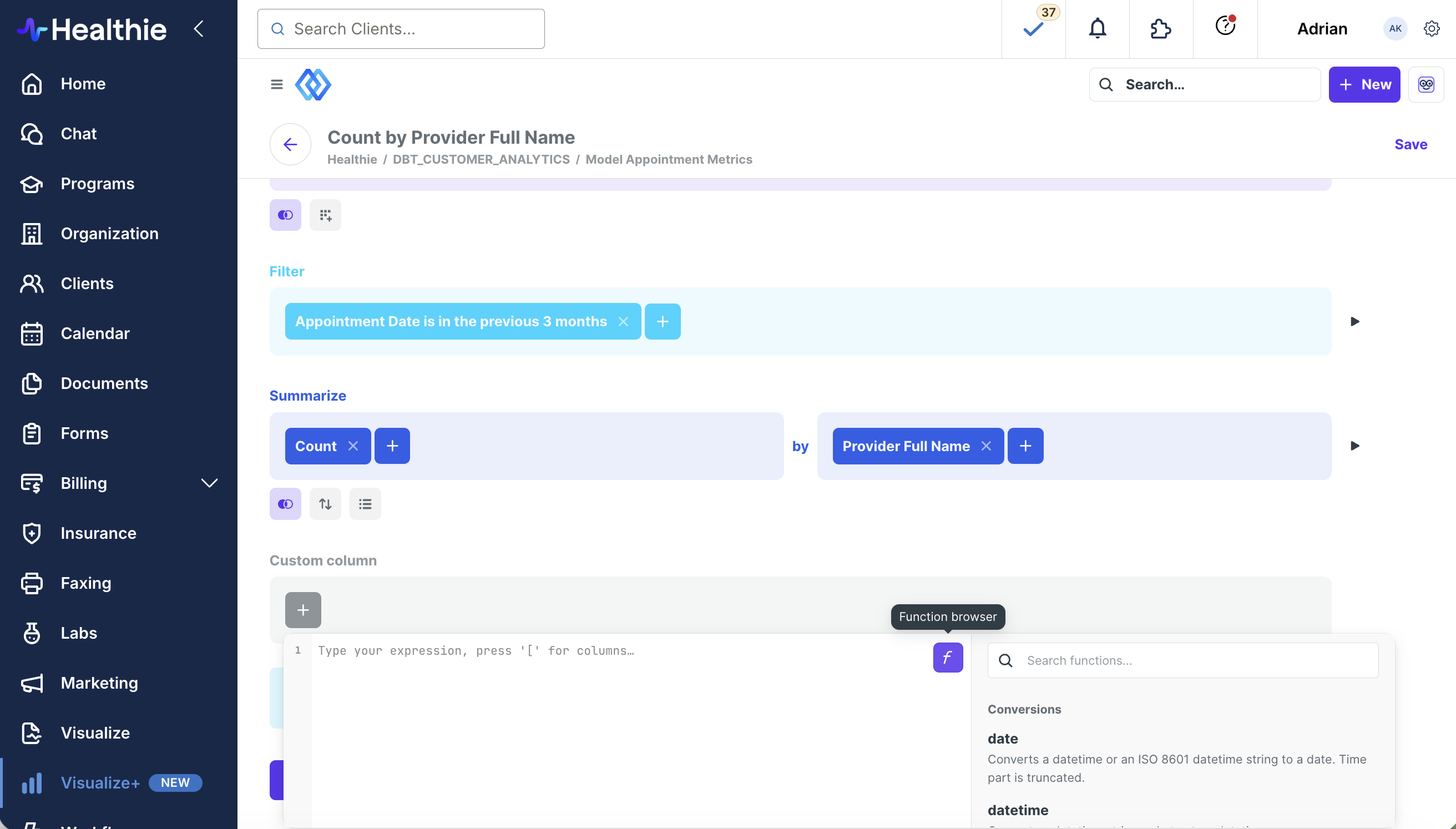
The expression editor includes a function browser to help you locate the function you need. The view the browser, click the "f" icon on the right of the expression editor.
Within the function browser you can utilize the search bar or scroll through the list of options.
Common Expression Examples
To help you get started, here are a few practical examples that are highly relevant to your daily scheduling and client management workflows:
- Days since last visit: Calculate the number of days elapsed since a client's previous appointment.
- Appointment completion rate: Track the percentage of appointments that were completed successfully.
- Conditional counts: Count only the appointments that meet a specific condition, such as counting where the status equals 'completed'.
Click here to view a comprehensive list of all expressions.