
Account Protection & Multi-Factor Authentication (MFA)
Healthie is healthcare‑critical and business‑critical software. Providers, admins, and patients rely on Healthie every day to deliver care, manage sensitive health data, and run their practices. Protecting access to your account is essential.
In this article
What is Multi‑Factor Authentication (MFA)?
MFA adds an extra layer of security on top of your password to help prevent unauthorized access, even if a password is compromised.
MFA requires you to verify your identity using something you know (your password) plus something you have or are (like a code sent to your phone or an authenticator app).
This approach significantly reduces the risk of account takeover and is a widely recommended best practice for healthcare software.
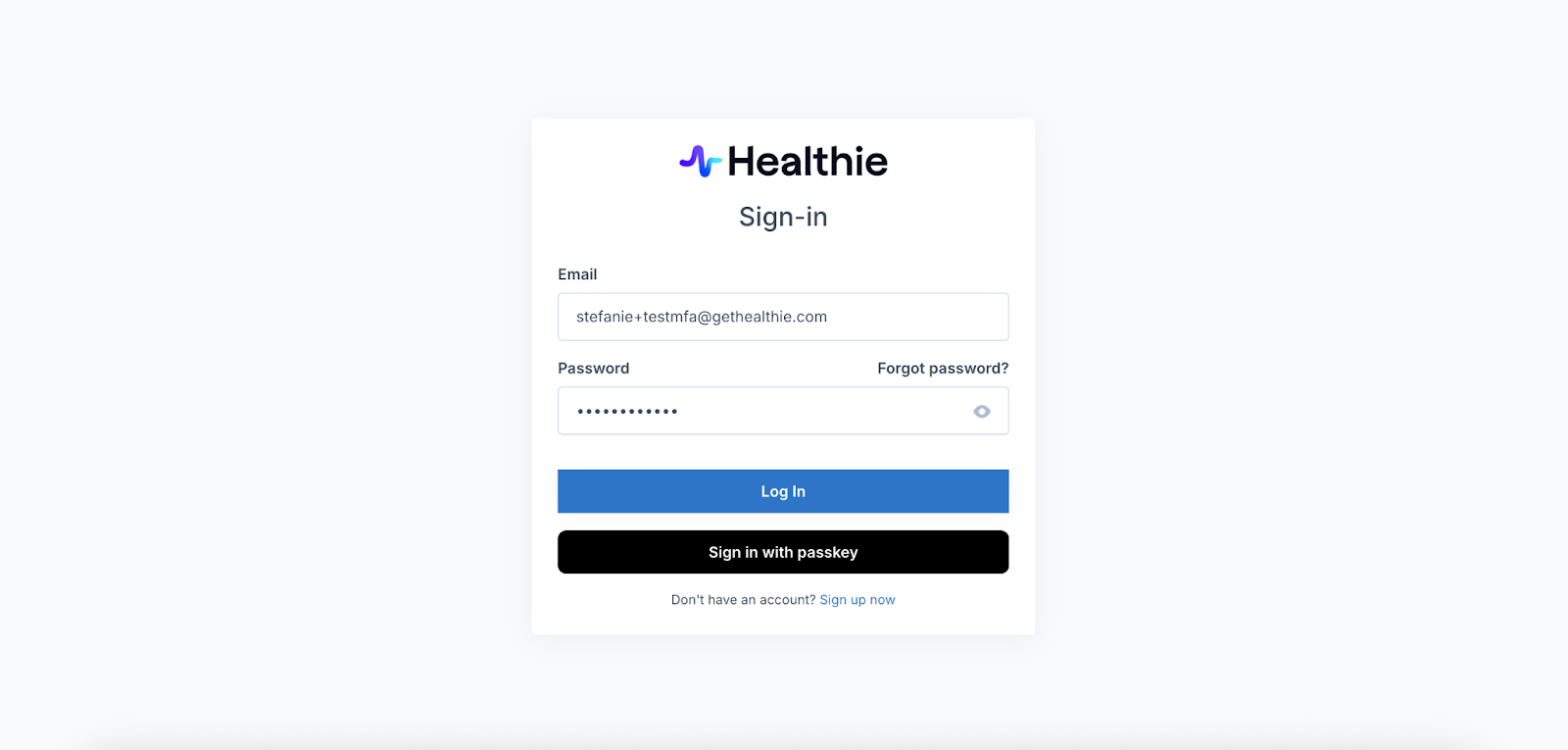
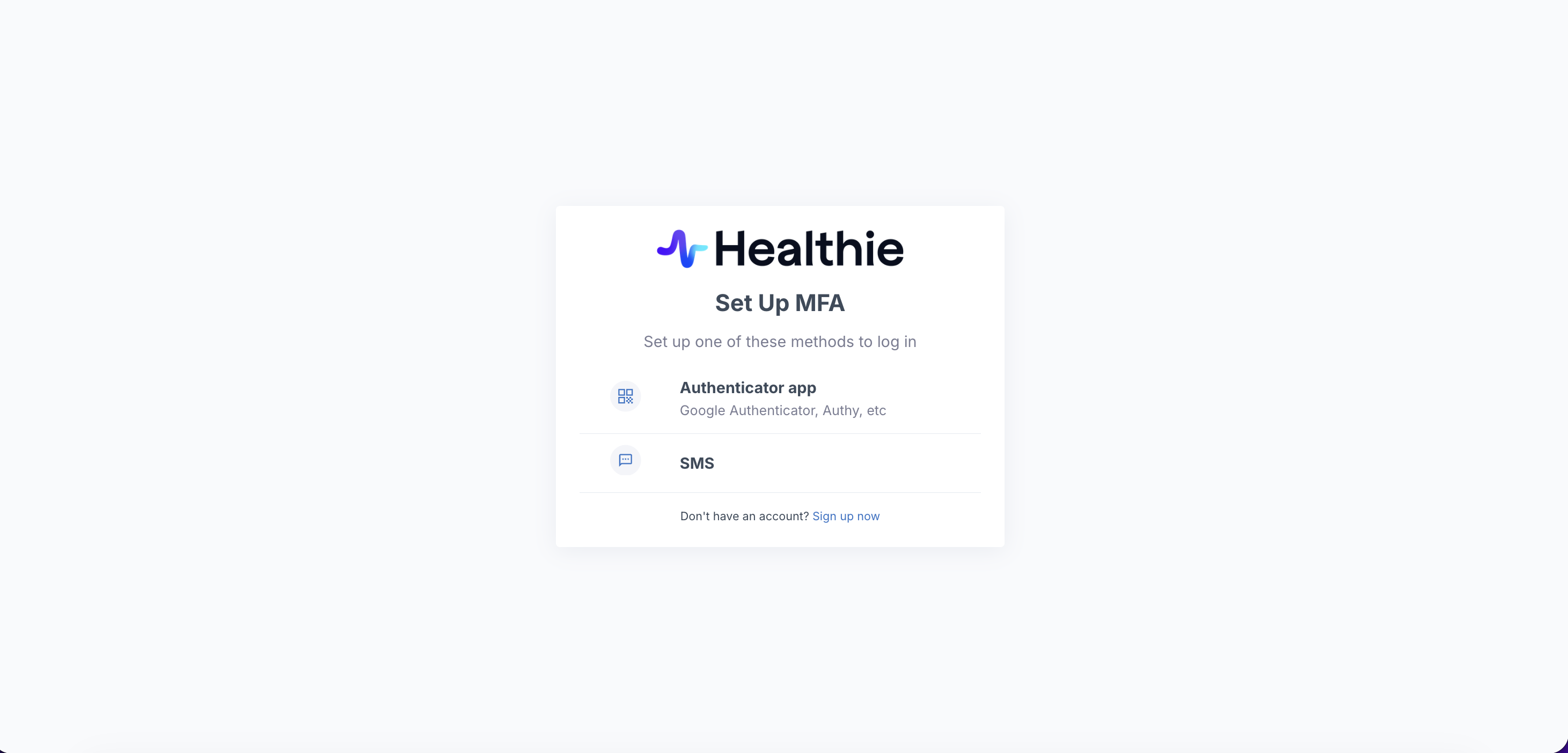
MFA Options Available in Healthie
When MFA is enabled for your account, you’ll be prompted to choose one or more of the following authentication methods during setup:
SMS (Text Message)
- A one‑time code is sent to your phone number
- Ensure your phone number is accurate and up to date
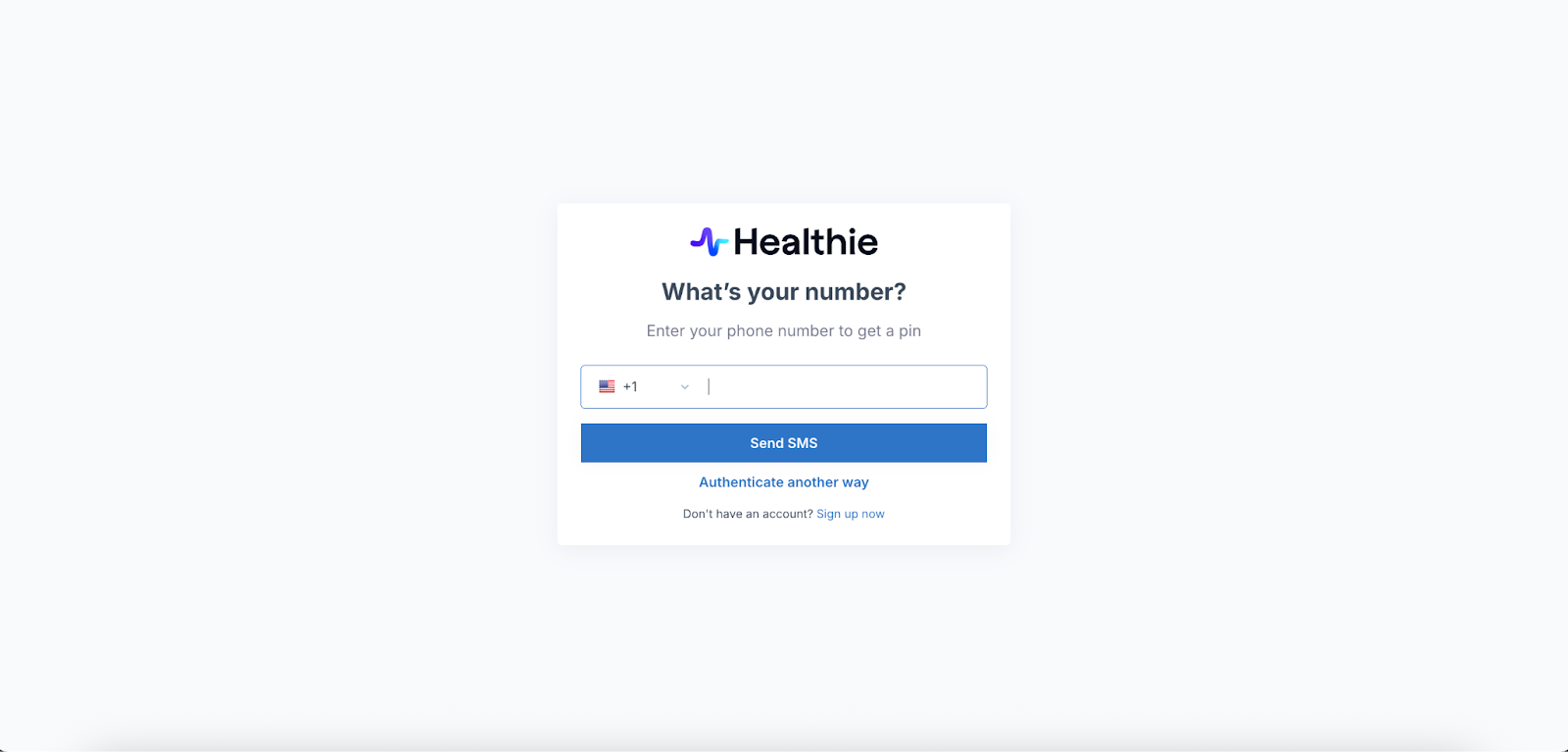
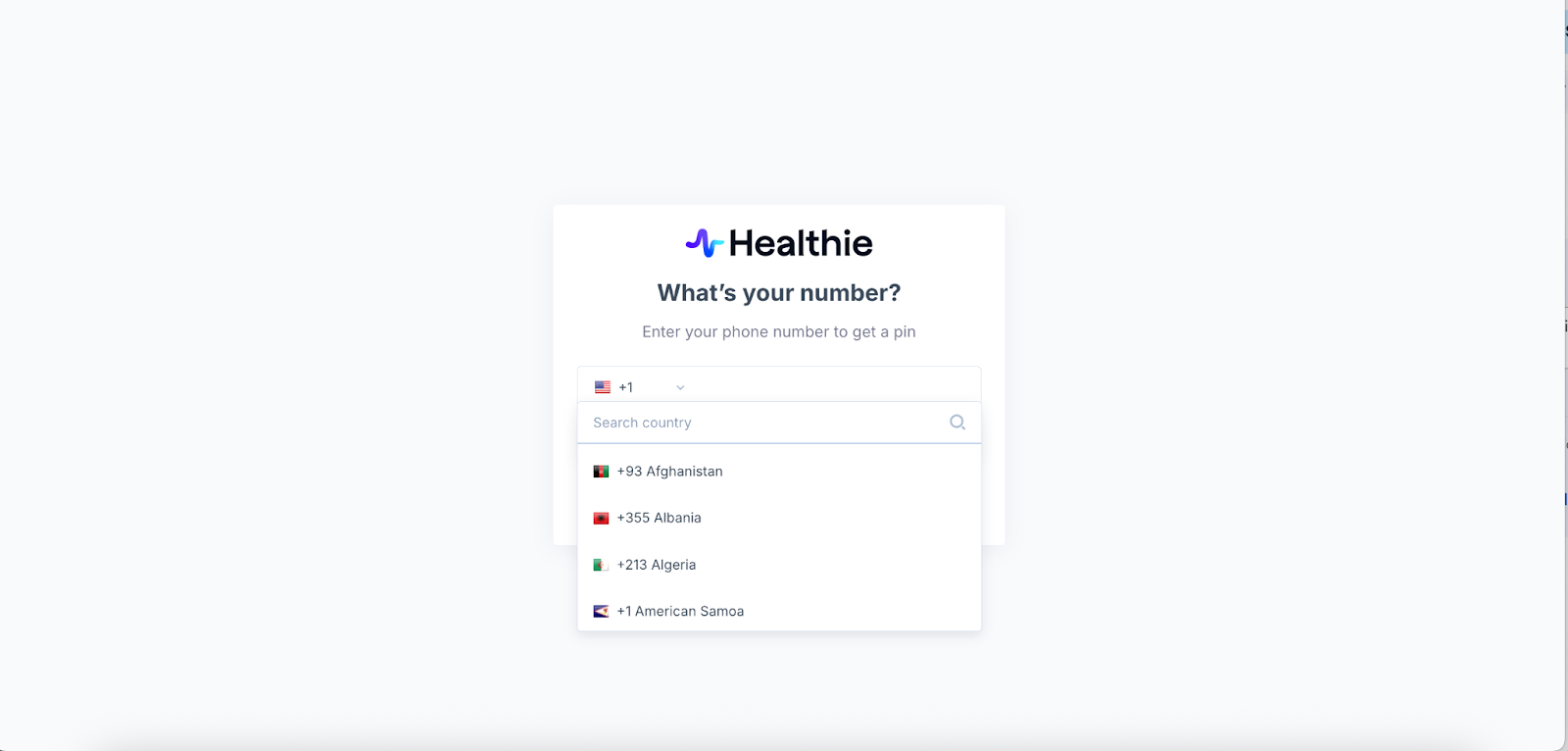
If your phone number is outside the United States, use the country dropdown to select your country, then enter your full phone number.
Authenticator App
- Uses an app (such as Google Authenticator, Authy, or 1Password) to generate time‑based codes
- Does not rely on email or SMS delivery
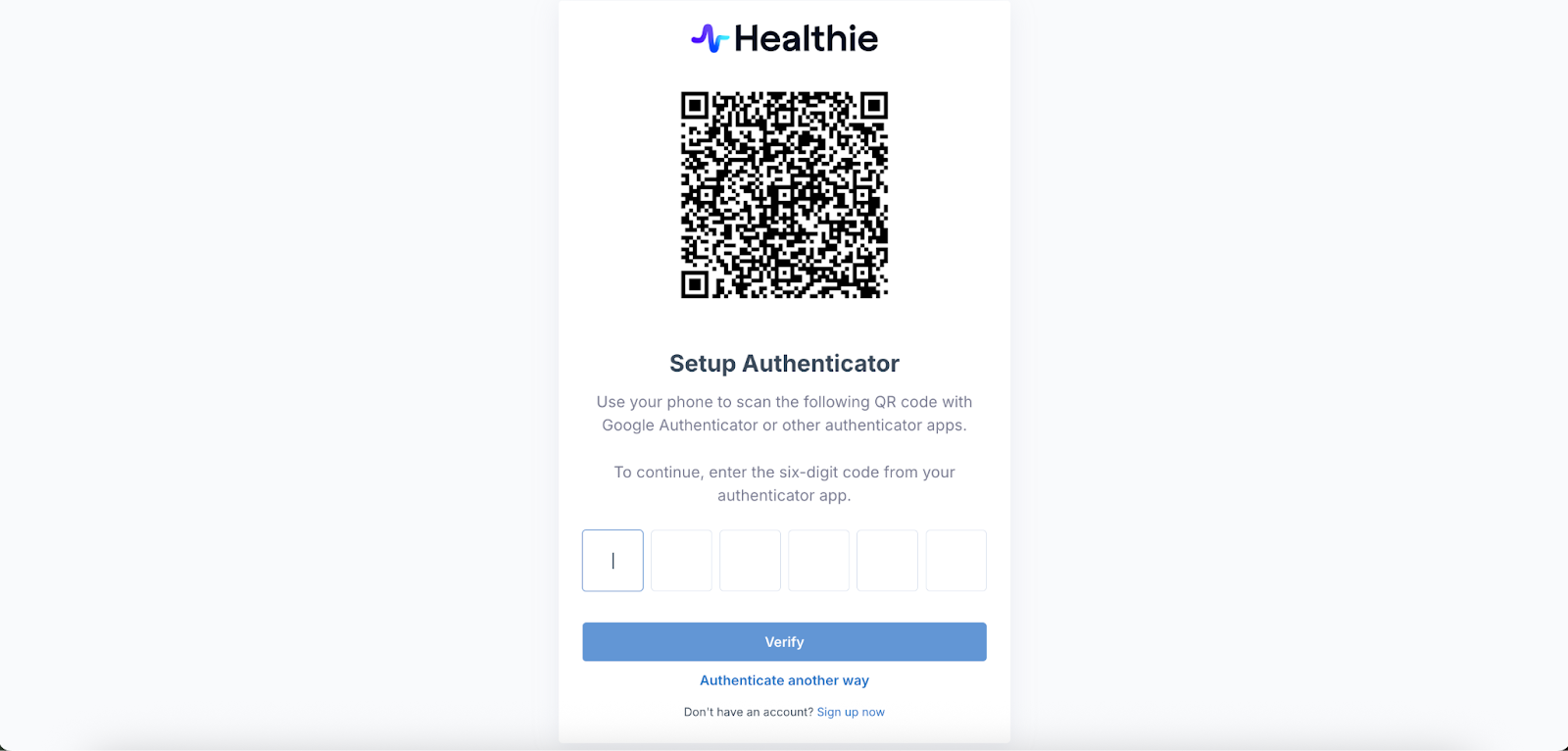
Open your authenticator app and scan the QR code displayed in the pop-up. This will add a new account to your authenticator named Healthie with your login email address displayed.
Enter the 6-digit authentication code once generated.
The app name will display as "Healthie" by default in all authenticator apps. For all white-label customers (semi and full), the default will be your branded company name.
For white-label organizations with sub-orgs, the Parent Org name will display by default unless the sub-org(s) are independently white-labeled.
Enabling MFA in Healthie
Providers and Support staff can self-enable MFA directly from their account settings. Navigate to the gear icon on the top-right of your dashboard, select Settings, and click the Password & Security button. This will open a security portal where you can set up MFA and manage your authentication preferences.
This process is designed to be seamless and gives you full control over your account's security.
Providers & Support staff can self-enable MFA for your account via Account Settings > Password & Security. If an organization requires MFA, it cannot be self-disabled. Learn more here.
What Providers Experience During Sign‑In
Once MFA is enabled:
- Providers log in with their email and password as usual
- They are prompted to set up MFA if they haven’t already
- They choose their preferred authentication method(s)
- A backup recovery code is generated
Trusted Devices
- Providers can choose to remember a trusted device for 14 days
- During this period, MFA won’t be required again on that device
Passkeys
- A password‑less sign‑in method tied to your device
- Uses biometrics (Face ID, Touch ID) or device PINs
- More secure and easier than remembering passwords
What are passkeys?
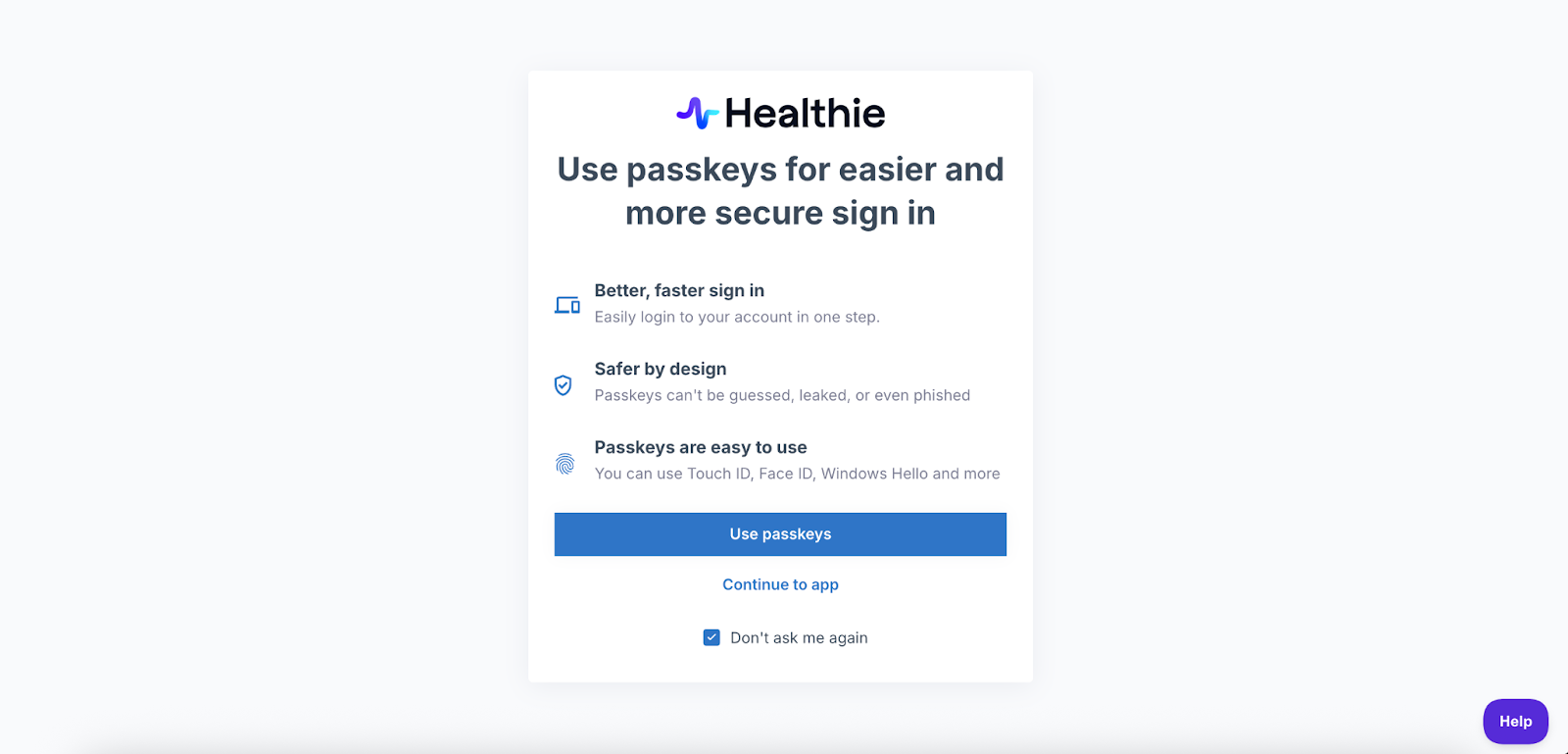
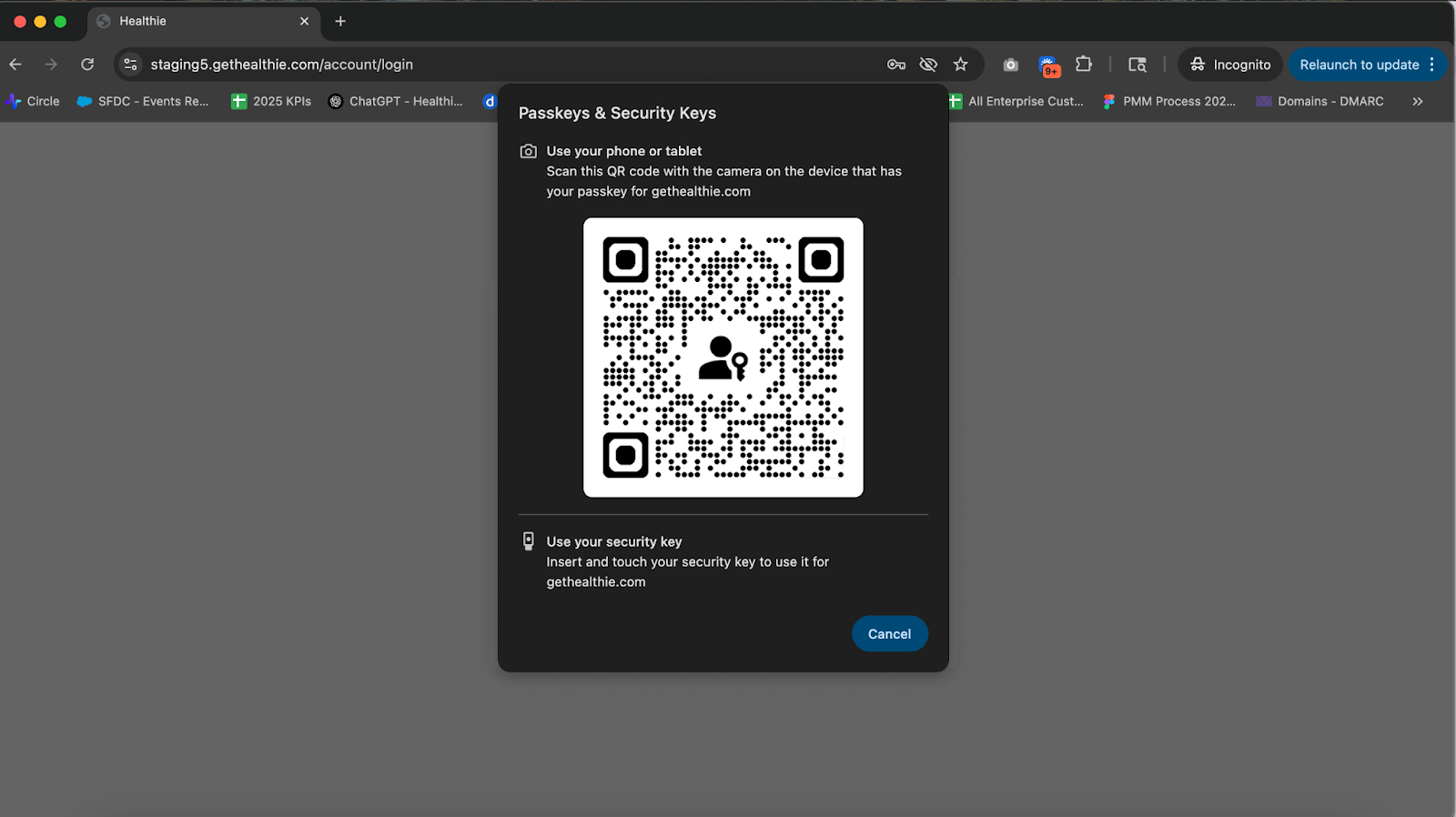
Passkeys replace traditional passwords with cryptographic keys stored securely on your device. They can’t be reused, guessed, or phished, making them one of the most secure authentication options available today.
Passkeys do not replace a multi-factor authentication login, but they can be used instead of entering a password. If MFA is required for an account, a second authentication method will still be required.
Users can select “Don’t ask me again” to dismiss the passkey prompt. Please note that passkeys are currently hidden and not supported on Android devices.
Backup Codes: Best Practices
During MFA setup, each user receives a backup recovery code.
We strongly recommend:
- Storing the backup code in a secure password manager
- Saving it somewhere accessible but protected
- Never sharing it via email or chat
Backup codes are critical if you lose access to your primary authentication method.
See Admin Actions & Troubleshooting below to learn how to reset MFA (and reset backup code) if a team member cannot recall their code.
Email Verification & Security Notifications
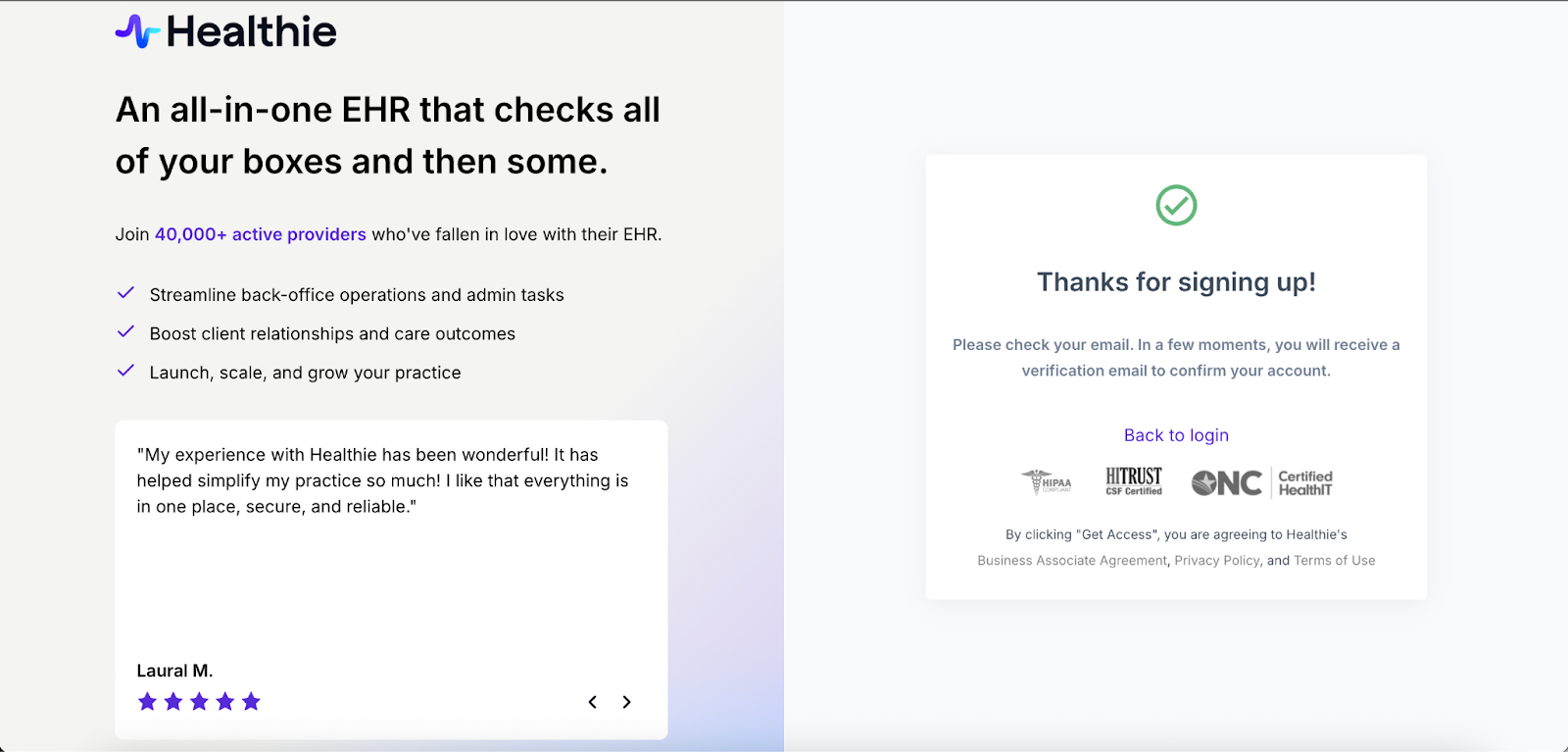
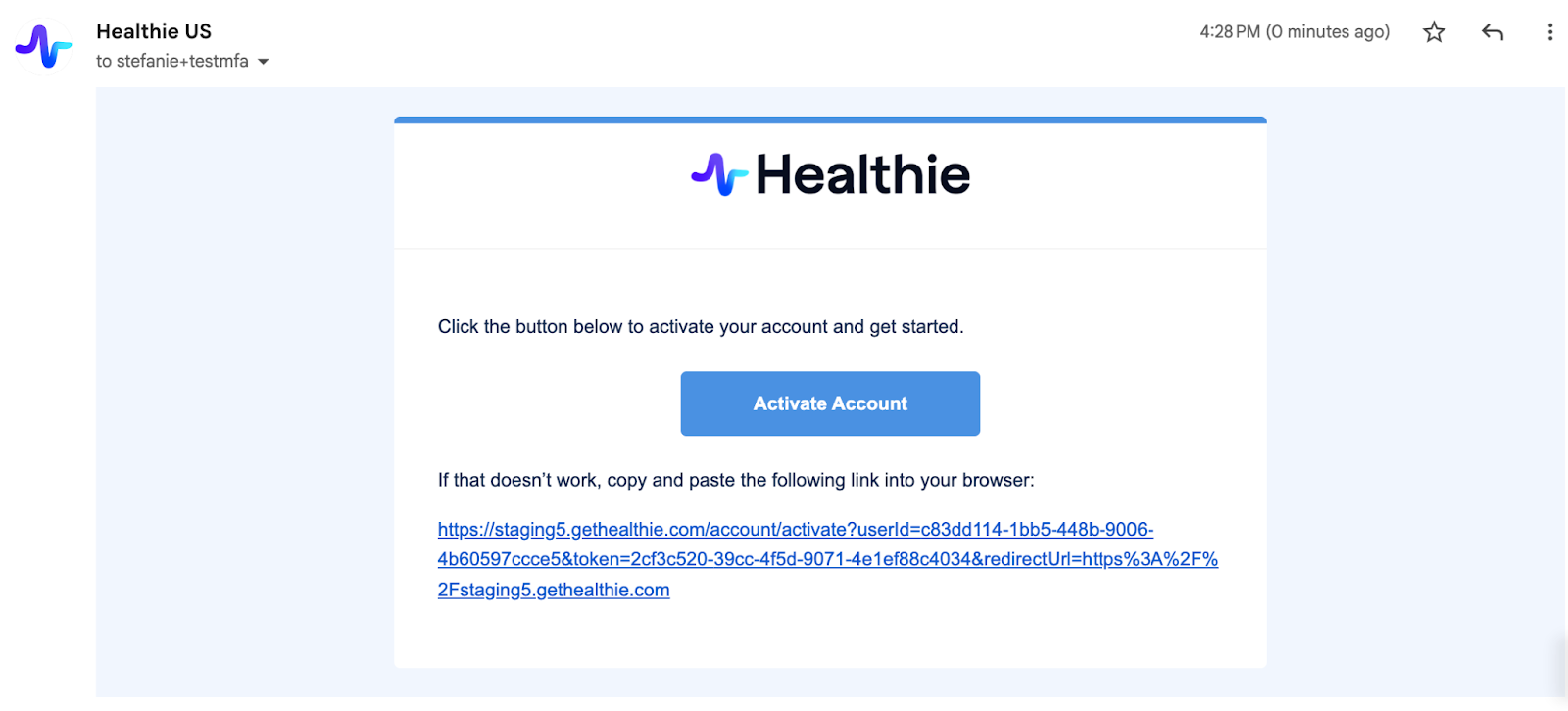
When signing up for Healthie for the first time, users are required to verify their email address before accessing the platform.
A verification email is sent with a link that, once clicked, completes account activation and allows the user to sign in using their credentials. This activation link is valid for 7 days.
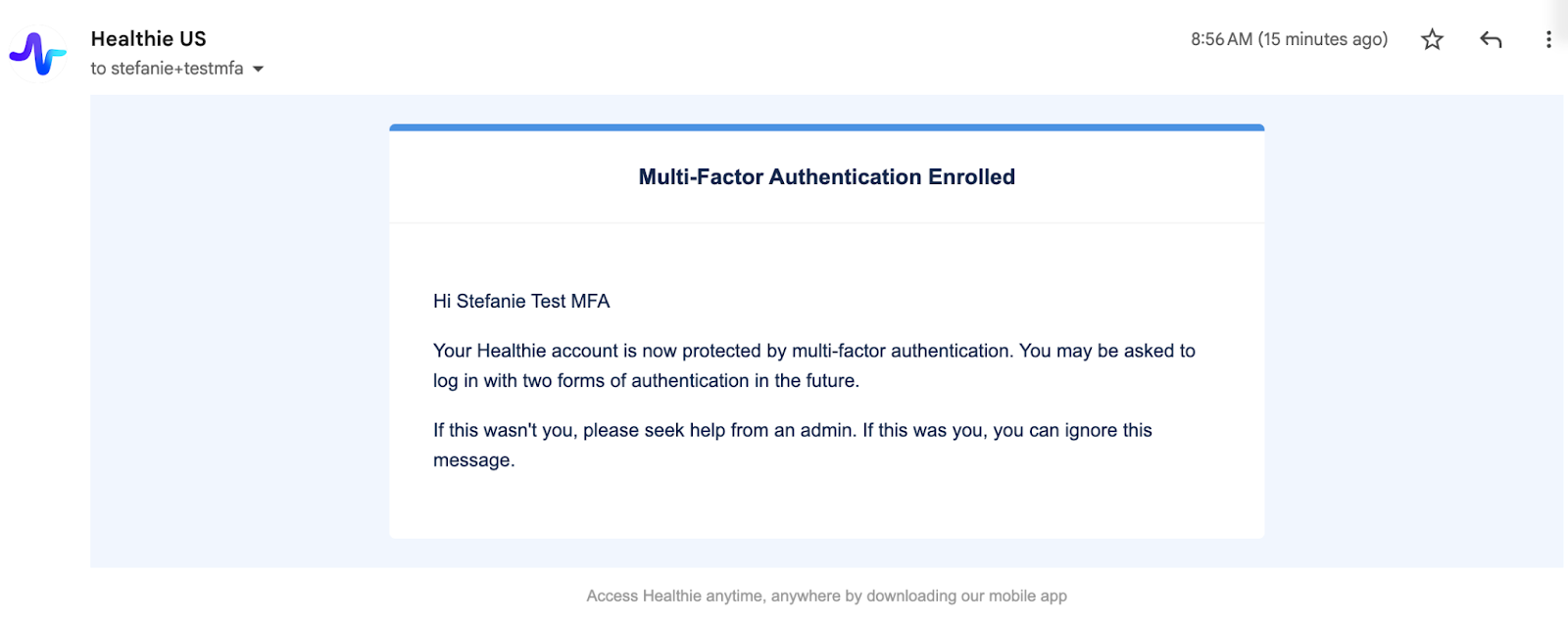
When MFA is enabled or updated on a user account:
- The user receives an email notification confirming the change
- This helps alert users to security updates on their account
Advanced Security Rules & Notifications
Our authentication system includes multiple layers of security monitoring and enforcement, which may include: bot detection, recognizing unknown devices, multiple failed password attempts, breached password detection, impossible travel detection, suspicious IP analysis, stale account management, and email credibility checks.
These controls may prompt additional verification, restrict access, or flag activity for review.
Admin Actions & Troubleshooting
Reset MFA for a Provider
Admins can reset MFA for a provider if they need to re‑establish access.
Use this when a provider:
- Gets a new phone number
- Loses access to their authenticator app
- Needs a new backup code
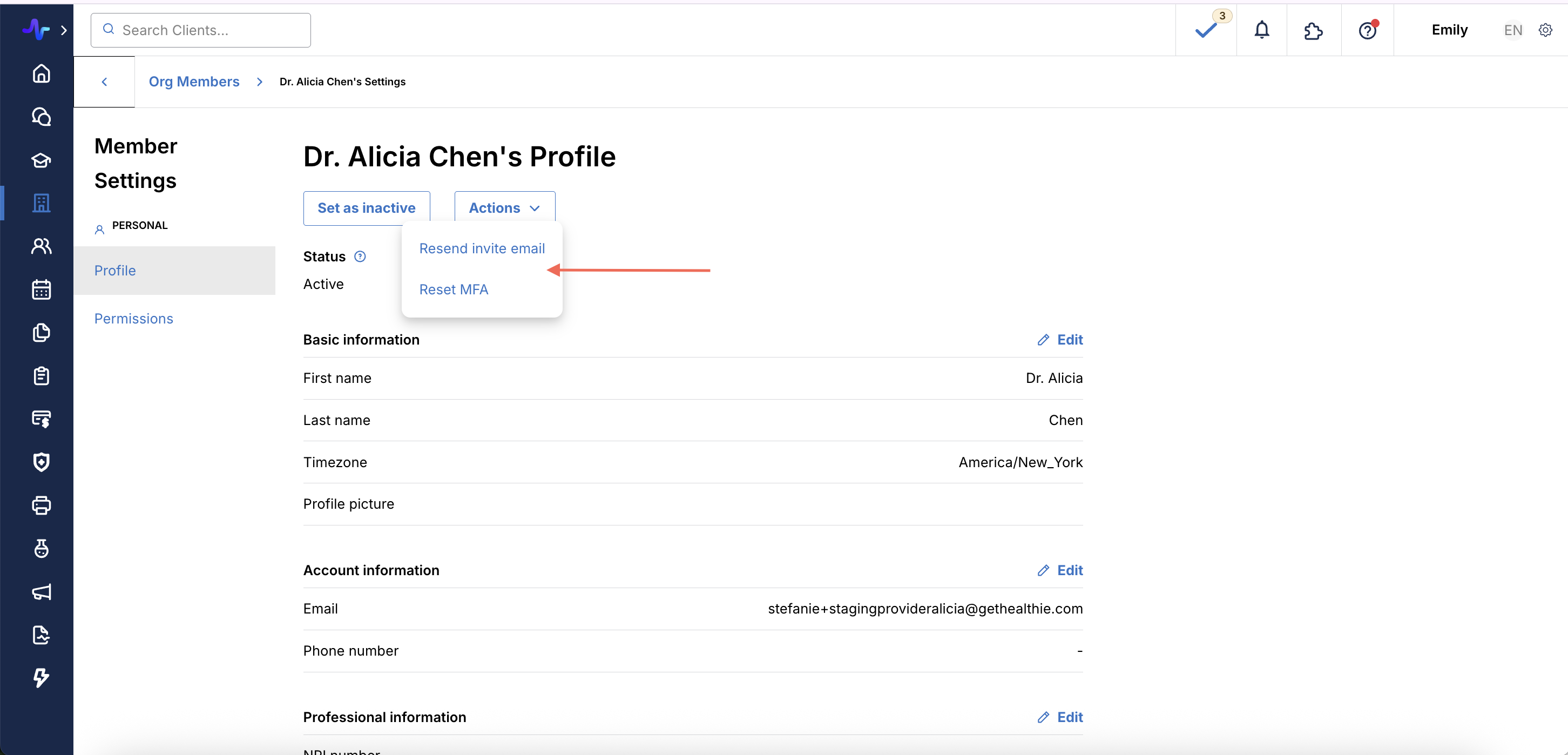
How to reset MFA:
- Navigate to the provider’s profile
- Select Reset MFA (located near the “Resend Invitation Link” option)
- The provider will be prompted to re‑set MFA at their next login
Incorrect Email Address for a New Provider
If an admin enters the wrong email address when adding a provider:
- Update the email address in Healthie
- Select Resend Invitation Link
The provider will then be able to complete account setup successfully.
FAQs
Can my office staff use shared logins to respond to client messages?
No, shared logins are not supported. Instead, office staff can securely respond to client messages on behalf of a healthcare provider using Healthie’s Organization Chat. Messages are sent with full transparency, so clients can see who is responding, while maintaining appropriate access controls and audit ability.
Is email available as an MFA method?
At this time, email is not supported as a default multi-factor authentication (MFA) method. MFA options currently include authenticator apps, SMS, and passkeys. These options provide stronger protection against unauthorized access.
If a user signs in with a passkey and Multi-Factor Authentication (MFA) is enabled, will they still be required to complete MFA?
Yes. If MFA is enabled for the account or organization, users will still be required to complete the MFA challenge after authenticating with a passkey. Passkeys do not replace MFA requirements, they are part of the authentication process, but MFA enforcement will still apply when enabled.
My account periodically signs out, is that normal?
Yes, sessions will automatically time out (on web or the mobile app) every 3 hours to ensure your account is kept secure.
How does MFA/2FA work across different login methods?
MFA is enforced for all accounts regardless of login method. However, if a device has been previously verified, MFA may be skipped for up to 14 days on that device.
Why am I sometimes not prompted for MFA when logging in with email and password?
This is expected behavior. When you successfully complete MFA on a device, that device is remembered for up to 14 days. During that window, subsequent logins from the same device will not require a second factor. Once the 14-day period expires, MFA will be required again.
Can MFA be enforced on every login, even on remembered devices?
Not by default, but this may be configurable for Enterprise organizations. If you'd like to disable the device-remembering feature so that MFA is required on every login, please contact your account manager or our support team.
Can we restrict our organization to passkey-only login?
Passkey-only login is not currently supported. Users can continue to log in with email and password subject to standard MFA requirements. We'll share updates if this becomes available.