
Customize Your Client Self-Scheduling Experience
A smooth, on-brand booking experience builds trust before a client ever attends their first appointment. Healthie gives you granular control over which appointments clients can book, what they see when selecting a service, and how your practice is presented throughout the process — so you can reduce back-and-forth and keep scheduling simple.
In this guide, we walk through how to configure your self-scheduling settings, personalize the client-facing booking experience, and preview your booking link end-to-end.
In This Article:
Enable Clients to Self-Book Appointment Types
Within Healthie, you have the option to make each individual appointment type "Bookable" by clients.
- Navigate to the Gear icon on the top right of your provider account > Settings
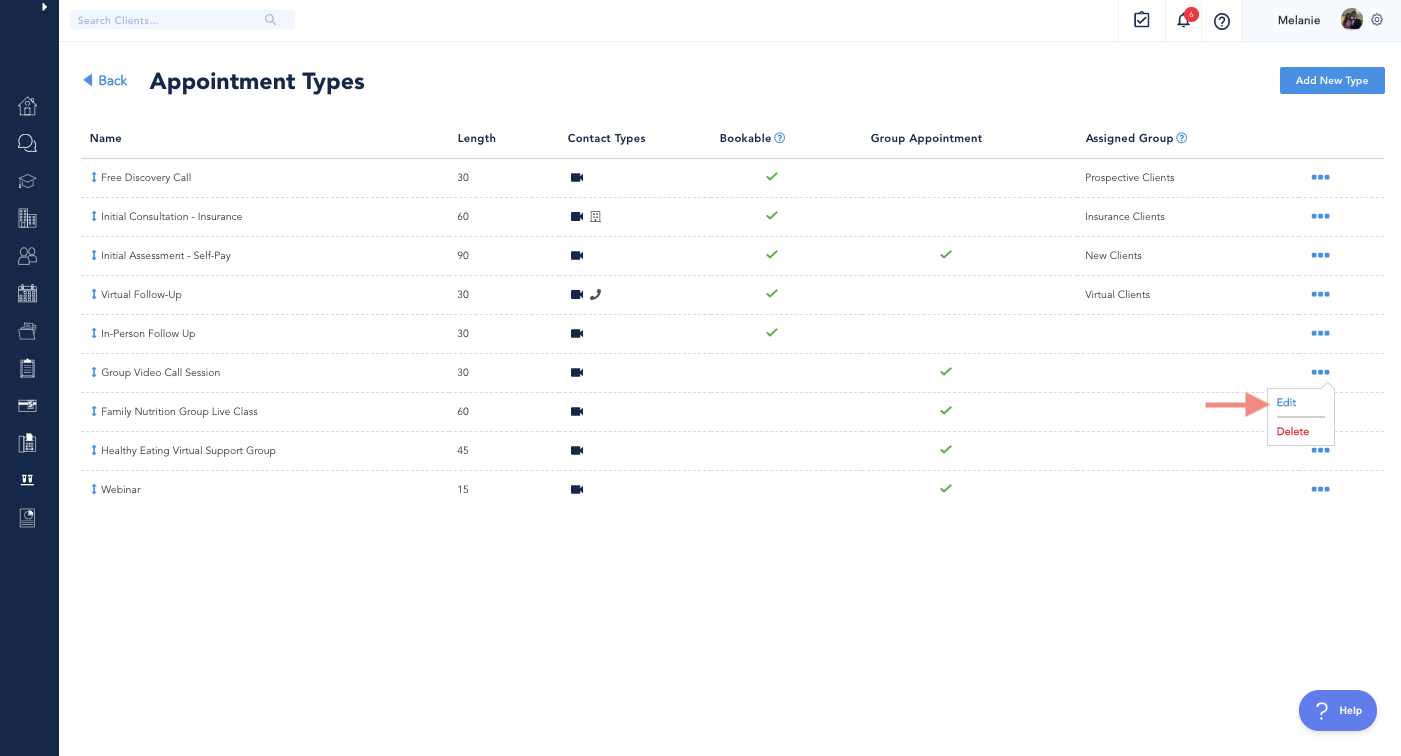
- Select Appointment Types from the menu
- Find the appointment type you'd like to adjust booking settings for > Click [...] > Edit
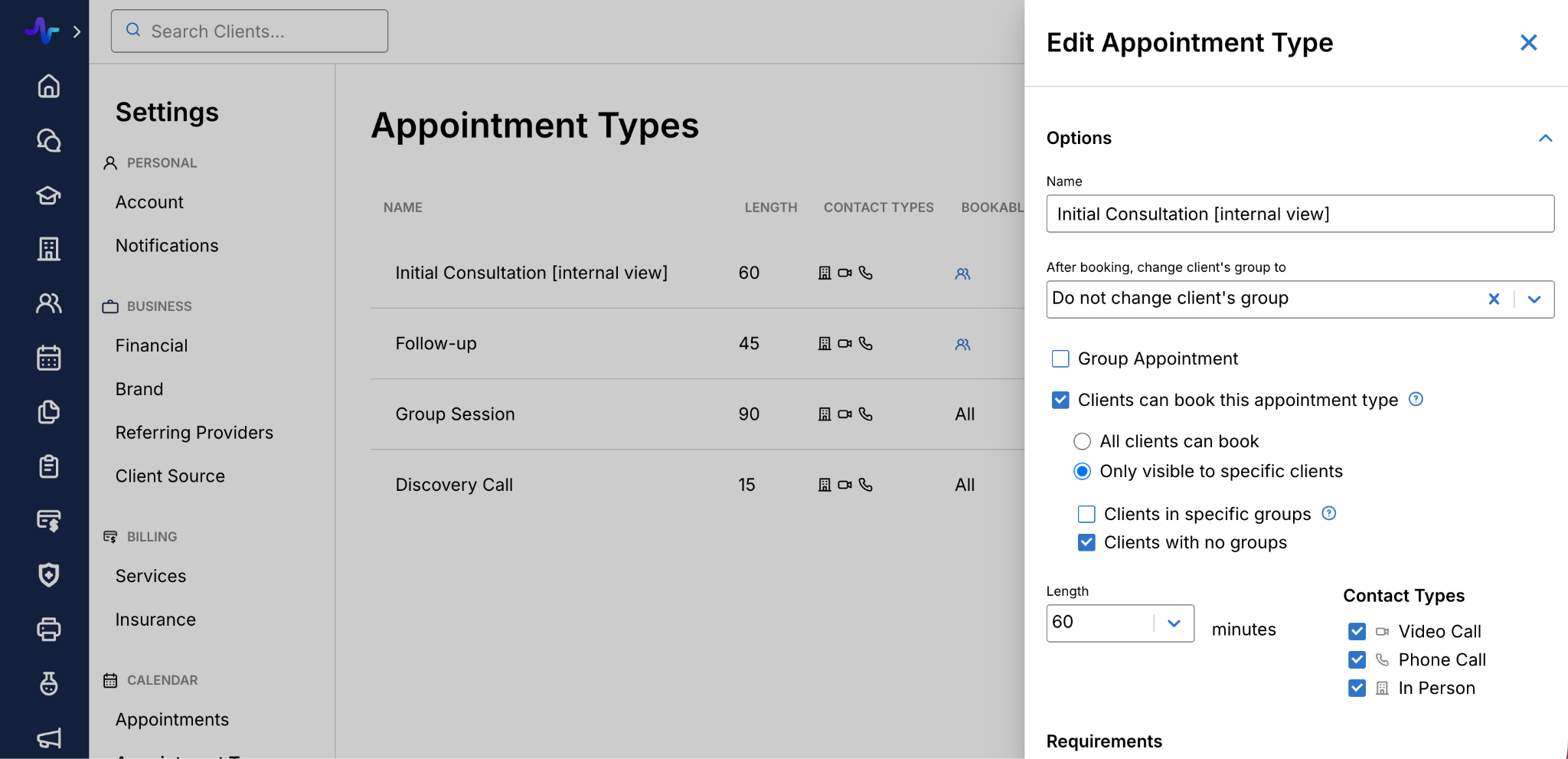
- A side panel drawer will appear > Select or deselect the Clients can book this appointment type option
- Further nuance can be applied to allowing all clients, only certain clients, or clients in specific groups to be allowed to book
Note: Clients can still self-book an "unbookable" appointment type if you share the embed or sharing URL for the appointment. For example, if you share the booking URL with the client via direct message or email, they can follow the prompts to book.
If you make an appointment "bookable" by clients, clients will see it as a visible option when viewing your calendar as well as when logged into their Healthie Client account. If disabled, clients will not see, or have the option to book, this specific appointment.
Add Client-Facing Appointment Change & Description
You can customize what your clients see when booking appointments by editing in the Self-Scheduling tab.
- Go to Settings > Self-Scheduling
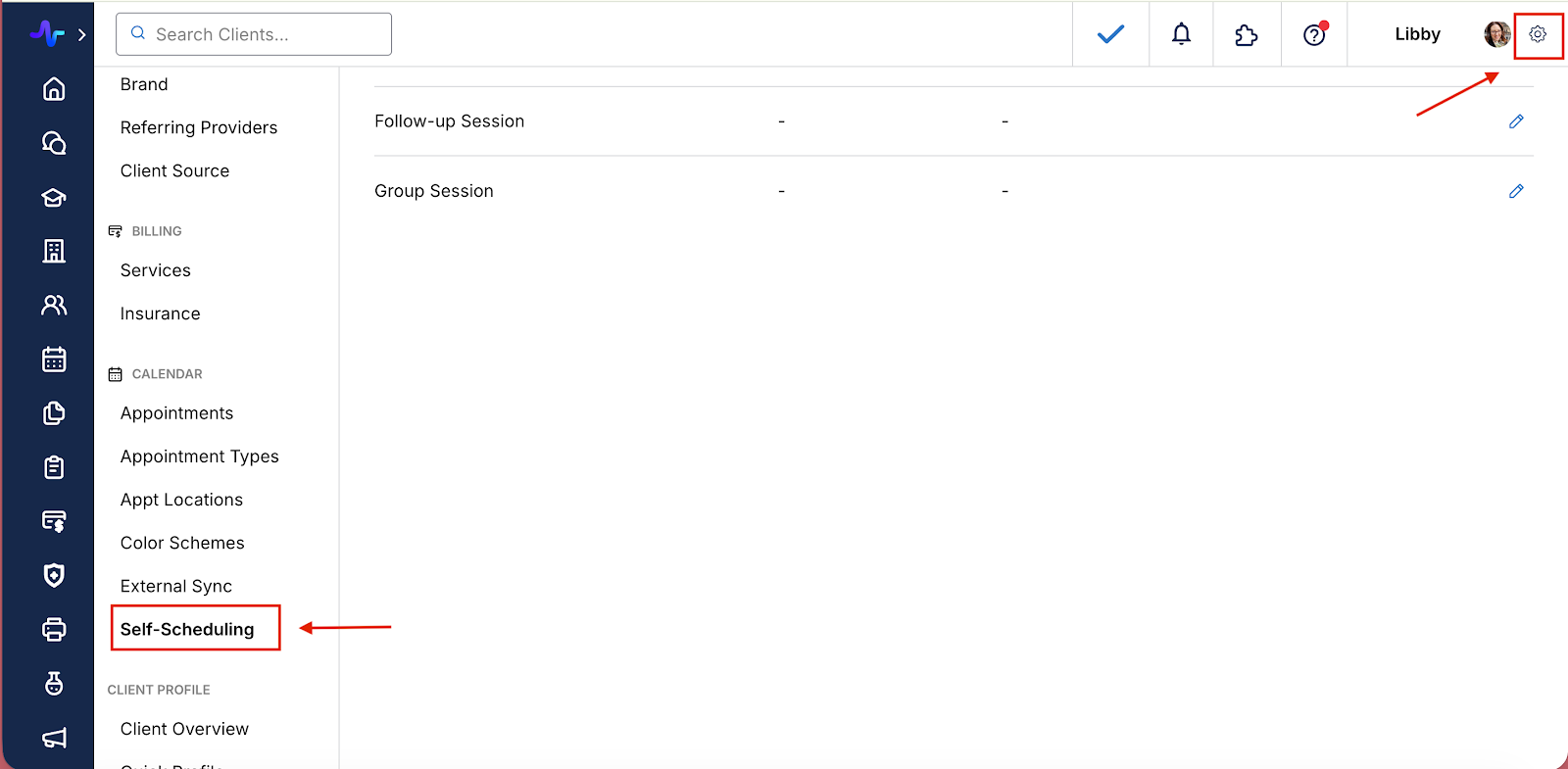
Here you will see your appointment types that you've enabled for client booking.
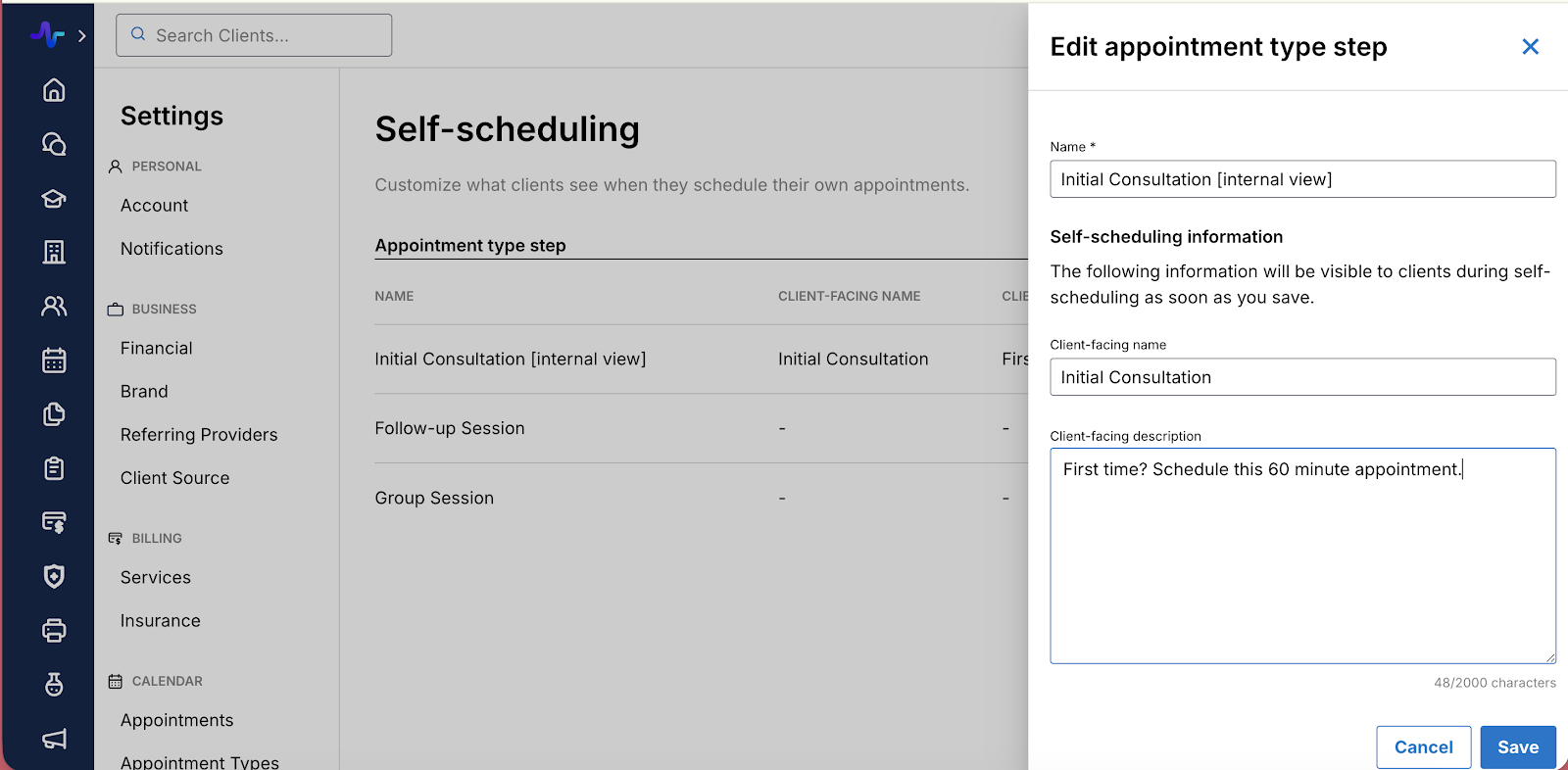
- Click the pencil icon to edit the client-facing name and description of the appointment type.
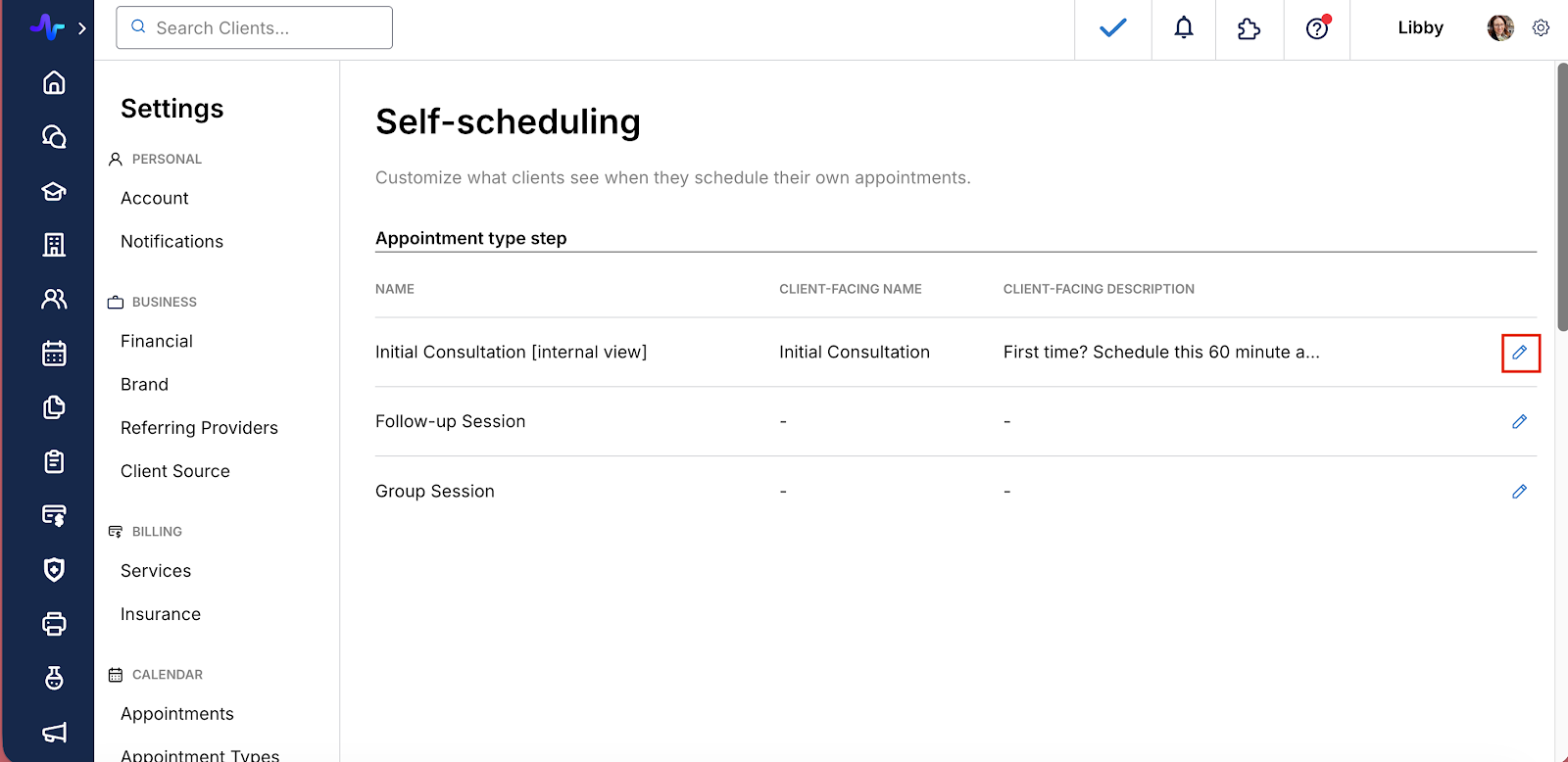
In this edit modal, you are able to create an appointment type name and description that clients will see, that is separate from your internal appointment name. This is helpful when clients are selecting which appointment to book. You can include helpful information, such as how long the appointment is, who should book it, etcetera.
- The Name* is for internal-view-only, and will not be visible to clients unless you do not add a client-facing name.
- The Client-Facing Name is what clients will see anywhere they see an appointment name (booking, calendar, reminders).
- The Client-Facing Description is what clients will see when selecting an appointment type in the scheduling process.
- Be sure to always click Save to apply your updates.
What this looks like for clients on the Mobile app:

Add Provider Bios
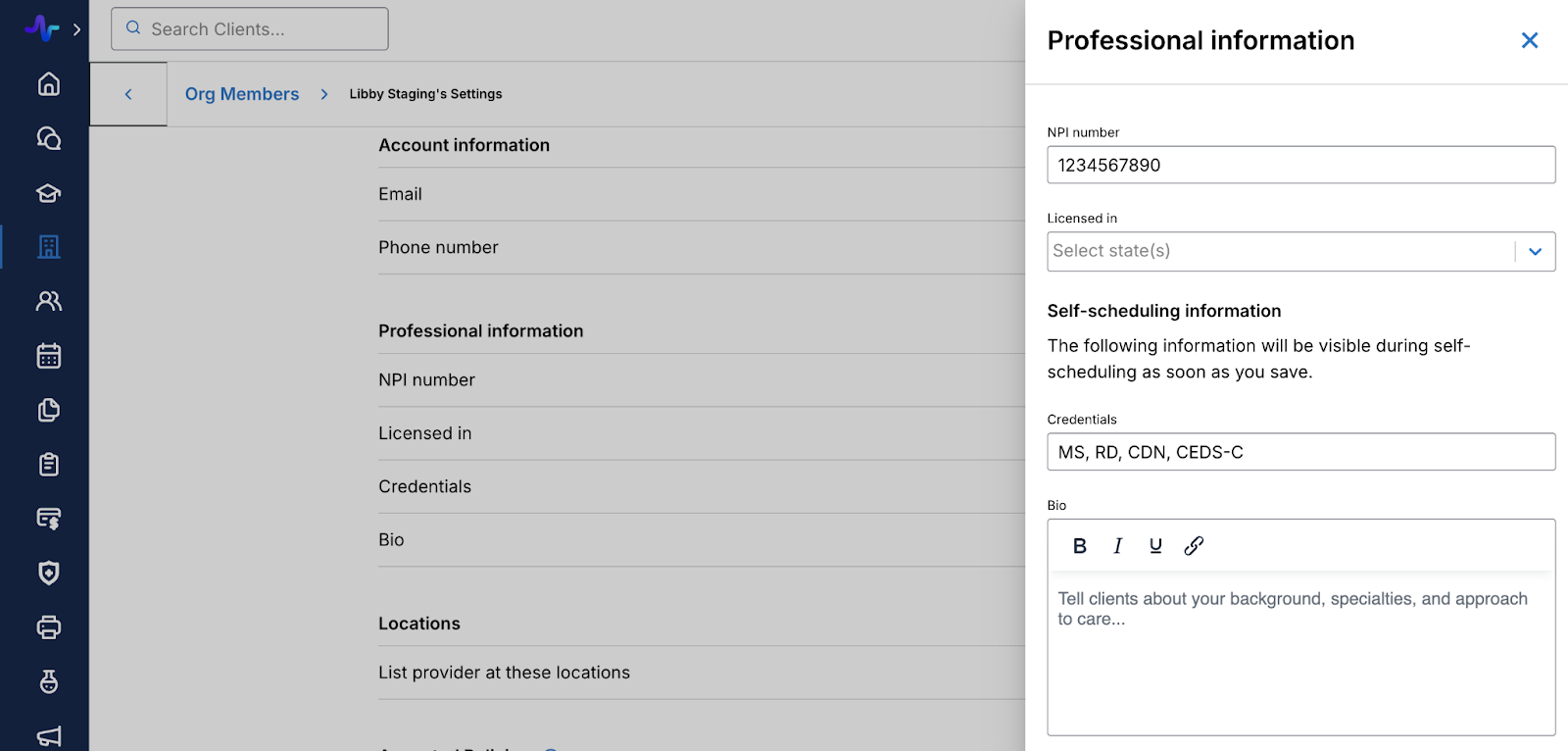
The provider bio is helpful for clients selecting an appropriate provider in the self-scheduling process. You may choose to add specialties, education history, treatment philosophy, or other relevant information here.
To create bios for your providers, go to
- Organization > Members
- Select the [...] > Edit Settings for the member whom you wish to update the bio.
- Scroll to the Provider Information section, and select Edit
Here you can add the provider’s individual NPI number, states they are licensed in, credentials, and bio.
Branding Your Booking Link(s)
Your booking link automatically reflects your practice's external brand colors, giving clients a consistent, professional experience from the moment they land on your scheduling page.
Brand colors are pulled from your organization's branding settings. To update them:
- Go to Settings > Brand
- Update your primary brand color and logo as needed
- Changes will be reflected across all client-facing booking links automatically
Customize Appointment Confirmation Emails
When clients book an appointment, they receive a confirmation email. Here is what is and is not customizable in these emails:
- Self-service settings: You can customize your logo, email copy, subject lines, and sender name.
- Custom 'From' address: White-label customers can set up a custom 'From' email address.
- Header bar color: The email header bar color is fixed and not customizable.
- Background & button colors: Email background colors can be customized specifically for emails if your plan supports advanced email customization; otherwise, a default background color is used. Button colors are not self-serviceable.
Preview the Client Booking Experience
Once you've configured your appointment types, bios, and branding, it's worth walking through the booking experience the same way a client would. To do this, generate the booking link for an appointment type and either use the Preview option within Healthie, or paste the link into an incognito browser window to experience the full flow live.
This is a great way to verify that client-facing names and descriptions read clearly, your branding appears as expected, and the right appointment types are visible to clients before you share the link publicly.
Here is a quick video of what your clients will see when self-scheduling from your link: