
How to record your phone screen
It can be very helpful to record your phone screen to show us what steps you're taking in your Healthie Mobile App when you're reaching out to us with a question or issue.
iOS (iPhone, iPad, or iPod touch)
In Control Center, you can start a screen recording and capture sound on your iPhone, iPad, or iPod touch by following the steps below:
- Swipe down from the top-right corner of your screen.
- Tap the gray Record button, then wait for the three-second countdown. If you don't see the Record button, add it to your Control Center.
- Exit Control Center to record your screen.
- To stop recording, tap the Screen Recording button at the top of your screen, then tap the Stop button. Or open Control Center and tap the red Record button.

To find your recording, open the Photos app and select your screen recording in your Library.
Android
-
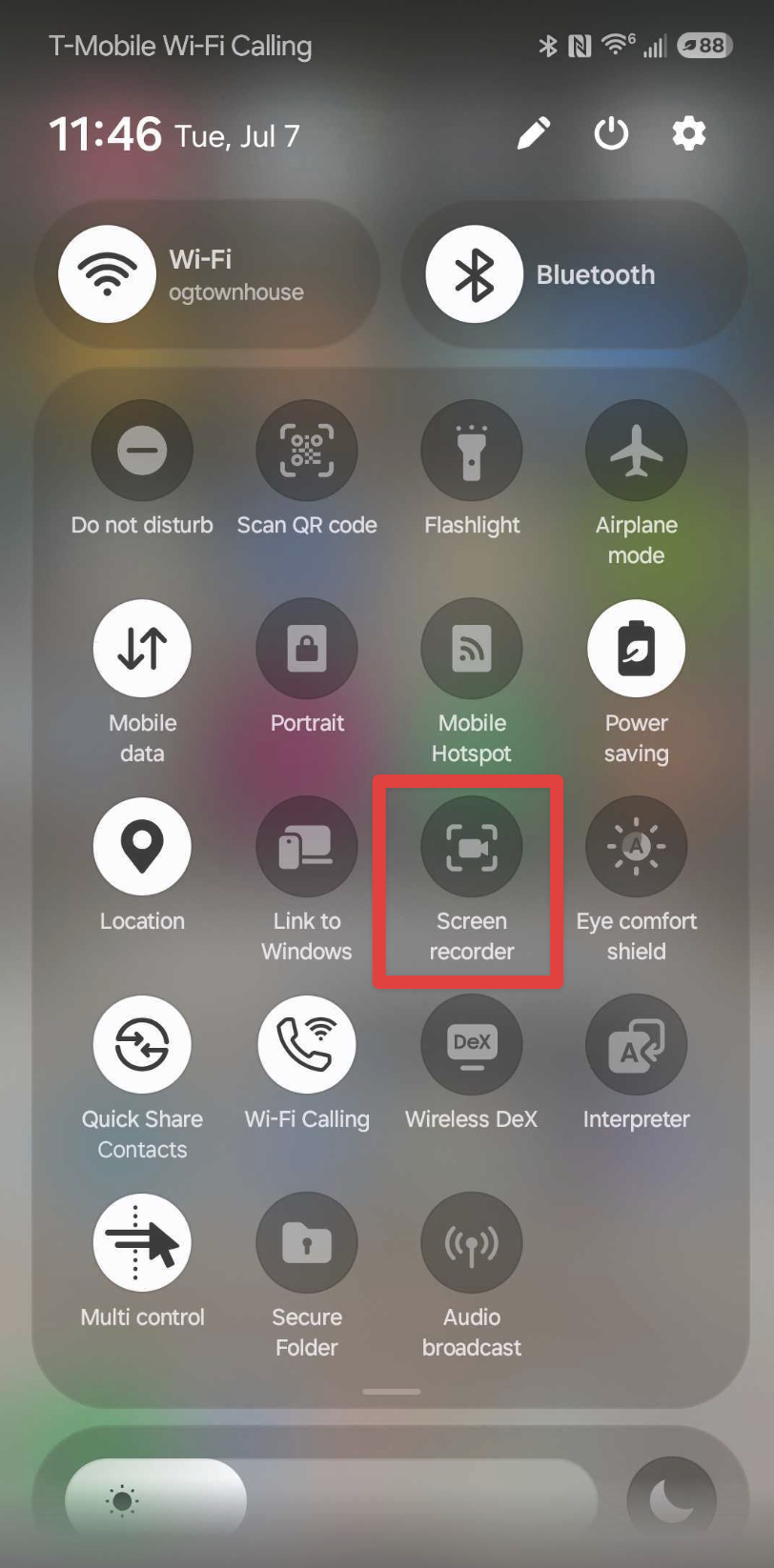
Swipe down twice from the top of your screen.
-
Tap Screen recorder.
You might need to swipe right to find it.
If it's not there, tap Edit and drag Screen recorder to your Quick Settings.
-
Choose what you want to record and tap Start. The recording begins after the countdown.
You can choose whether to record audio and show touches on the screen before you start.
-
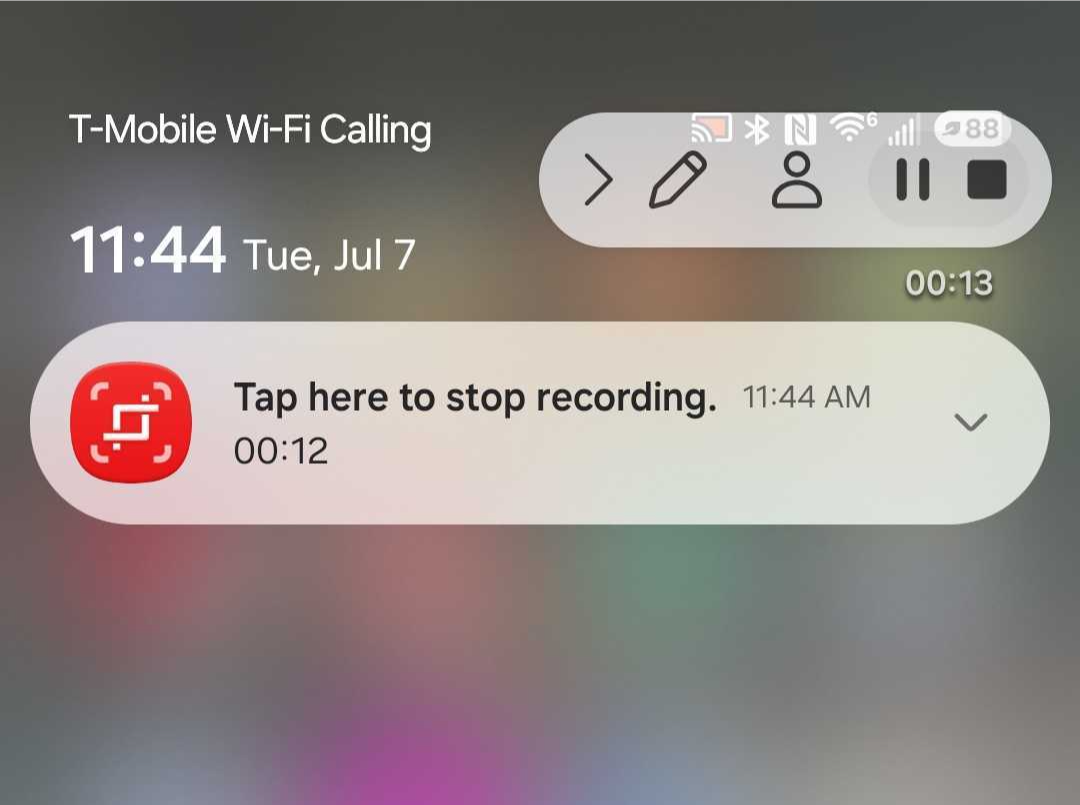
To stop recording, swipe down from the top of the screen and tap the Screen recorder notification:
To find screen recordings
- Open the Photos app .
- At the bottom, tap Collections > On this device > Movies.