Care Alerts
Care alerts help you and your team stay informed about important client information. By adding care alerts to a client's profile, you can notify staff about critical details, set priority levels, and even schedule expiration dates for temporary notes. This ensures that every team member interacting with a client has the essential context they need to provide exceptional and safe care.
IN THIS ARTICLE:
Enabling Care Alerts
Organization owners and administrators can easily manage care alert settings to fit your team's workflow and ensure nothing falls through the cracks.
Turn on Care Alerts
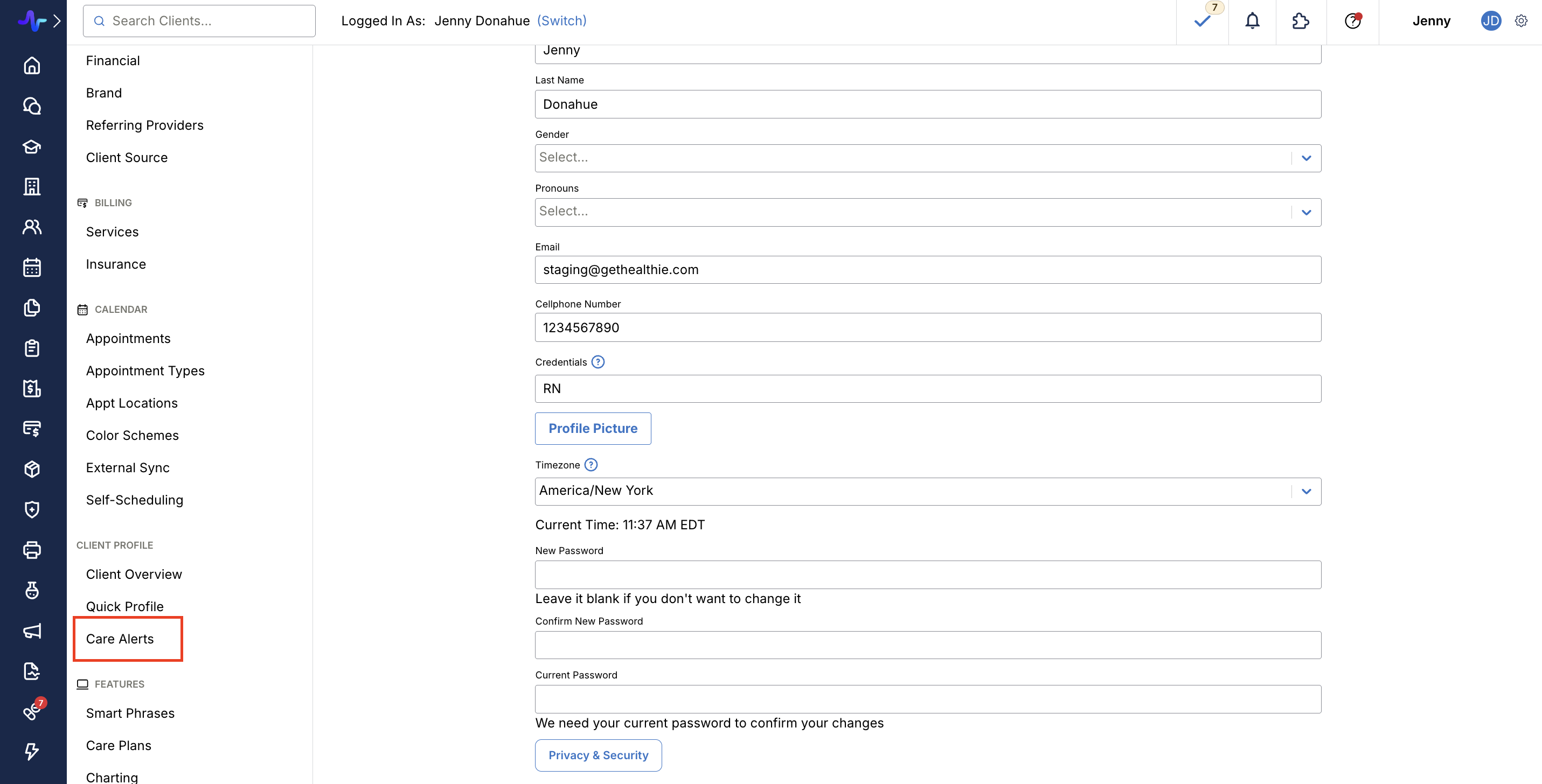
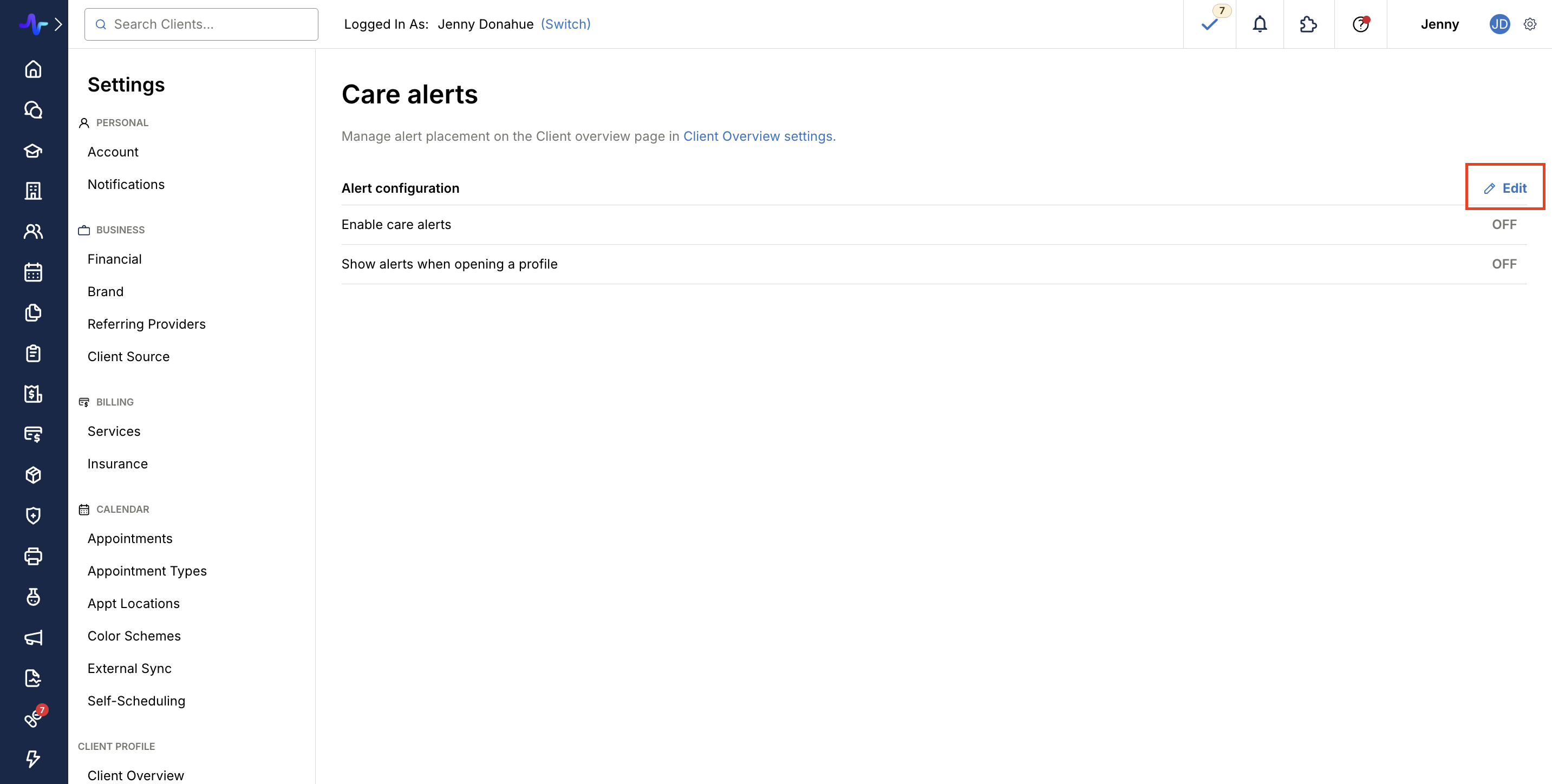
- Navigate to your Settings.
- Locate and select the Care alerts settings page.
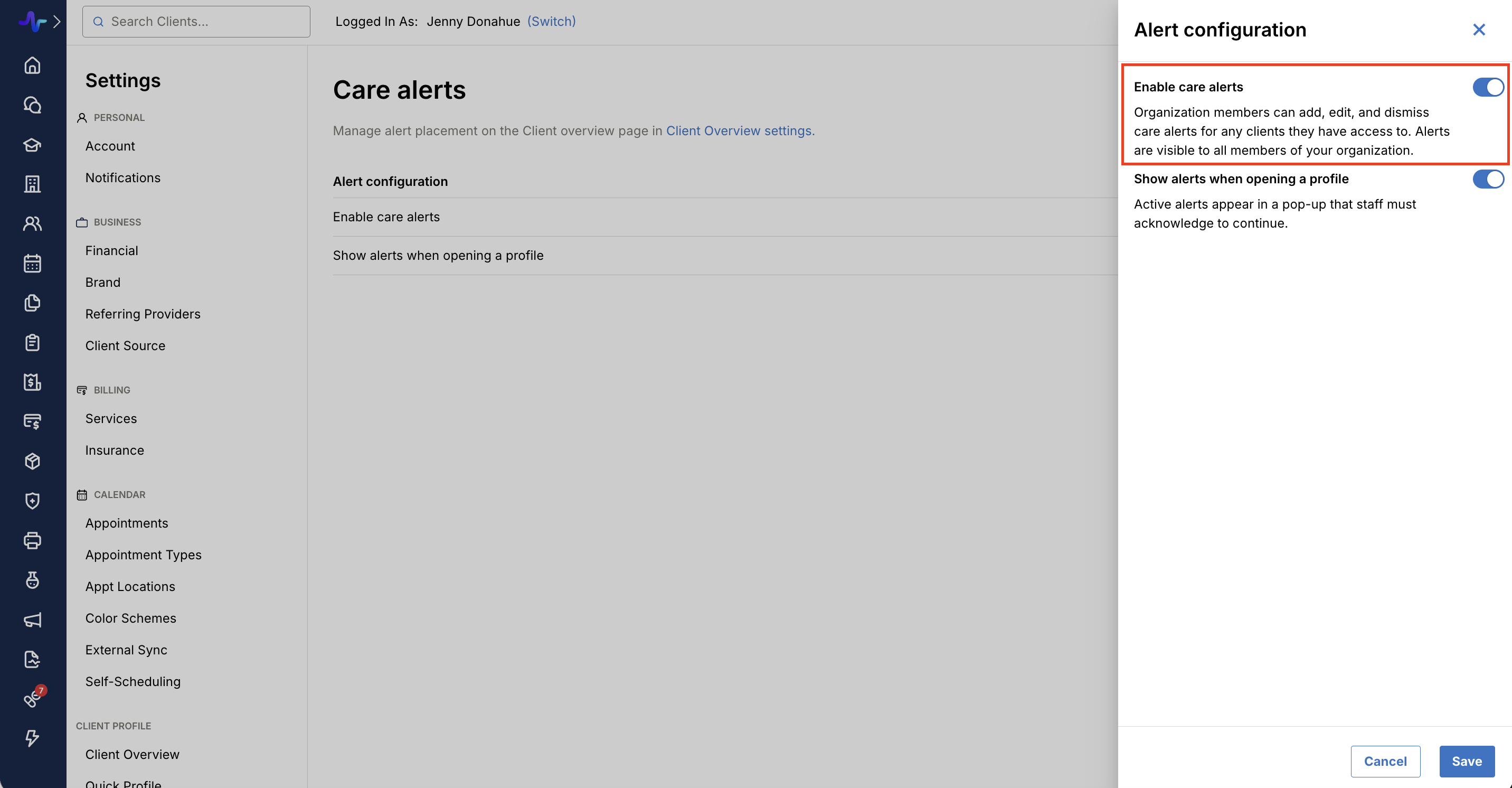
- Toggle Enable care alerts to the on position.
Once enabled, your organization members will be able to add, edit, and dismiss care alerts for any clients they have access to. These alerts will be visible to all members of your organization.
Require Alert Acknowledgement
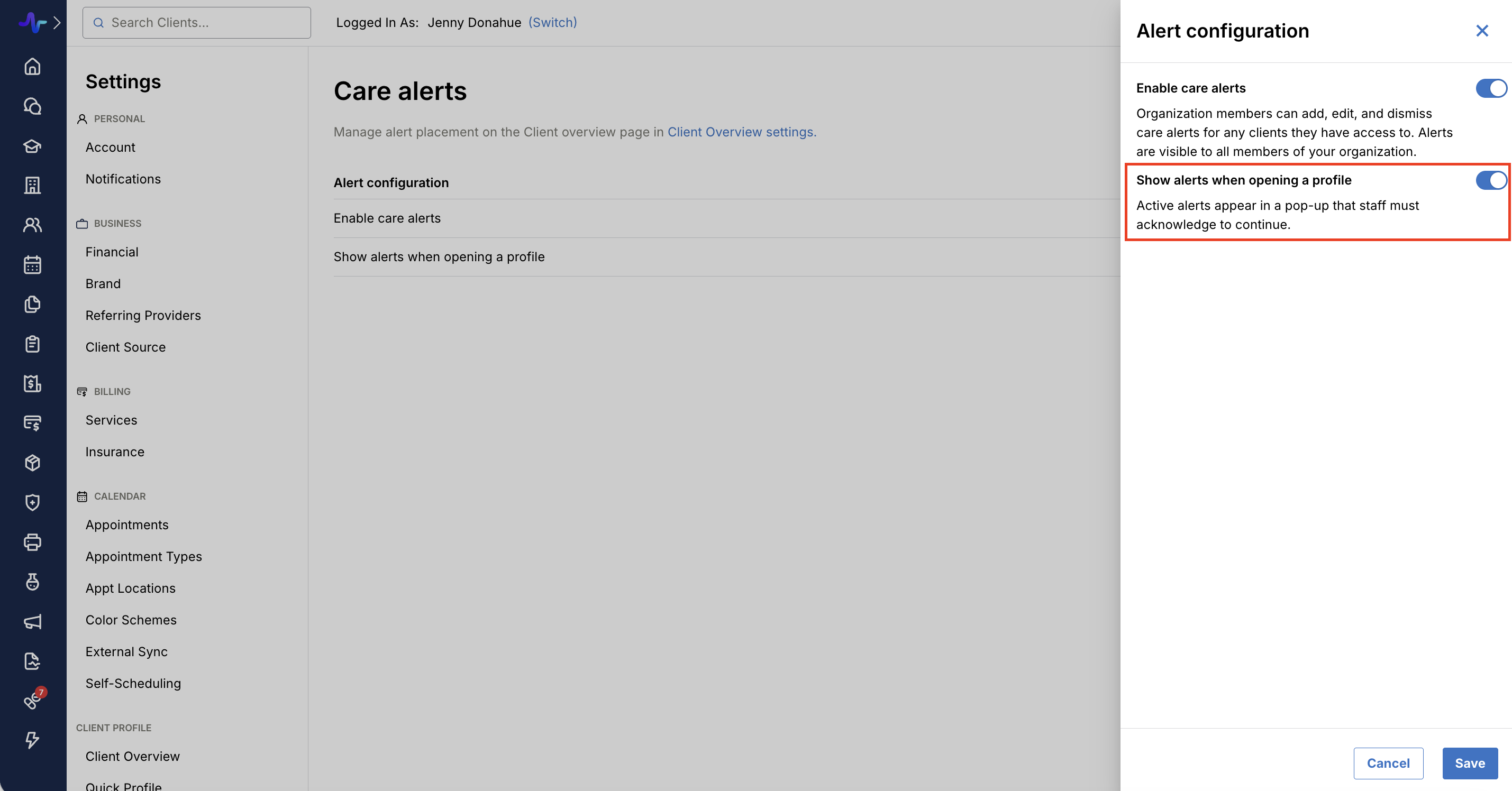
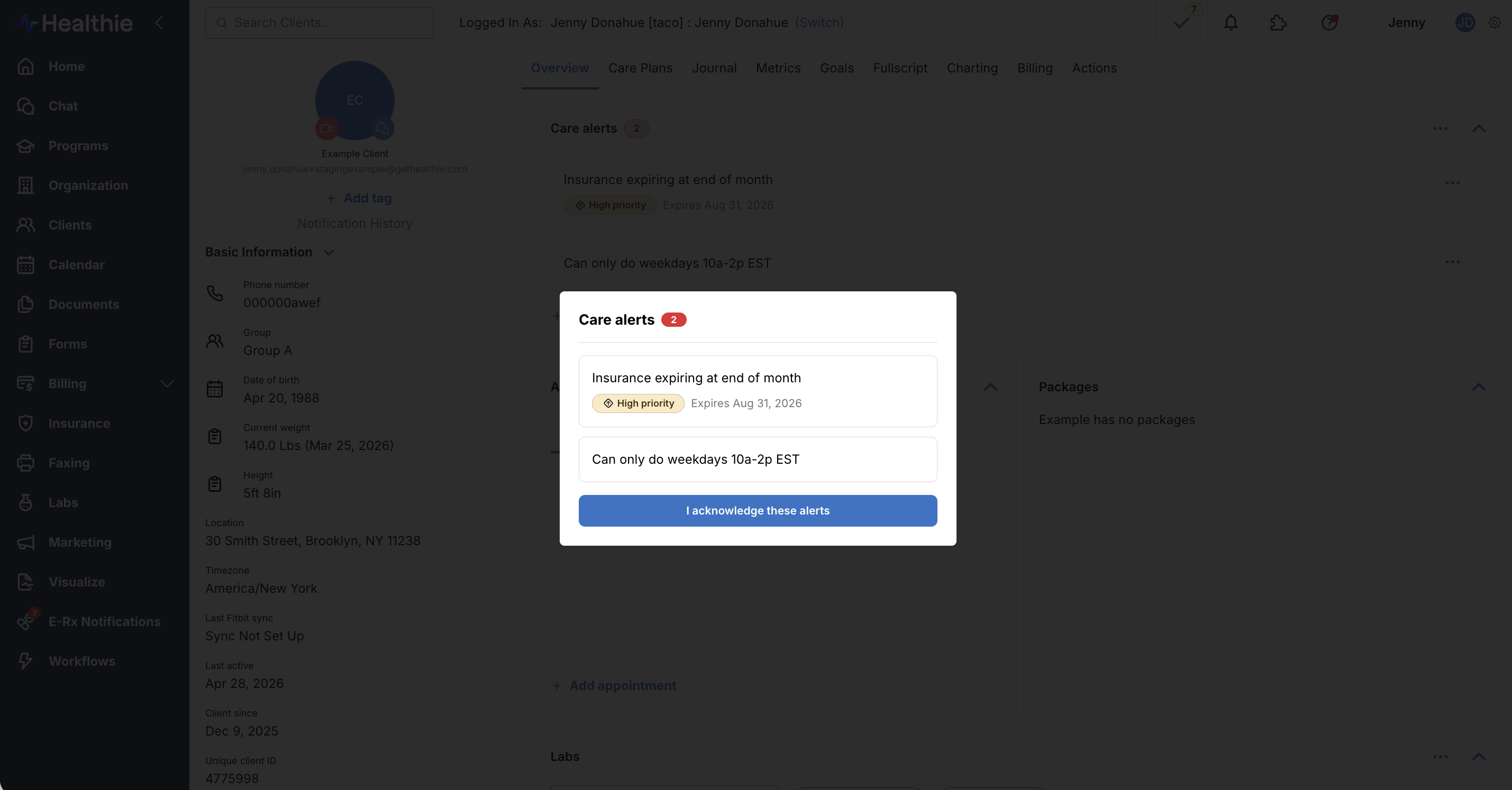
If you want to ensure your staff sees active alerts immediately, you can toggle on Show alerts when opening a profile. When this is active, a pop-up window containing the client's active alerts will appear as soon as a staff member opens the profile. The staff member must acknowledge the alerts before they can continue working in the profile.
Care Alerts: Client Overview
The Client Overview page is the primary hub for reviewing and managing your client's care alerts.
Reviewing Active Alerts
- If your organization has the acknowledgment setting turned on, you will be greeted by a pop-up displaying all active alerts as soon as you open the Client Overview. You must click to acknowledge them before proceeding.
- You will also see a dedicated Care alerts section on the page, which includes a status badge displaying the total number of active alerts for that client.
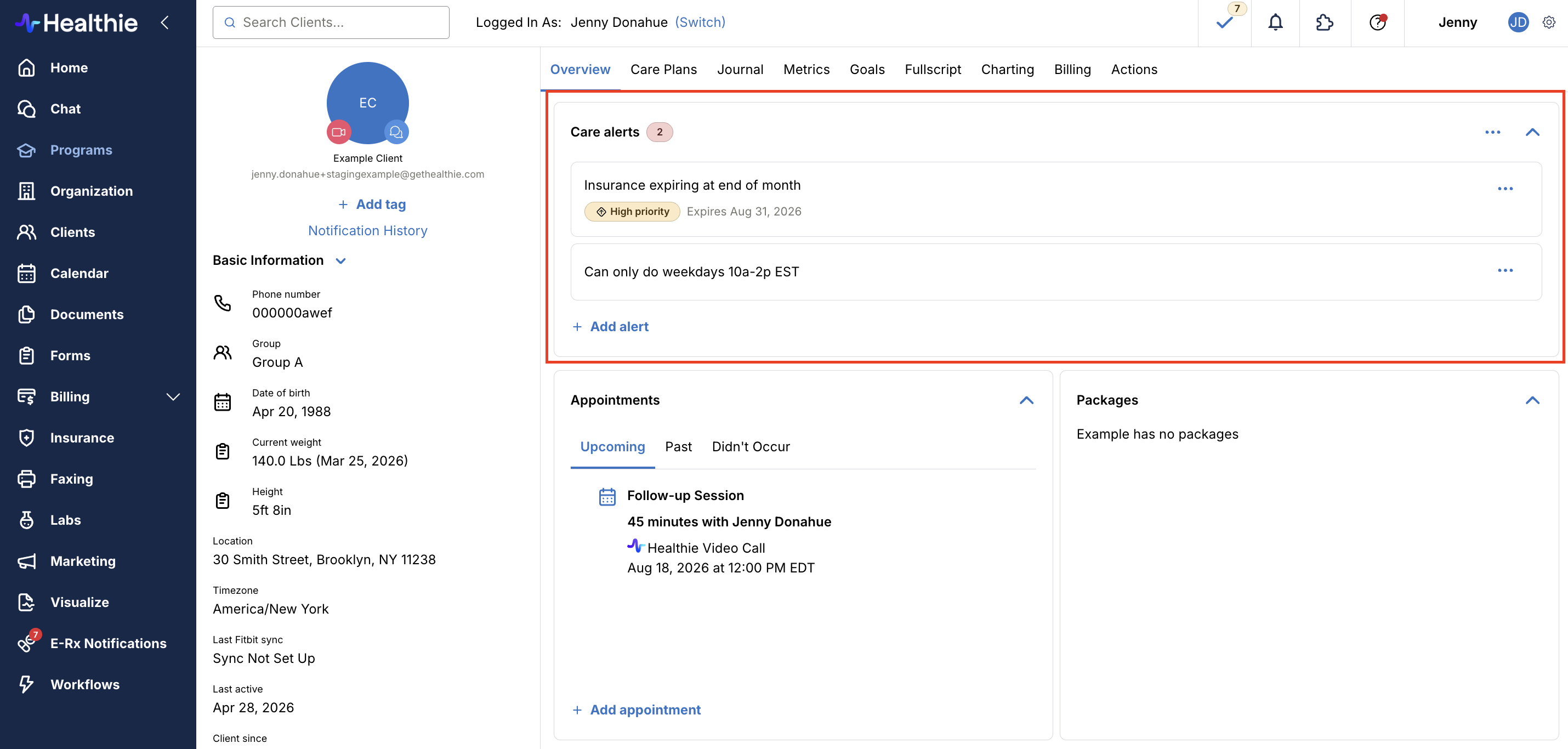
Managing Alerts
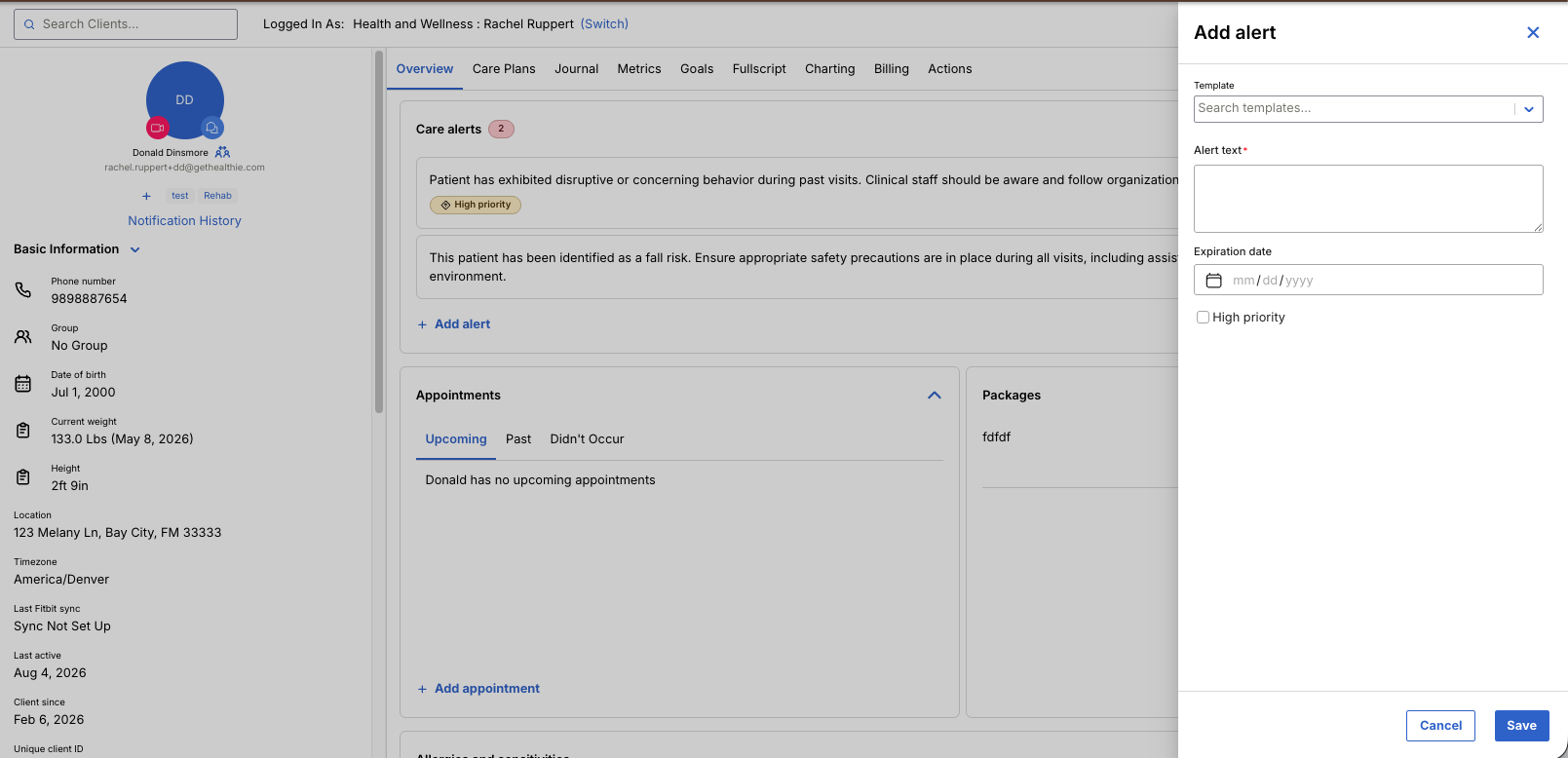
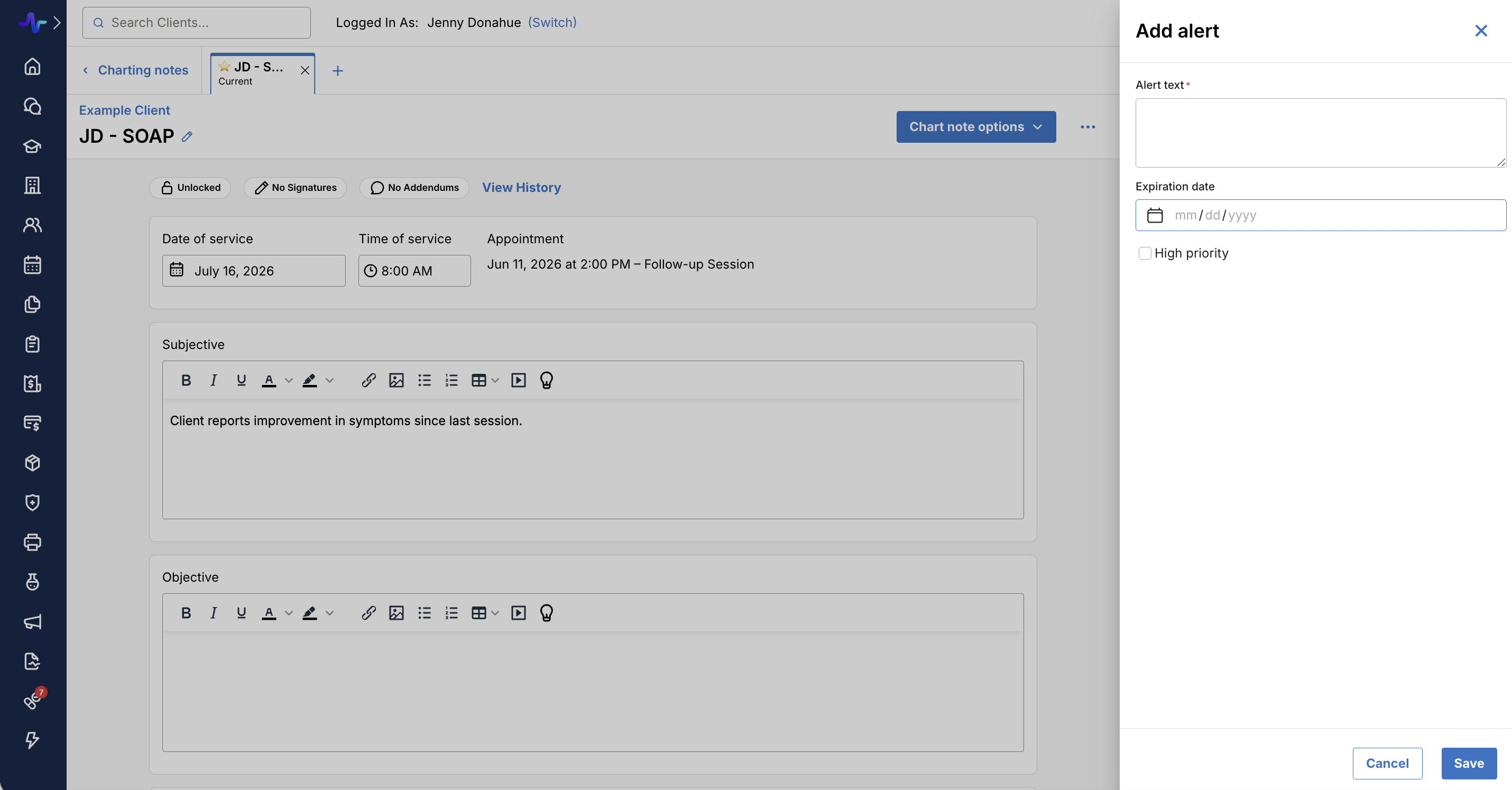
- Add an alert: Click the Add alert button within the section to create a new note. You can categorize it with a priority level (no priority or High priority) and set an expiration date if the alert is only temporarily relevant.
- Edit or dismiss: You can edit existing alerts to keep information up-to-date or dismiss them entirely once they are no longer needed.
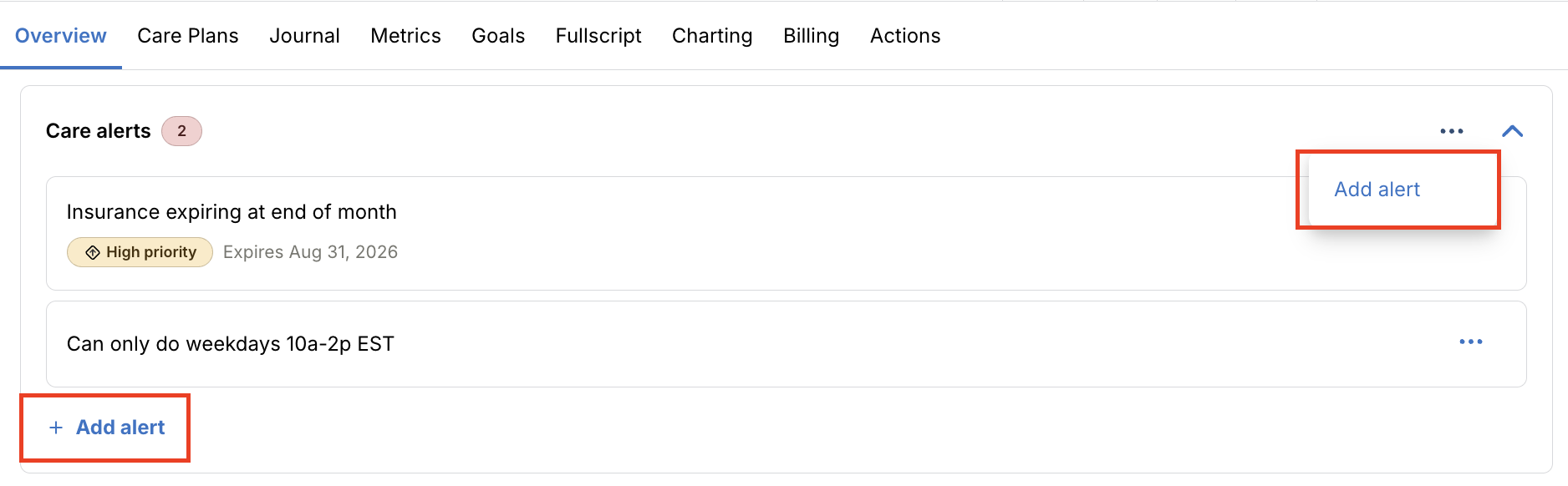
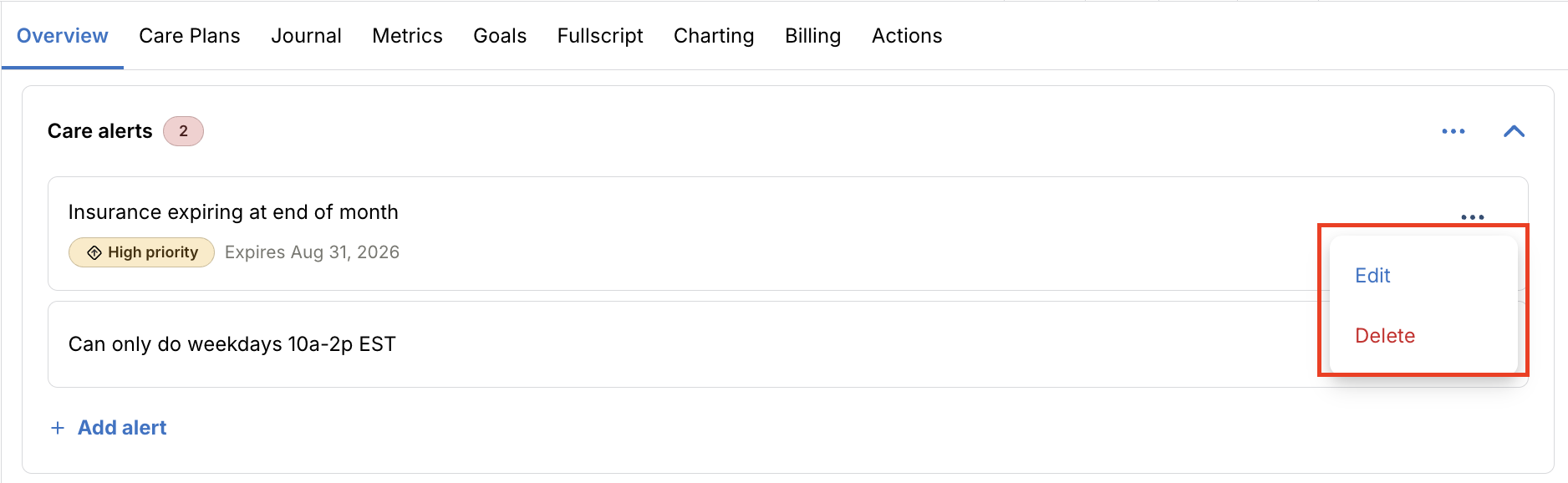
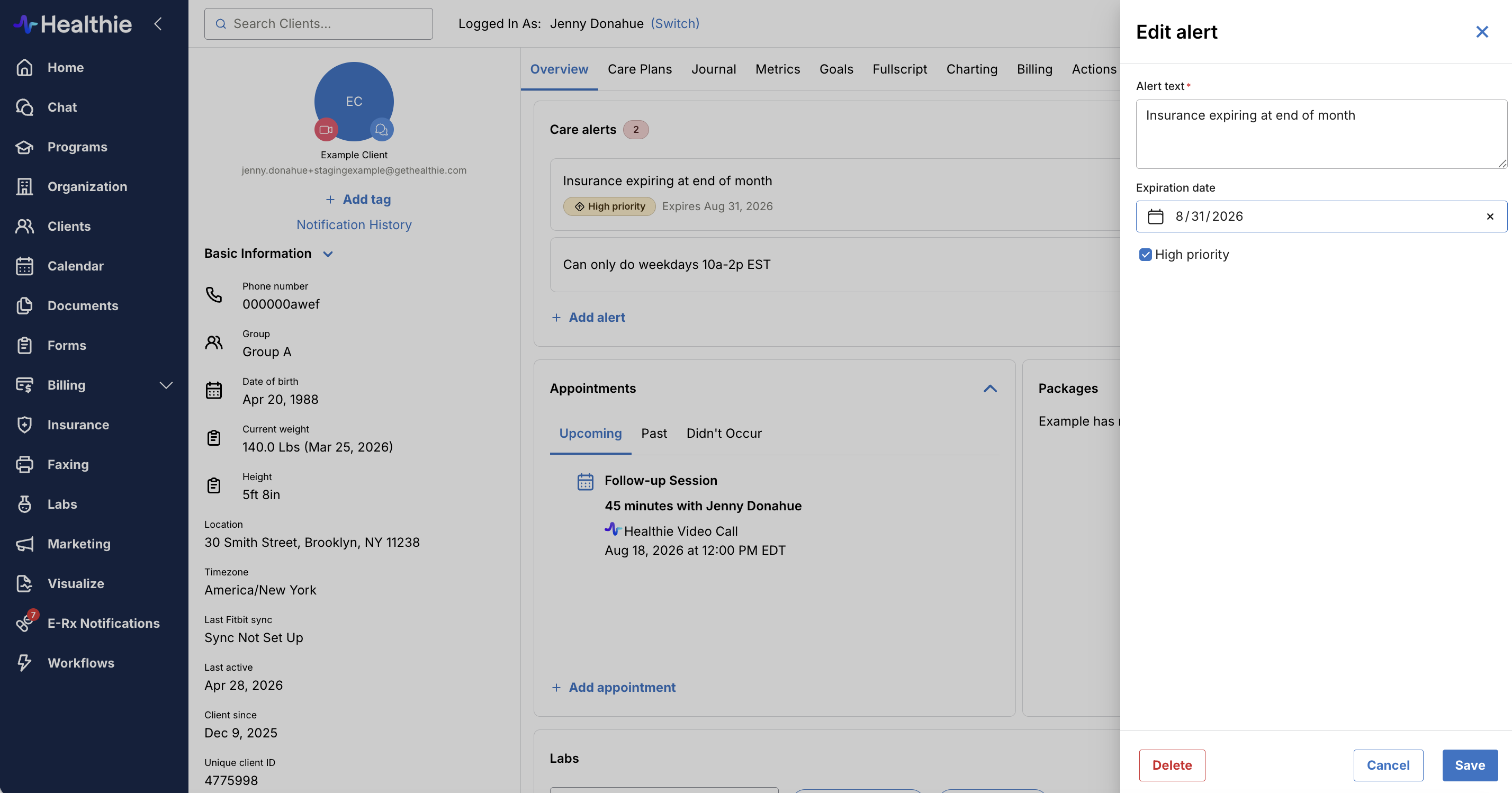
Note: If you turn on Care Alerts in Settings and have not configured your Client Overview, the Care Alerts section will automatically float to the top. If you have configured your Client Overview, and organization owner or administrator will need to make the Care Alert active in the organization Settings.
Care Alerts: Quick Profile
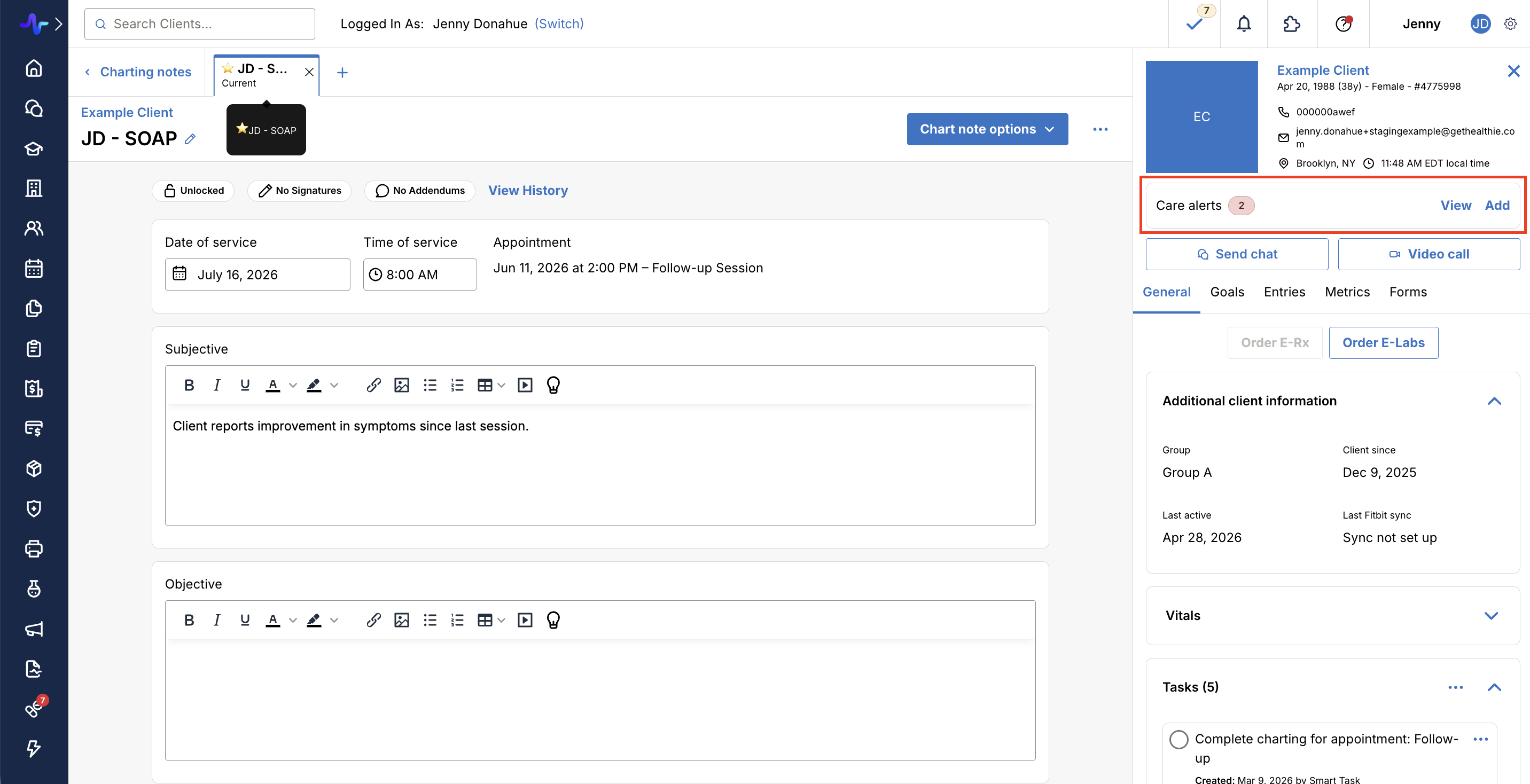
Care alerts are conveniently accessible right from the client's Quick Profile so you can review critical information at a glance.
- Quick Visibility: The Quick Profile displays a summary card showing the total number of active care alerts. If there are no active alerts, it will clearly state so.
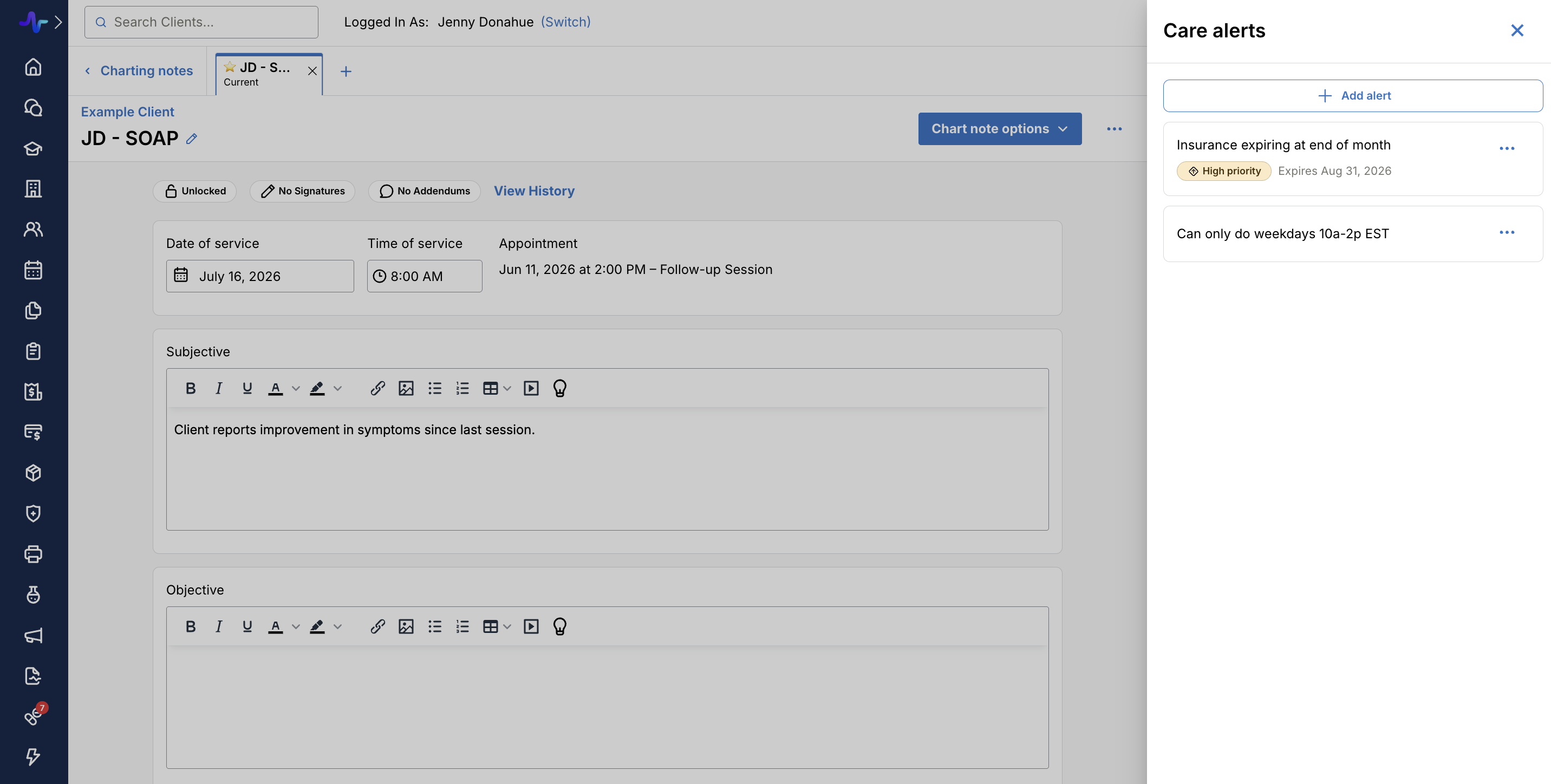
- Review Details: If a client has alerts, simply click the View button. This opens a side panel where you can read through all active alerts without leaving your current page or workflow.
- Add on the Go: Click the Add button to quickly create a brand new care alert directly from the Quick Profile.
Care Alert Templates
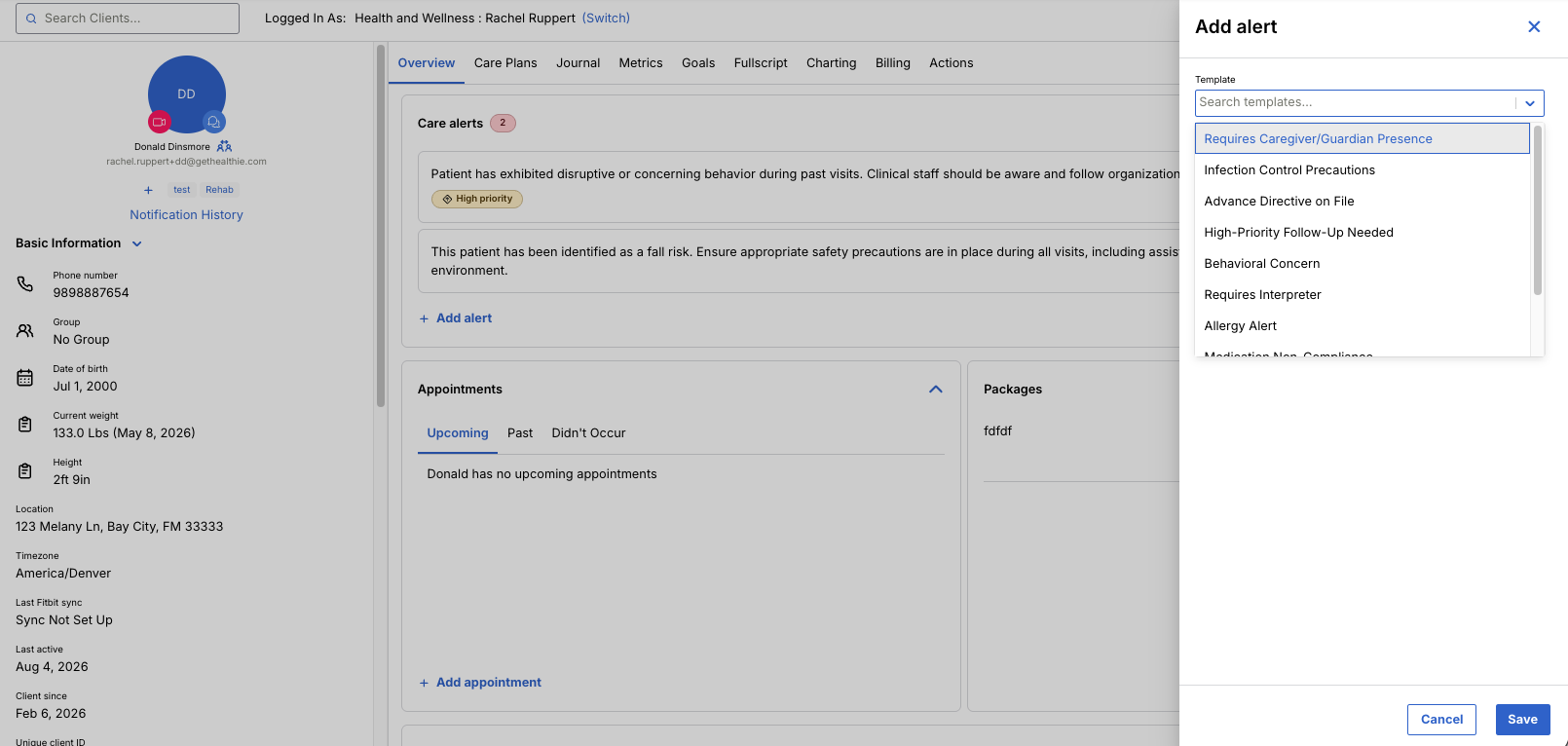
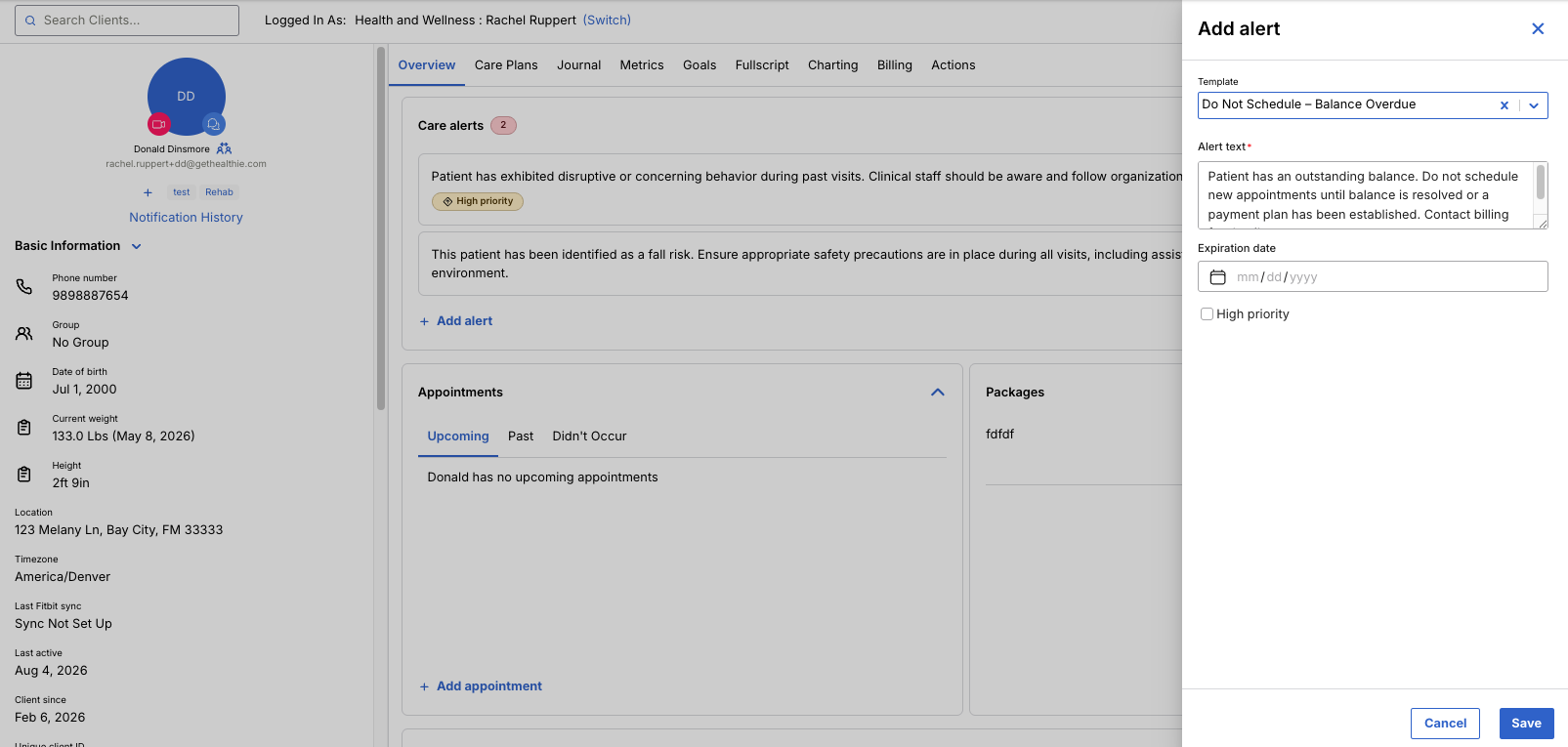
Templates can be created via API and applied when adding a new care alert. Once templates are created, you can select a template to apply when adding a new alert.