
Chat Refresh: What's New in the Updated Experience
We've redesigned the chat inbox on the web to make your conversations easier to find and understand. This update organizes conversations by purpose (Clients, Internal, and Community), puts filters and search in one row above the conversation list, and moves conversation actions into the conversation header. It also builds a foundation for future chat improvements.
No chat features have been removed, and your existing conversations, message history, and settings carry over. The update applies to providers and clients in the web app on all plans, and the mobile app and the Healthie API are not affected.
Below is an overview of what has changed with the updated design.
In this article:
A Redesigned Inbox
The inbox groups conversations by purpose, so you can tell what kind of conversation you are in and who can see it.
What's improved
- Clear conversation types: each conversation shows its type (Client, Internal, or Community) in the list and at the top of the conversation. A conversation with a client and two providers no longer looks like a one-on-one, so you know when colleagues can see the thread.
- A home for staff-only chats: conversations between team members are in their own Internal section instead of mixed in with client threads.
- More room for the conversation: filters sit in one row above the list instead of taking up a column, and you can resize the list.
- Quick Profile on request: in a one-on-one client conversation, Quick Profile opens when you click the person icon at the top of the conversation. It no longer opens on its own.

Old view when opening chat, with Quick Profile minimized

New view when opening chat
Conversation types
Click the title at the top of the conversation list (the large title with an arrow icon) to switch between sections. Each section shows an unread count.
- All Conversations: every conversation in one list.
- Internal: conversations between providers and staff in your organization, with no clients.
- Clients: conversations that include a client, including conversations with a client and several providers.
- Community: conversations that include several clients, such as support groups.
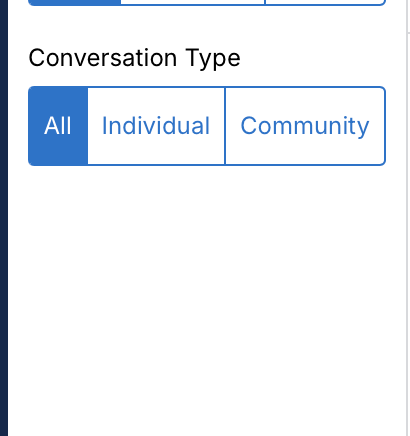

Where your existing conversations appear
- One-on-one and group conversations that include a client appear in Clients.
- Community chats appear in Community.
- Conversations with providers only appear in Internal. They were previously mixed in with Individual or Community, depending on size.
Filtering and Searching
Filters sit in one row above the conversation list. Archived, Closed, and Scheduled conversations are now options in the status dropdown instead of tabs in the left sidebar.
Filter your conversations
❶ Find the filters above the conversation list. The status dropdown button reads Active by default.
❷ Click the arrow icon on the status dropdown button.
❸ From the dropdown, select Archived, Closed, or Scheduled.
To see only conversations with unread messages, click the Unread button.
Scheduled: available to providers only. Scheduled messages sent with Send separately (previously called message blasts) appear only in All Conversations, as Message blast rows.


Search conversations
❶ Click the Search conversations box at the top of the list.
❷ Enter the name of a participant.
❸ Select a conversation from the results.

Mark a conversation as unread or read
❶ Hover over a conversation in the list.
❷ Click the three dots button (...).
❸ Select Mark as unread or Mark as read.


Organization view
The Mine dropdown above the conversation list replaces the You / Organization dropdown. It appears only if you have access to your organization members' chats.
❶ Click the arrow icon next to Mine.
❷ From the dropdown, select Everyone to see conversations across your organization.
Note:
- Banner: in Everyone view, a yellow banner shows whose conversation you are in.
- Hidden actions: Mark as read, Mark as unread, and Archive do not appear in a colleague's conversation because they would change your colleague's inbox. Close appears only for organization admins.
- Organization filter has become the Everyone Filter


Send a Message on Behalf of a Colleague
Only organization admins can send a message on behalf of another member of your organization. The client sees your name followed by "on behalf of" and the provider's name.
- Click the arrow icon next to Mine.
- From the dropdown, select Everyone.
- Select the conversation
- Type your message in the message box.
- Click Send
Two reminders show that you are sending the message for someone else:
- Banner: at the top of the conversation, a banner reads "[Provider]'s conversation: messages are sent on their behalf." It also notes that the client sees everything in the conversation
- Message box: next to the send button, a note reads "Replying on behalf of [provider]" and shows how the client will see your name. The button itself reads Send on behalf of [provider name].


Starting a Conversation
Providers start conversations with the New button at the top of the conversation list.
❶ Click New at the top of the conversation list.
❷ Search for the clients, organization members or group you want to include, and select each one.
❸ To message several people, add a client group or select people individually.
❹ Choose whether to send as a group or check the box for Send separately. The message box shows who will see your message.
❺ Enter your message and click Send.

Message Blast → Send separately
Send separately is the new name for Message Blast. Add more than one person to a new message and check the box for Send separately. Each person receives a private message and cannot see who else received it, similar to BCC in an email.
New conversations
New always starts a separate conversation, even if you already have one with the same person. Healthie no longer asks whether to continue an existing conversation or start a new one. To continue an existing conversation, open it from the list or find it with Search conversations.
New conversations are named after the people in them. To rename a conversation, see Inside a Conversation.

Click the pencil next to the client's name to rename the conversation
Inside a Conversation
Conversation actions are at the top of each conversation.
Archive, close, or rename
- Archive: hides the conversation for you only. You can also archive from the three dots menu on a conversation in the list.
- Close: closes the conversation for everyone. A banner replaces the message box and shows who closed the conversation and when. People who are allowed to reopen it see a Reopen conversation button.
- Rename: hover over the conversation title and click the pencil icon, or use the three dots menu. Names can be up to 50 characters.

- To unarchive or reopen a conversation you can click on the three dots in the conversation or hover over clients name on the left hand side and click the three dots
Add or remove participants in a Community Chat
❶ Click the people icon (with a number) at the top of the conversation to open Conversation details.
❷ Click Add participant(s) and select the people to add (clients and organization members).
To remove someone, click the X on their row in Conversation details.
Tasks
❶ Click the clipboard icon (Conversation tasks) at the top of the conversation to open the Tasks panel. A count shows when tasks are pending.
❷ To create a task from a message, hover over the message and click the clipboard icon (Create task from message).
The message then shows a Task label. The Pending Tasks banner above the messages is no longer used.

Old view: create a task from a message by hovering over it and clicking the clipboard icon

New view: create a task from a message by hovering over it and clicking the clipboard icon

Old view: create and view tasks in Quick Profile on the right side

New view: view tasks by clicking the clipboard icon in the client conversation

Creating a task works the same way as before: name the task, attach it to a client, set a due date, and mark it as high priority if needed.
Delete a message and read receipts
- Delete a message: hover over one of your messages, click the trash icon, and confirm in Delete this message?. A note reading Message deleted on [date, time] stays in the conversation.
- Read receipts: Read by [client first name] appears under your latest message that the client has read. Read receipts appear in one-on-one client conversations only.
Message Attachments
The message box has one button for attachments and keeps your other writing tools in the toolbar.
Add an attachment
❶ Click the paperclip icon (Add attachment) in the message box.
❷ Select a file from your computer.
❸ Click Send.
The paperclip replaces the separate Insert Image, Insert Video, and Attach File buttons. To record audio, click the microphone icon (Record voice memo). To share a video, paste the video link into your message and it appears as a player.
Smart Phrases
Click the lightbulb icon (Insert Smart Phrase) in the message toolbar. Smart Phrases are available to providers only.

Schedule a message
❶ Write your message.
❷ Click the arrow next to Send.
❸ Select Schedule send.
❹ Choose a quick time or select Custom.
Scheduled messages appear above the message box in the conversation. Click Edit to change a scheduled message, or click the trash icon to cancel it.
Drafts
Unsent text is saved automatically and returns when you reopen the conversation, even if you log out.
Web and Mobile
The redesign applies to chat on the web. The iOS and Android apps keep their current chat layout.
Mobile app and API
- Mobile app: the Healthie iOS and Android apps keep the chat layout and filters they have today. Internal chats still appear under Individual or Community in the app.
- Mobile browser: chat in a phone's web browser uses the new layout. It is not yet designed for small screens, so the mobile app is the better experience on a phone.
- Web-only features: Organization view, scheduled messages, Smart Phrases, drafts, file attachments, and message tasks are available on the web only, as they were before. The Internal section is also available on the web only.
- API: the Healthie public API is not affected.
Client Experience
Clients get the same redesigned chat in the web app. Their conversations with their providers appear in one list under Provider conversations, and they can archive conversations, mark them as unread, filter the list, and search.
Archive or mark a conversation as unread
- Hover over a conversation in the list.
- Click the three dots button (...).
- Select Archive or Mark as unread.
Find a conversation
- Archived conversations: click the arrow icon next to Active, then select Archived.
- Unread conversations: click the Unread button.
- Search: click the Search conversations box at the top of the list and enter a name.

Frequently Asked Questions
Where did my archived, closed, or scheduled conversations go?
Click the status dropdown above the conversation list, which shows Active by default, and select Archived, Closed, or Scheduled.
Where did my message blasts go?
Message blasts are now Send separately. Click New, add more than one person, and check the box for Send separately. Scheduled messages appear under Scheduled in All Conversations.
Some of my conversations are missing.
Click the title at the top of the list and select All Conversations, which shows everything. Staff-only chats are in Internal. If a conversation is not in All Conversations, check Archived in the status dropdown. If you still cannot find it, contact hello@gethealthie.com.
I have two conversations with the same client.
New always starts a separate conversation. To continue an existing conversation, open it from the list or use Search conversations. You can archive the extra conversation.
Chat from a client's profile shows only that client's conversations.
This is expected. Click Chat in the main menu to return to your full inbox.
The unread count in the left menu is slow to update.
After you mark a conversation as unread, the count can take up to 30 seconds to change. It updates on its own.
Summary of Improvements
- Conversations are organized into Clients, Internal, and Community, with an All Conversations view.
- Filters sit in one row above the list, and Archived, Closed, and Scheduled are options in the status dropdown.
- Message Blast is now Send separately, and the message box shows who will see your message before you send.
- One paperclip replaces the separate image, video, and file buttons.
- Conversation actions are at the top of each conversation, and you only see actions you have permission to use.
- Clients get the redesigned chat in the web app.
If you have questions about the updated chat, contact your Customer Success Manager or email hello@gethealthie.com.