
Real-Time and Automated Insurance Eligibility Checks
Run insurance eligibility checks in Healthie and review the payer’s response as a readable summary on the client’s profile. Healthie will also check eligibility automatically 3 days before a scheduled appointment (coming soon).
Available with the Healthie and Claim.MD integration on the Essentials Plan and above.
In this article:
Setup
Before your team can run eligibility checks, complete these steps.
- Complete payer enrollment for eligibility checks in Claim.MD. Many payers require it.
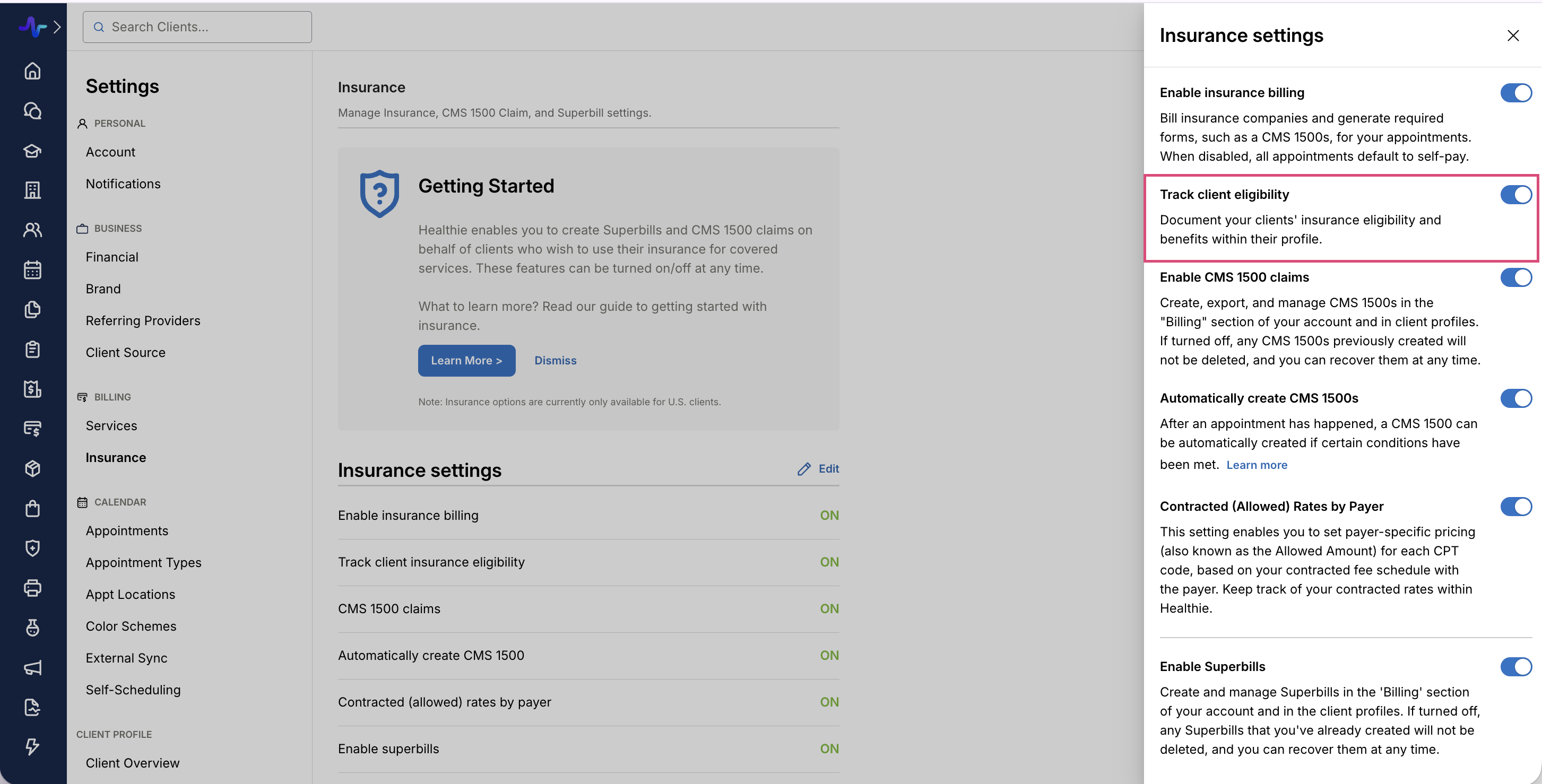
- Go to Insurance Settings and turn on Track Client Insurance Eligibility. This adds the Check eligibility option to the client’s profile.
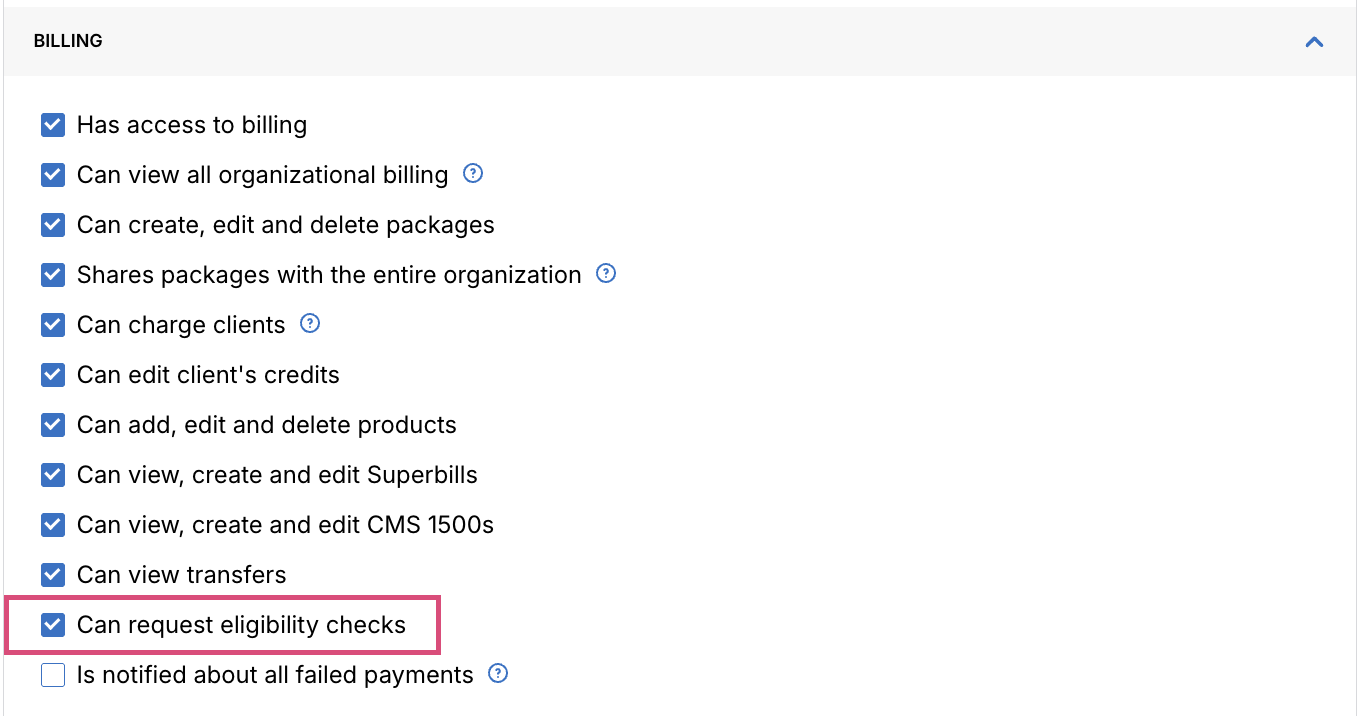
- Give each team member who runs checks the Can request eligibility checks permission.
- Go to Organization > Members > [member name] > Edit Settings
- Under Permissions > Billing, enable Can request eligibility checks
When Claim.MD is set up for a solo provider, Healthie automatically turns on the Sees all clients and Sees all billing permissions for that account.
Running an Eligibility Check
The client needs an insurance plan on file. Learn how to collect and store client insurance information.
- Open the client’s profile.
- Go to Overview > Insurance eligibility. You can also run and view checks in the Quick Profile.
- Click Check Eligibility.
📹 Watch the tutorial video - See an eligibility check and its results in Healthie.
By default, checks match against the individual provider’s NPI (Type 1). To use your Organization NPI (Type 2) instead, contact Healthie Support.
Reading Your Eligibility Results
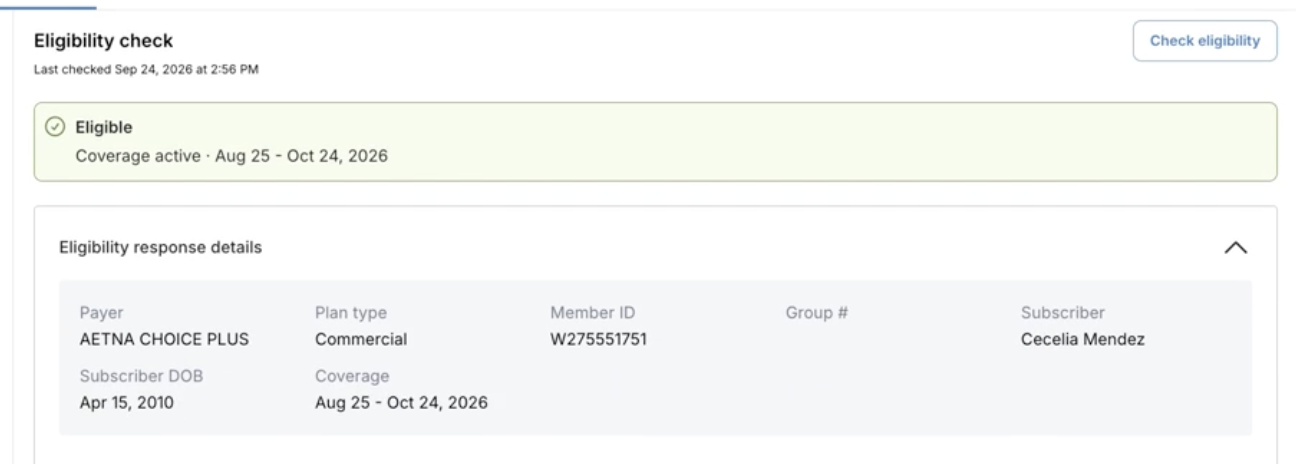
Healthie displays the payer’s response as a readable summary. What you see depends on what the payer returns to Claim.MD.
- Coverage status banner: shows whether coverage is active, inactive, part of a carve-out, or unknown, with the payer’s reason when one is available.
- Coverage dates: the start and end dates of the client’s coverage.
- Benefits table: copay, coinsurance, deductible, out-of-pocket maximum, and visit limits, in-network and out-of-network when the payer provides them.
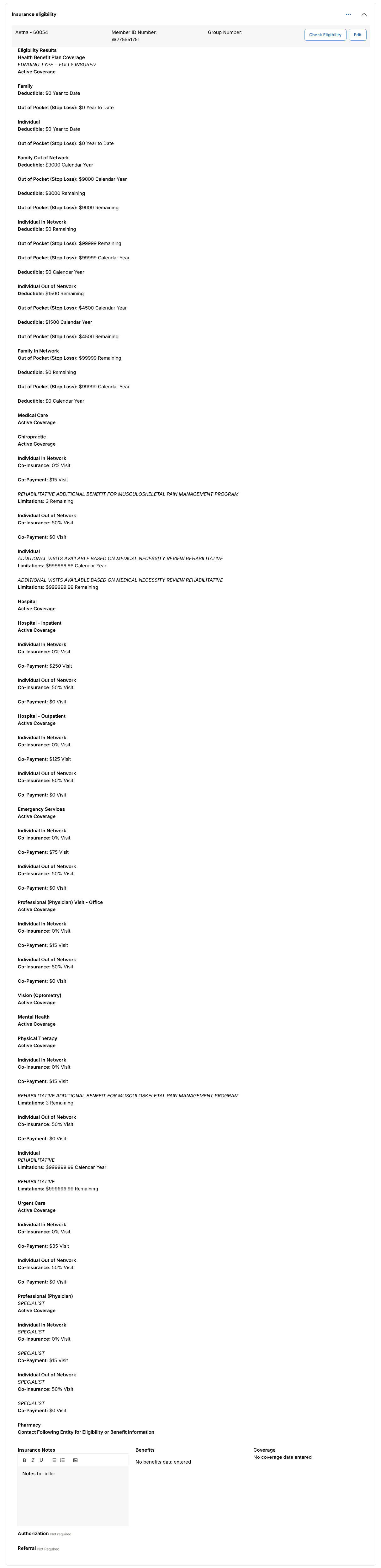
If a client has not had a check yet, the section shows a “not verified” message in place of results. Policies and authorizations remain fully available.
Eligibility results are read-only. Copay and deductible amounts are not copied into the client’s insurance record automatically, so enter them in the client’s policy manually.
For more detailed benefits, such as a specific specialty, search benefit codes or CPT codes from the eligibility search field in your Claim.MD account. Payers may return limited information for some specialty codes, such as nutrition.
You'll find the full list of searchable benefit codes available here.
Review Eligibility History
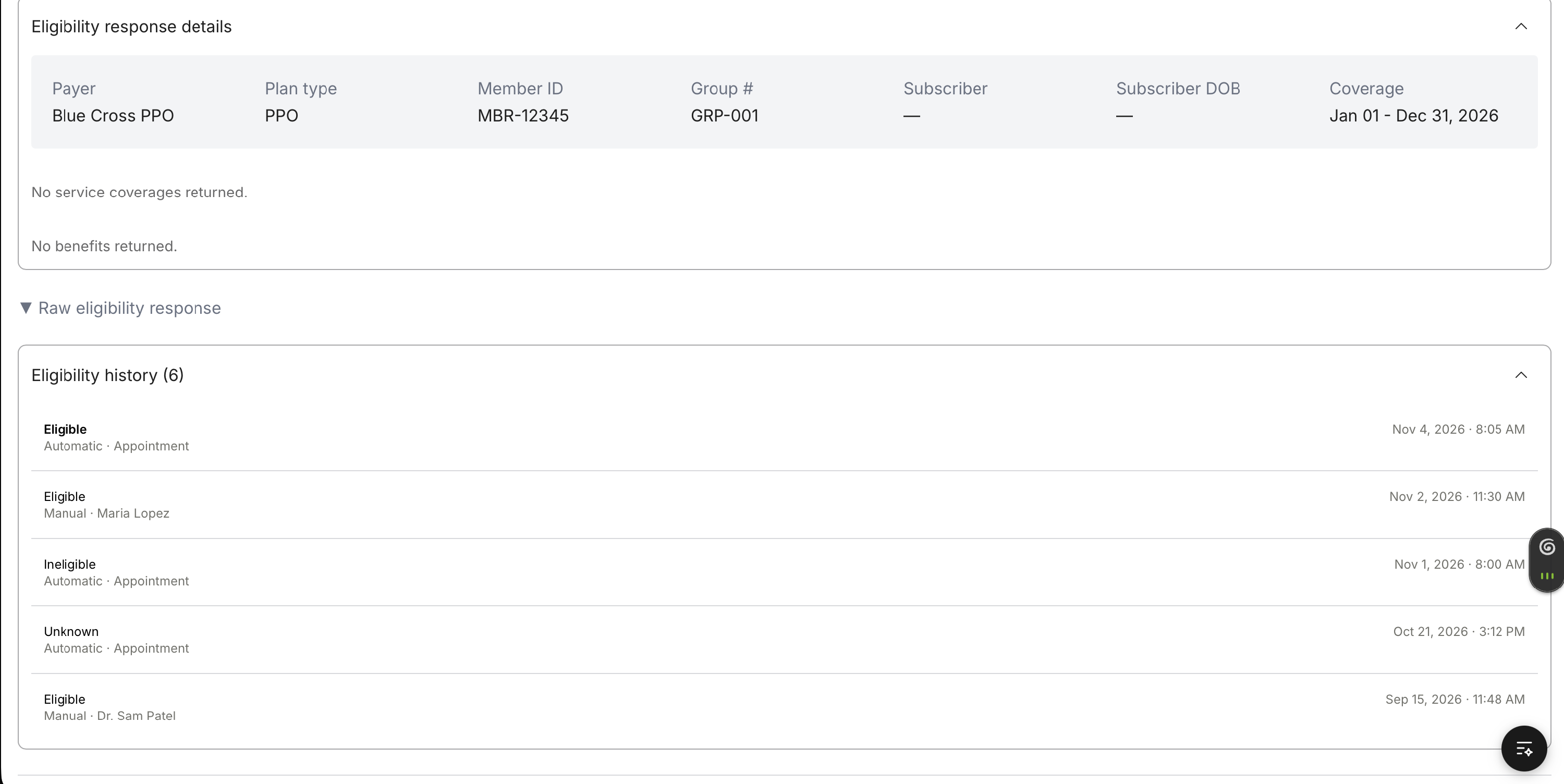
Every eligibility check run on a client’s insurance is saved to the eligibility history, so you can see what the payer returned each time.
- Open the client’s profile and go to Overview > Insurance eligibility.
- Scroll to Eligibility history. The number in parentheses is how many checks are saved.
- Review each entry. Every entry shows the result (Eligible, Ineligible, or Unknown), how the check was run, and the date and time. Checks your team runs are labeled Manual, followed by the team member’s name.
💡 Tip: Use the history to look back at earlier checks, such as when a client’s coverage status changed.
Automatic Eligibility Checks (Coming Soon)
Healthie will automatically check eligibility 3 days before a client’s scheduled appointment, so your team does not have to run each check by hand.
Results from automatic checks appear in the same places as checks your team runs: the status banner, benefits table, and eligibility check history. Automatic checks are saved to the eligibility history and labeled Automatic · Appointment, with no team member name.