
Zoom: Translated Captions
Zoom Translated Captions allow providers to offer real-time translated captions during Zoom video sessions hosted through Healthie. When a provider enables captions during a session, clients can select their preferred language and see live translated captions displayed at the bottom of their screen throughout the call.
Translated captions support 36 languages, including Spanish, French, Portuguese, Arabic, Hindi, Japanese, Korean, Mandarin (Simplified), Mandarin (Traditional), Tagalog, Vietnamese, and more. No third-party tools or interpreter services are required.
Zoom Translated Captions is an optional add-on for Plus, Group, and Enterprise users for a flat add-on fee of $200 per month for 200 hours of translated captioning.
To request Zoom Translated Captions, please email hello@gethealthie.com.
IN THIS ARTICLE:
Zoom Translated Captions are generated by artificial intelligence and may contain errors, omissions, or inaccuracies. The real-time translated captions are intended to assist with communication and should not be considered an official or certified medical interpretation. The healthcare provider remains responsible for determining when a qualified human interpreter or other language-assistance service is required and for providing it, including as needed to meet obligations under Section 1557 of the Affordable Care Act, the ADA, or applicable state law.
Enabling Translated Captions in the Zoom App
Once Translated Captions has been enabled for your organization, providers can activate it directly within any Zoom session.
As a provider in the Zoom App
- Join your Zoom session through Healthie
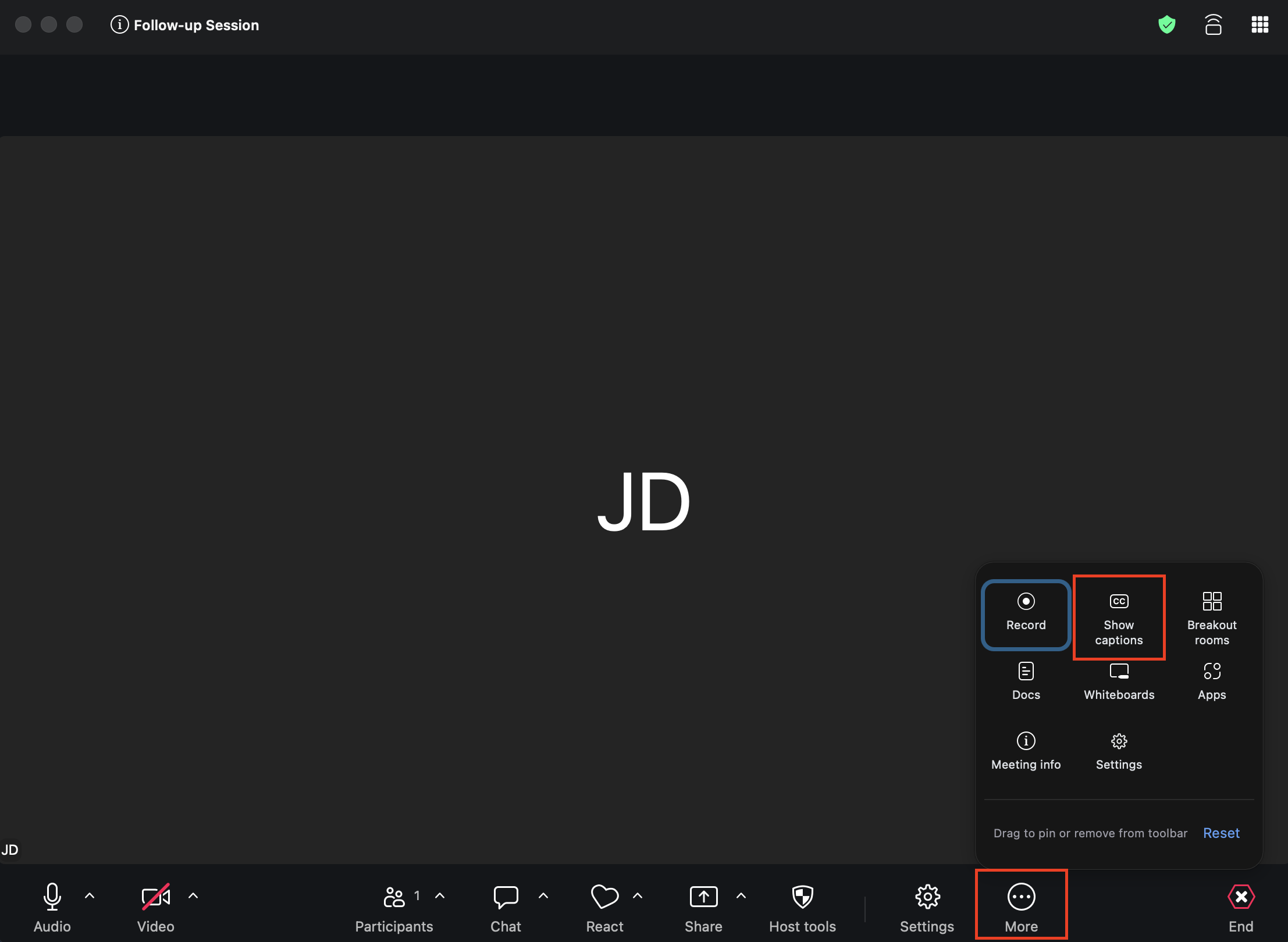
- In the Zoom toolbar at the bottom of the screen, click Show Captions (or select More and then Show Captions if it is not visible in your toolbar).
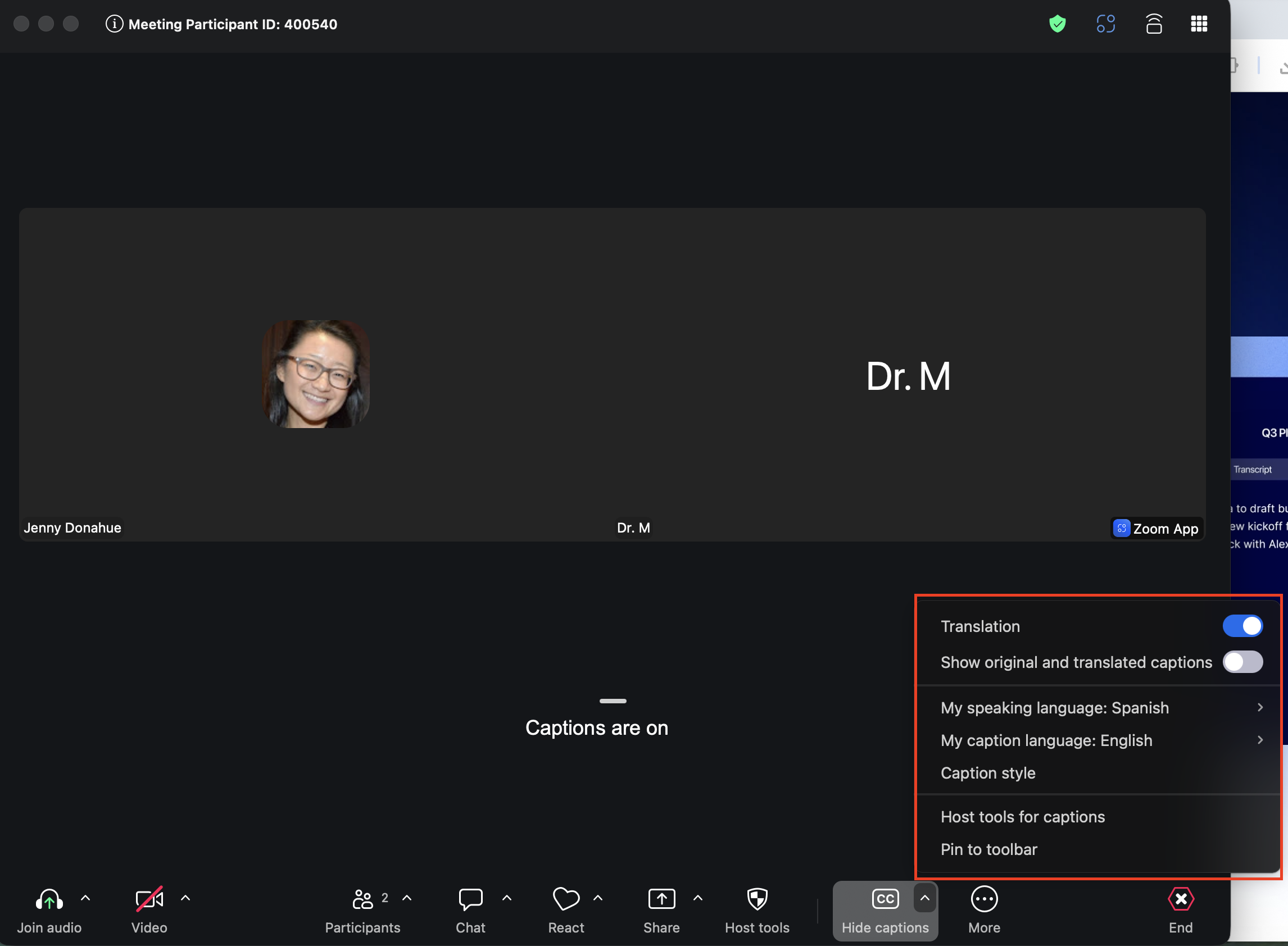
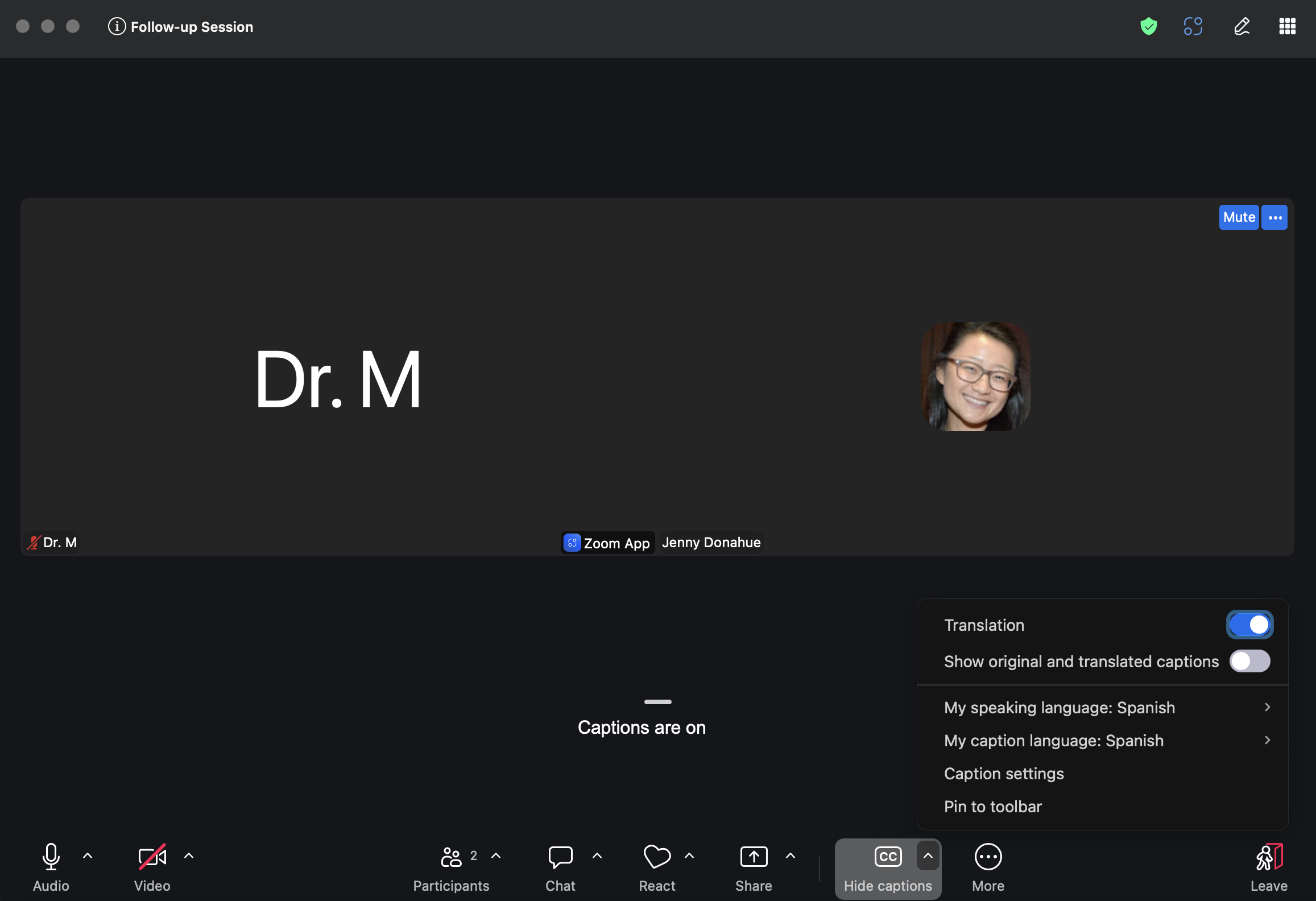
- Next to the Hide Captions button, expand [^] and toggle on Translations.
- Select:
- My spoken language: the language the provider speaks
- My caption language: the language the provider wants to read captions in
- Translated captions will now be available for the provider to view
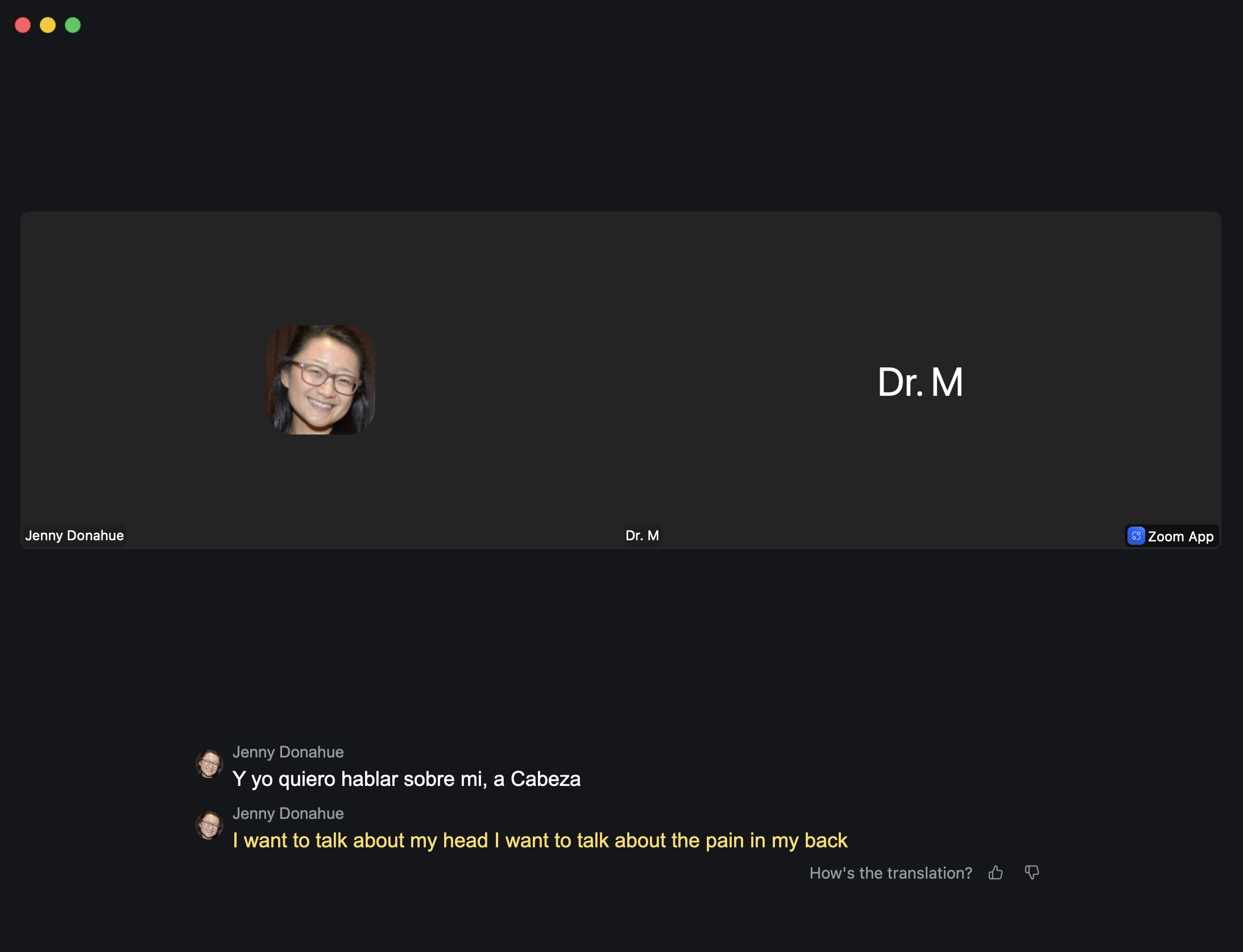
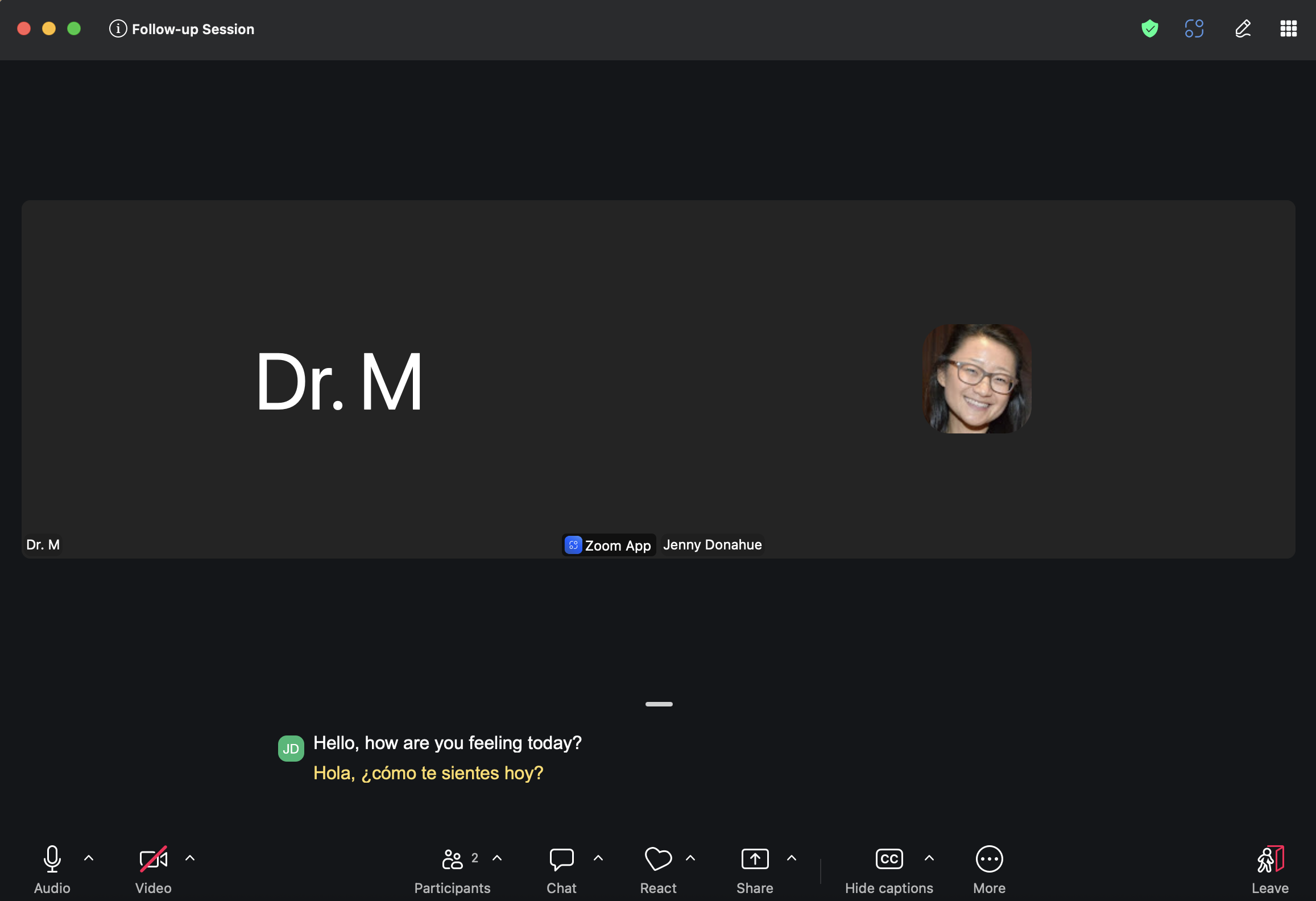
Providers can also choose to view both the original captions and the translated captions simultaneously by selecting Show Original and Translated from the Captions menu.
Note: Setting the correct speaking language is important. If the speaking language does not match the language being spoken in the session, captions and translations will be inaccurate.
As a provider in Embedded Zoom
- Join your Zoom session through Healthie
- In the Zoom toolbar at the bottom of the screen, click [...] > Caption Settings > Show Captions
- Select:
- My spoken language: the language the provider speaks
- Translate to: the language the provider wants to read captions in
- Translated captions will now be available for the provider to view


How Clients View Translated Captions
Clients do not need to take any action in advance. Once a provider has enabled translated captions in the session, each client can independently select their preferred caption language on their end.
As a client in the Zoom App
- Join the Zoom session through their Healthie client portal
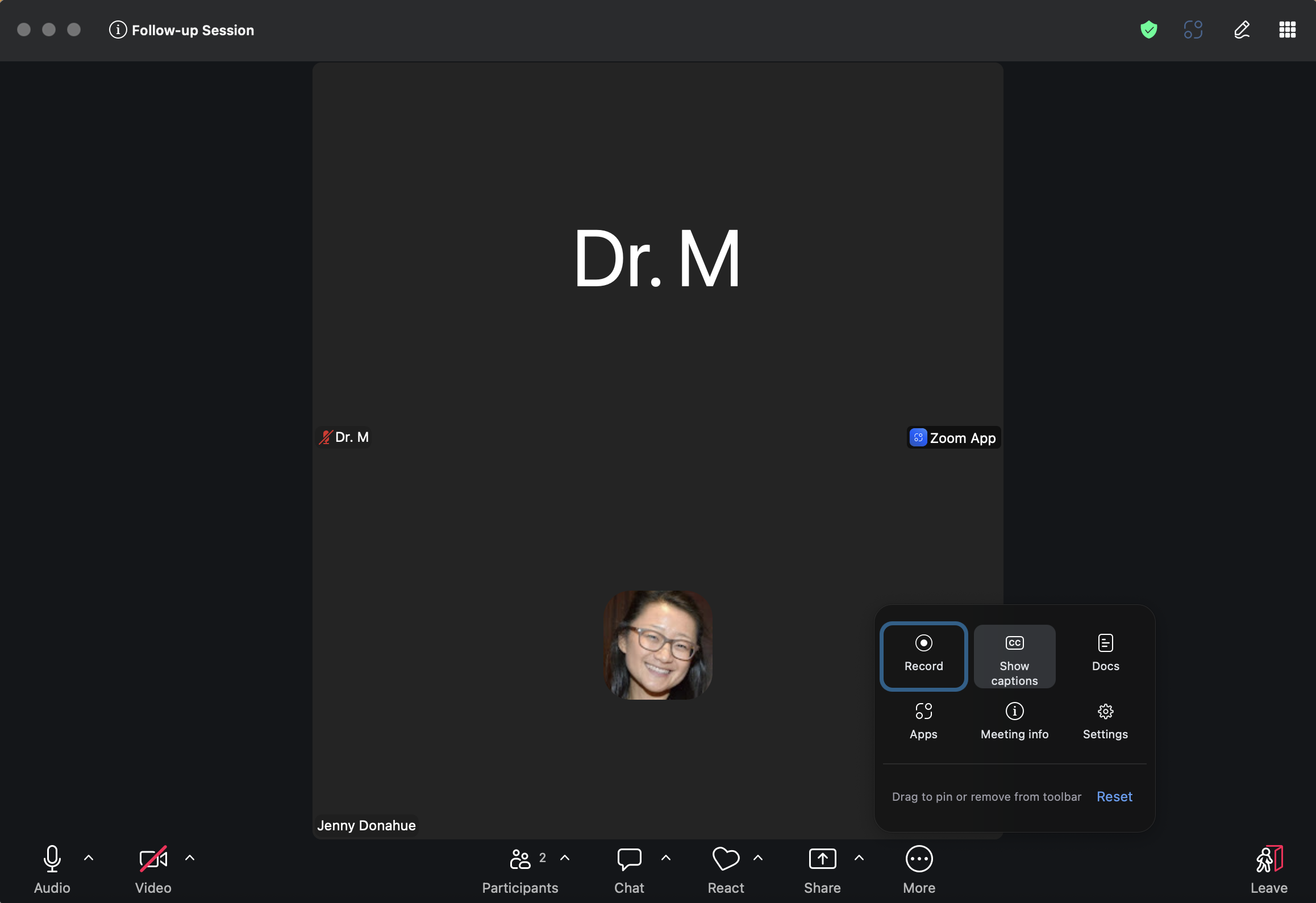
- In the Zoom toolbar, click More > Show Captions.
- Next to the Hide Captions button, expand [^] and toggle on Translations.
- Select:
- My spoken language: the language the provider speaks
- My caption language: the language the provider wants to read captions in
- This is the language the client speaks, and the language the client wants to read captions in
- Translated captions will now be available for the provider to view
Clients can also choose to view both the original captions and the translated captions simultaneously by selecting Show Original and Translated from the Captions menu.
Note: Clients will need to have the Zoom app downloaded to access captions. Captions are not available when joining via a web browser.
As a client in Embedded Zoom
- Join your Zoom session through Healthie
- In the Zoom toolbar at the bottom of the screen, click [...] > Caption Settings > Show Captions
- Select:
- My spoken language: the language the client speaks
- Translate to: the language the client wants to read captions in
- Translated captions will now be available for the provider to view
Supported Languages
Zoom Translated Captions currently support 36 languages, including:
Arabic, Bengali, Cantonese (Traditional), Czech, Danish, Dutch, English, Estonian, Finnish, French (Canada), French (France), German, Hebrew, Hindi, Hungarian, Indonesian, Italian, Japanese, Korean, Malay, Mandarin (Simplified), Mandarin (Traditional), Persian, Polish, Portuguese, Romanian, Russian, Spanish, Swedish, Tagalog, Tamil, Telugu, Thai, Turkish, Ukrainian, Vietnamese
Zoom continues to expand its language support. For the most current list, refer to Zoom's support documentation.
FAQs
Why would I use Translated Captions in my practice?
Translated Captions are useful for any practice serving patients who are more comfortable in a language other than English. Rather than arranging an interpreter in advance or relying on a family member to translate, providers can enable captions directly within the session and patients can follow along in their preferred language in real time.
Do I need a separate Zoom account or subscription to use Translated Captions?
No. As with all Zoom features available through Healthie, you do not need a personal Zoom account or subscription. Translated Captions is enabled at the organization level by the Healthie team.
How do I get Translated Captions enabled for my organization?
Email hello@gethealthie.com to inquire. A member of the Healthie team will follow up to discuss pricing and next steps.
Is this available on all Healthie plans?
Zoom Translated Captions is available on Plus, Group, and Enterprise plans.
Do my patients need to do anything to set this up before their session?
No. Patients do not need to configure anything in advance. Once a provider enables captions during the session, each patient can select their own preferred language from within the Zoom app as explained above.
Can patients and providers speak different languages and still use this feature?
Yes. Each participant independently selects their preferred caption language, so a provider speaking English can have one patient viewing Spanish captions and another viewing Mandarin captions in the same session.
Can a patient see both the original captions and the translation at the same time?
Yes. Patients can select "Show Original and Translated" from the Captions menu to view both simultaneously. Original captions appear in white and translated captions appear in orange.
Does the provider need to do anything between sessions to keep captions working?
No. Once Translated Captions is enabled for your organization, it is available for every Zoom session. Providers simply activate captions at the start of each session as needed.
Can I use Translated Captions for group sessions and webinars, not just 1:1 appointments?
Yes. Translated Captions work in group sessions and webinars hosted through Healthie, not just individual appointments. Each participant can independently select their preferred caption language.
Is using Translated Captions BAA and HIPAA-compliant?
Healthie's Zoom integration holds a BAA and operates at the HIPAA-compliant level of Zoom for Healthcare. Translated Captions processes audio within that same environment.
Does using Translated Captions affect my session recording or transcript?
If you record a session to the cloud, translated captions will appear in the full recording transcript but will not display on the video recording itself. If you need a fully translated transcript for your records, save the transcript manually before ending the session. Note that transcripts containing patient information are subject to your organization's PHI handling policies.
What happens if a patient joins from a web browser instead of the Zoom app?
Captions are only available when using the Zoom desktop or mobile app. Patients joining via web browser will not have access to captions. We recommend informing patients in advance that downloading the Zoom app is required to use this feature.
Can I use Translated Captions with a Personal Meeting ID (PMI) or an instant meeting?
No. Translated Captions are not supported for Personal Meeting IDs or instant meetings. Sessions must be scheduled in advance through Healthie.
Will Translated Captions appear if I record my session? Translated captions appear in the full cloud recording transcript but not directly on the video recording itself. Local recordings do not include translated captions or transcripts.
What if the caption translation seems inaccurate during a session?
First, confirm that the speaking language is set correctly in your Captions menu - this is the most common cause of inaccurate captions. If the speaking language is correct and translation quality is still poor, check with the patient verbally and consider whether a certified medical interpreter may be more appropriate for that session.