
E-Rx: Place Orders in Healthie
Note: the legacy DoseSpot user interface (UI) will be replaced by the enhanced DoseSpot UI for all users starting in 2026. Healthie will notify you ahead of your migration to the enhanced UI so you're prepared every step of the way.
Healthie offers an E-Rx integration with DoseSpot as an add-on to your Healthie plan, which enables clinical providers to prescribe medications electronically from the Healthie platform and the mobile app. Here is an overview of E-Rx and Healthie. E-Rx orders can be placed from the Client Profile Overview and the Quick Profile for easy access to medication-ordering within your workflow.
In this article:
E-Rx Account Enablement
There is an approval process from Healthie's Integration partner, DoseSpot / Surescripts, in order to set up E-Rx within Healthie and verification of your professional credentials is required. Learn more here.
Place an E-Rx Order
To place an E-Rx order for a patient
- Navigate to the Client Profile Overview > Medications > Order and manage prescriptions
- Click Add Prescription > Search for a medication > Complete the on screen field details
Note: the "Add Patient Reported" button allows you to add a medication that is self reported by the patient. This option will add the self-reported medication to an "Active Medications" list within "Manage Prescriptions" section (a forthcoming update will display this information on the Patient's Profile page within Healthie).


Order E-Rx from the Client Profile
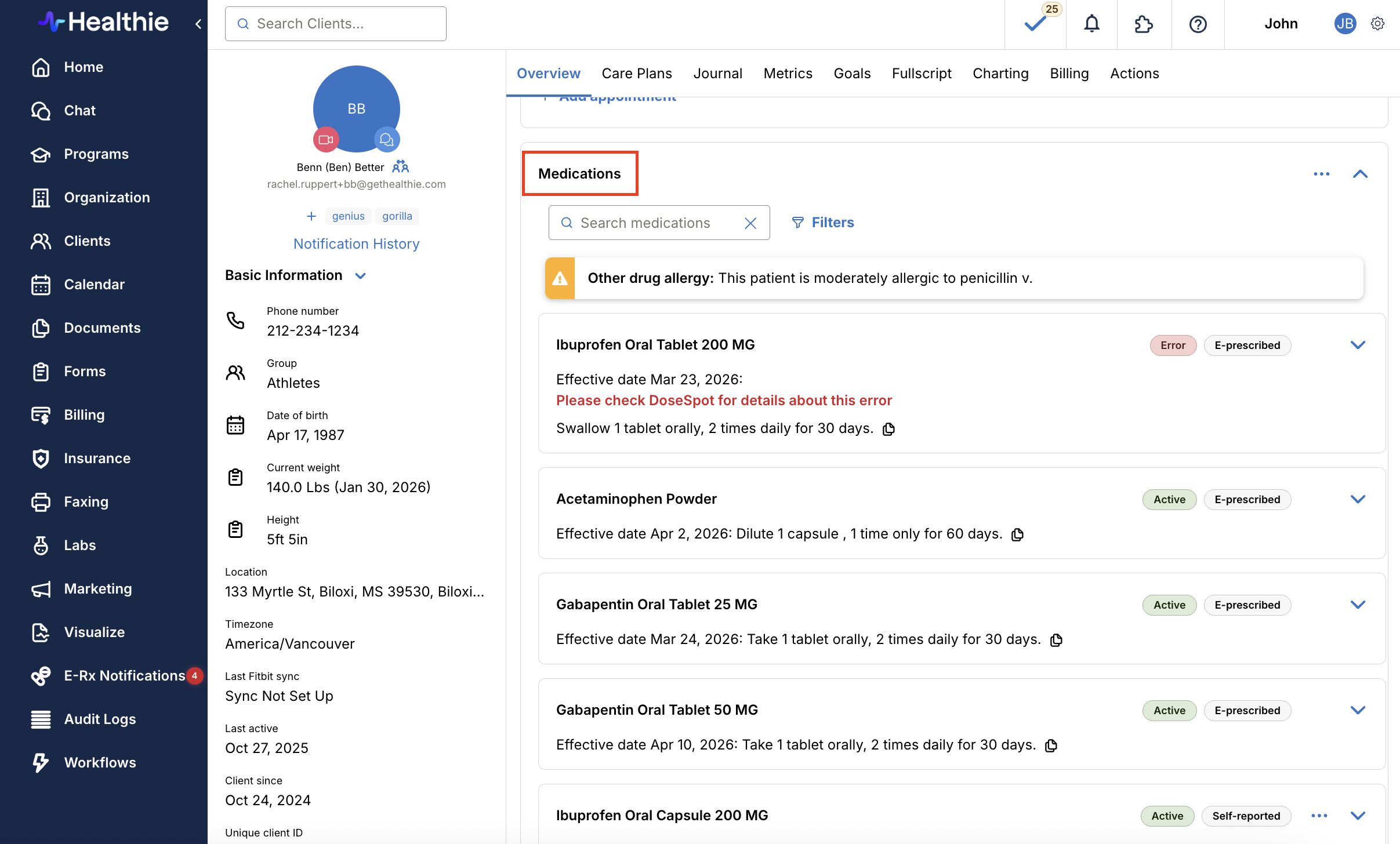
When you have been approved by DoseSpot to E-prescribe via Healthie, you will be able to click Order and manage prescriptions from the Medications section of the Client Profile Overview. E-Rx can only be accessed directly through an individual Client Profile and a Client's Quick Profile.
Note: Only the prescribing provider or established Proxy members will be able to click on the Order and manage prescriptions button within the Medications section.

Note: Basic patient information is required in order to create an E-Rx for a patient. This includes:
- Patient First and Last Name
- Gender
- Valid Phone Number
- Date of Birth
- Street Address
Additionally, height and weight are required fields in the client's profile in order to prescribe for any client 19 years old or younger.
If you are missing this information for a specific patient, the Order E-Rx button will appear inactive. Hovering over the disabled button will display a tooltip indicating what information is missing. For example, you may see: "Some information that is required for e-prescribing is missing or invalid for this client. Please make sure that the information below is added in this client's profile, and that it is accurate..." You can add this information by navigating to the "Actions" of the Client's Profile tab.
Additionally, for organizations using multi-clinic support, the Order E-Rx button will be disabled if you are not connected to the client's current ordering clinic. The tooltip will display: "You are not connected to [Client Name]'s ordering clinic. To prescribe, transfer [Client Name] from [Clinic Name] to a clinic where you are authorized to prescribe." You can use the ordering clinic dropdown selector to transfer the client to an authorized clinic you are connected to before placing the order.

E-Prescriptions will be labeled "E-prescribed" and client or provider-added medications will be labeled "Self-reported".
The E-Prescriptions widget shows only active E-Rx prescriptions. You will not see duplicate entries for refilled medications—just the most recent active prescription.
Order E-Rx from the Quick Profile
Clinicians can access the E-Rx portal within a Patient's Quick Profile to manage E-Rx while charting.
To access DoseSpot from the Quick Profile while charting, navigate to the client’s Charting Notes. From there, open the Quick Profile by clicking the button within the patient’s chart.
Once the Quick Profile modal appears, click the Order E-Rx button to open the DoseSpot interface in a new window.
After completing your task in DoseSpot, you will be automatically returned to the charting screen you were on, allowing you to continue your work without interruption.
You will now be able to more easily manage E-prescriptions in context, access DoseSpot from multiple areas of the platform, and stay within the flow of your documentation.

Associate E-Rx Order with Chart Note
Healthie offers an option to link an E-Rx order to a chart note. If an E-Rx order is linked to a chart note, the details of the order will automatically appear within that chart note. To enable this for your organization, please email hello@gethealthie.com.
In order to link an E-Rx order with a chart note:
- Click Order E-Rx from the Quick Profile
- A "Link medication order to chart note" pop-up will appear. Within this pop-up, any unsigned and unlocked chart note can be selected to link from the dropdown.
- If you started your E-Rx order while editing a chart note, that chart note will be selected by default
- If you started your E-Rx order from any other place within Healthie where the Quick Profile appears (e.g. Chat, Forms), there will not be a chart note selected by default.
- Once the appropriate chart note is selected in the drop down > Continue
- The DoseSpot portal (iFrame) will open for you to complete your order. When you exit DoseSpot, you will see the order details added automatically to the chart note
If you do NOT want to link your E-Rx order with a chart note, you can click the "x" in the dropdown to remove the chart note > Proceed without linking.
Note: you will not be able to edit the "Medication orders" section of the chart note once DoseSpot actions are completed, however any future actions linked to this chart note will display in sequence (e.g. additional E-Rx order, cancelled order).


