
AI Scribe Tasks
AI Scribe Tasks automatically generates a list of follow-up actions from your session transcript the moment your appointment ends, so nothing discussed gets lost between visits.
AI Scribe Tasks draws from the transcript already captured during your session.
If you are already using Healthie AI Charting, AI Scribe tasks can be enabled for your provider(s) within member permissions at no additional cost.
How It Works
After each 1:1 appointment, AI Scribe Tasks reads the session transcript and creates a list of follow-up tasks based on what was discussed. Tasks appear in your Healthie task list shortly after your appointment ends, once AI Scribe has finished processing.
- If you have not done so already, enable AI Charting for your account (includes 7 day free trial).
- Enable the member permission "Can generate tasks by AI Scribe" for every team member you wish to leverage this tool (there is not additional charge)
- Complete your session as usual. AI Scribe will transcribe the appointment automatically.
- Once the session ends and the transcript is processed, AI-generated tasks appear in your task list.
Where to find your tasks
AI-generated tasks appear anywhere tasks appear in Healthie. (See Tasks Overview)
Tasks page
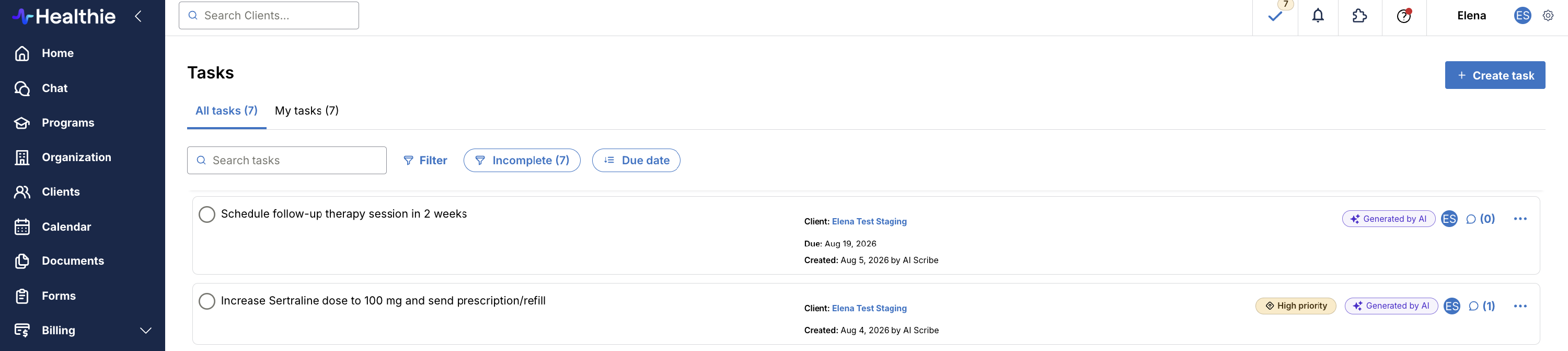
Navigate to Tasks in your main navigation. AI-generated tasks are mixed in with your regular tasks and are easy to identify: they display a sparkle icon (✦) and an "AI Scribe" badge in light purple.
Quick Profile
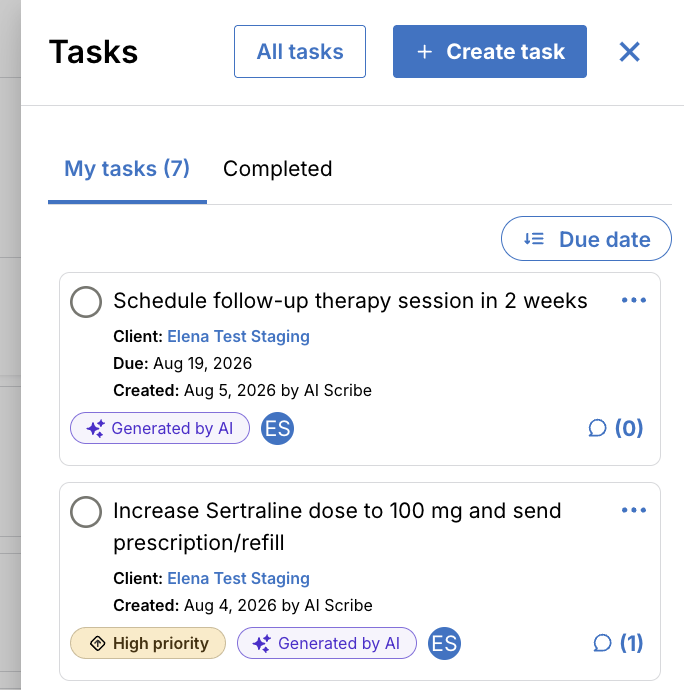
When viewing a patient chart, open the Quick Profile panel. AI tasks for that patient appear there, marked with the same sparkle icon.
Client Profile
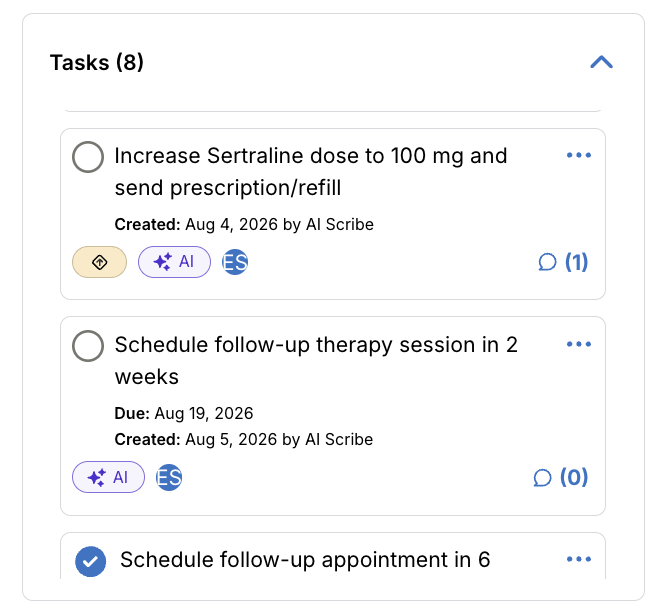
AI tasks are also visible from the client profile view.
What Tasks Are Generated
AI Tasks surfaces follow-up actions that can be completed outside of the session. Examples include:
- Send referral to endocrinologist
- Order HbA1c lab
- Increase Sertraline to 100 mg and send prescription
- Schedule follow-up appointment for 6 weeks out
- Assign thought log homework
- Send ROI form
- Add client to program
Tasks reflect actions the care team can complete independently. Clinical directions that require the client's presence belong in your session notes, not the task list.
What You Can Do With a Task
Each AI-generated task works the same as any task you create manually in Healthie. You can:
- Complete it — check it off when done
- Edit it — update the title, due date, assignee, priority, or add notes
- Comment on it — use the existing comments feature
- Delete it — open the three-dot menu (⋯) and select Delete
What to Expect
- Tasks are generated for 1:1 sessions transcribed by AI Scribe only. A transcript is required.
- Not every session will produce tasks. If there were no clear follow-up actions discussed, no tasks will be generated.
- Due dates are AI-estimated based on time references in the transcript (for example, "in 6 weeks"). If no timeframe was mentioned, no due date is set. Always review and adjust due dates as needed.
- Tasks are assigned to the provider on record for the session. They will not auto-assign to other providers in the organization.
- Clinical team participation and manual validation: AI-generated tasks are a starting point, not a final list. Clinical team members are expected to manually review, validate, and edit or delete anything that does not apply. Please review all AI-generated content carefully before acting on it clinically.
- Changes made to a task sync across the Tasks page and Quick Profile automatically.
- Sub-organization enablement: If your organization uses sub-organizations, enabling AI Scribe at the parent level does not automatically activate it for sub-organizations. It must be enabled at the parent org level and on each sub-org separately for AI Tasks to generate.
API Representation
In the Healthie API, AI-generated tasks are represented as regular tasks but include specific fields to distinguish them. They have smart: true and a smart_source of SCRIBE. You can query for these tasks using the smart_sources argument or the smart: true filter in your GraphQL queries.
AI Charting Free Trial
AI Charting includes a 7 day free trial for Plus and Group Plan customers. Get started today.
Enterprise customers can reach out to your CSM or hello@gethealthie.com to discuss a trial experience and volume-based discounted pricing.