Charting Experience on Mobile Devices
The Healthie mobile app lets providers create, edit, and manage chart notes directly from their device, making it easy to document during home visits, in-person sessions, and on-call work.
In this article
How to Access Chart Notes on Mobile
- Navigate to the Clients > Select Client
- From the Client Profile > Select Charting Notes
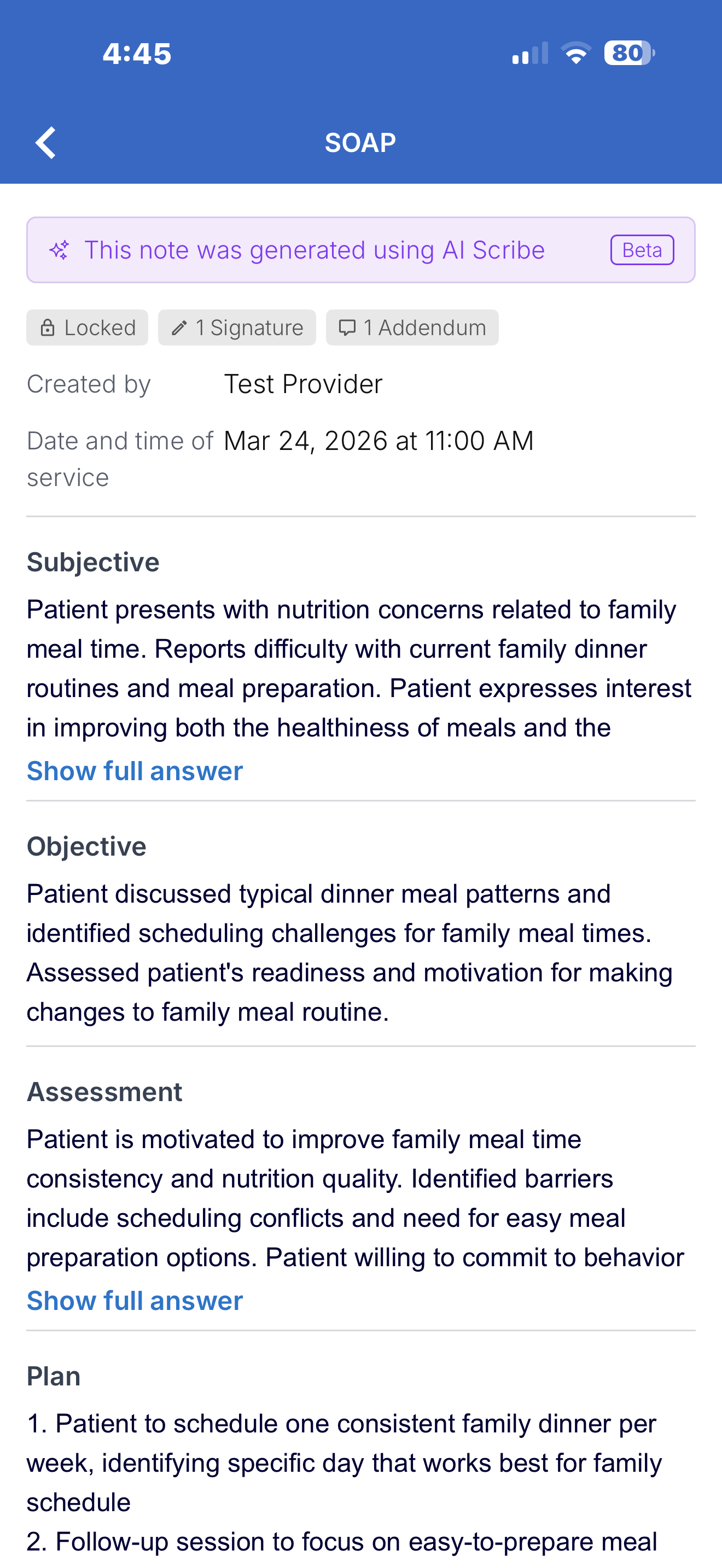
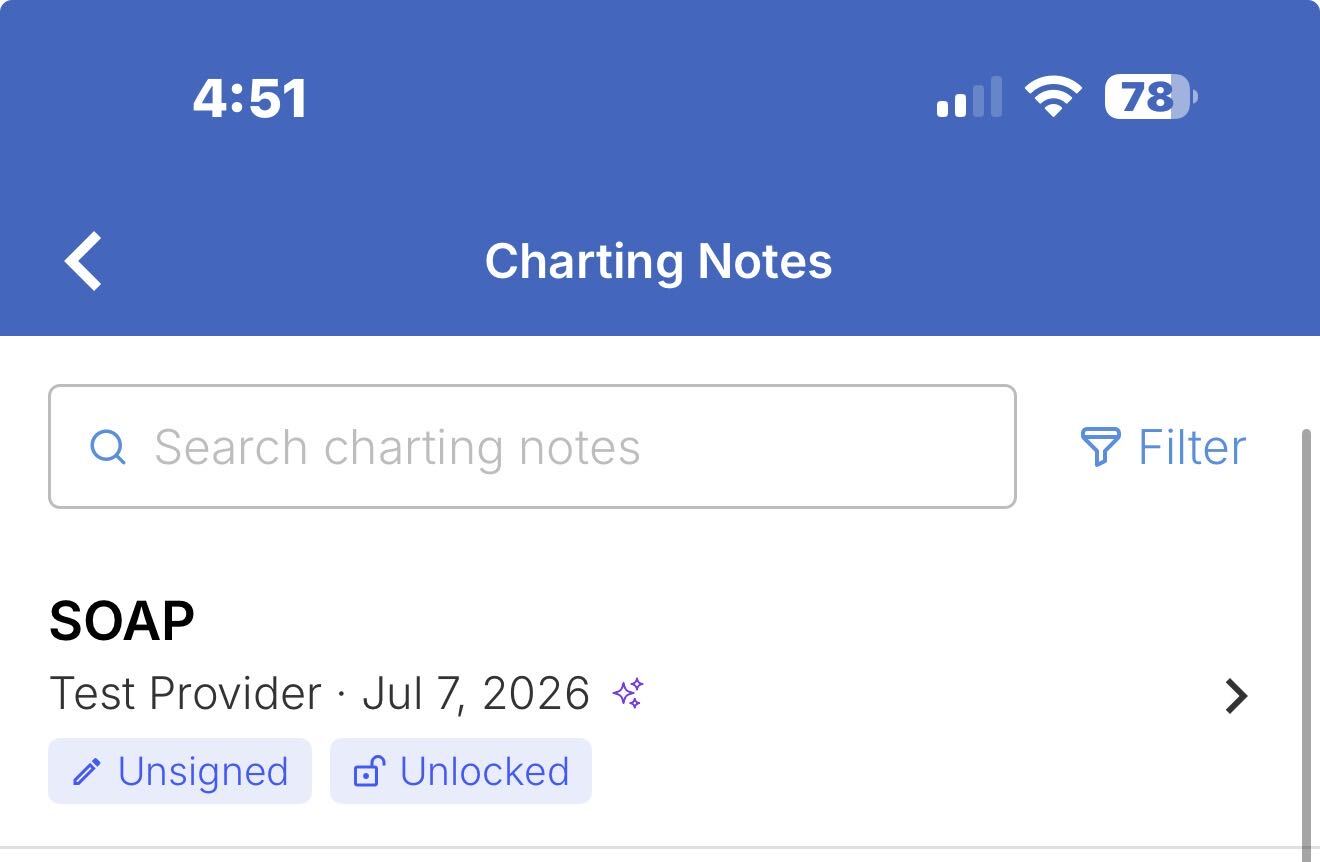
From the chart notes list on mobile, you can open any chart note to review its full contents.
The following information is visible for charting notes:
- Date & timestamp
- Note status: whether the note is signed, unsigned, locked, or unlocked
- Note content
- History log: a record of changes and activity on the note
- Signatures: any provider signatures applied to the note
- Addendums: additional entries appended to the note after the original was completed
- Linked appointment
AI Charting Customers
AI Scribe-generated notes that have been converted to a final chart note are viewable on mobile. Notes that are still in AI draft form (not yet converted) are not displayed. AI Encounter Summaries do not currently display on mobile.
Search, Sort, and Filter for Chart Notes
Searching
Use the search field at the top of the chart notes list to find a specific note by keyword. Search looks across note names and content.
Sorting
Tap the sort control to change the order notes are displayed. Available sort options:
- Newest first (default)
- Oldest first
- Note name (A to Z or Z to A)
Filtering
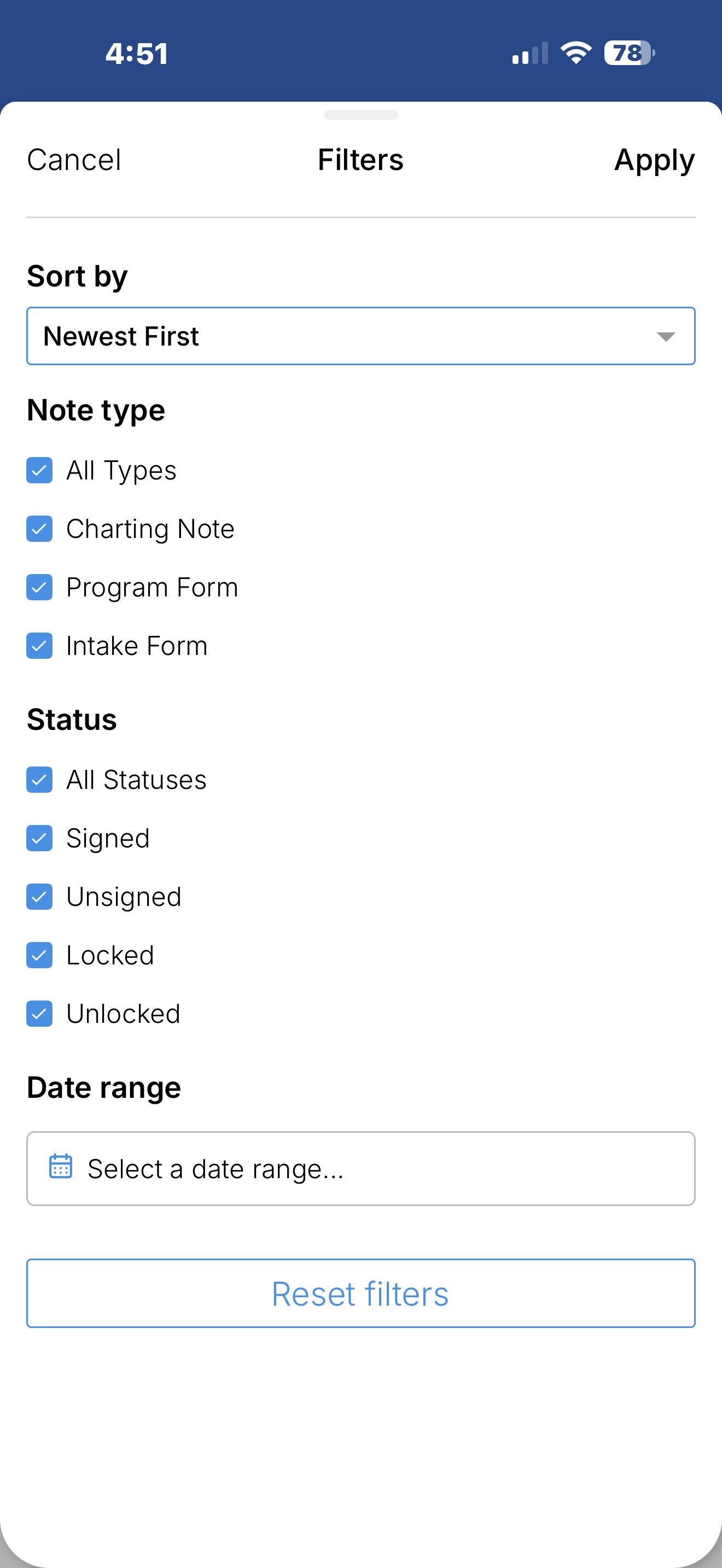
Use the filter controls to narrow the list to the notes most relevant to your workflow. Filters can be applied individually or in combination.
Filter by Note Type
Shows notes of a specific type. Default is all types.
- All types (default)
- Charting note
- Program form
- Intake form
Filter by Status
Shows notes matching a specific status. Default is all statuses.
- All statuses (default)
- Signed
- Unsigned
- Locked
- Unlocked
Filter by Date Range
Shows notes created or last updated within a specific date window. Tap the date range filter and select a start and end date to apply.
Create a New Charting Note
- Clients > Select Client > Charting Notes
- Tap the (+) on the top right to start a new note
- Select a charting template, then enter a name for the note
- Complete the note as you typically would
- Tap the check mark on the top right to save the note
Edit a Note
- Open the chart note from the client's Charting Notes list
- Tap the note you wish to edit
Make your changes, then click the check mark on the top right to save. Alternatively, you can tap Chart note options > Save
Editing is not available for notes that have already been signed. To make changes to a signed note, it must be unlocked first, or you can add an addendum instead.
Sign & Lock Notes
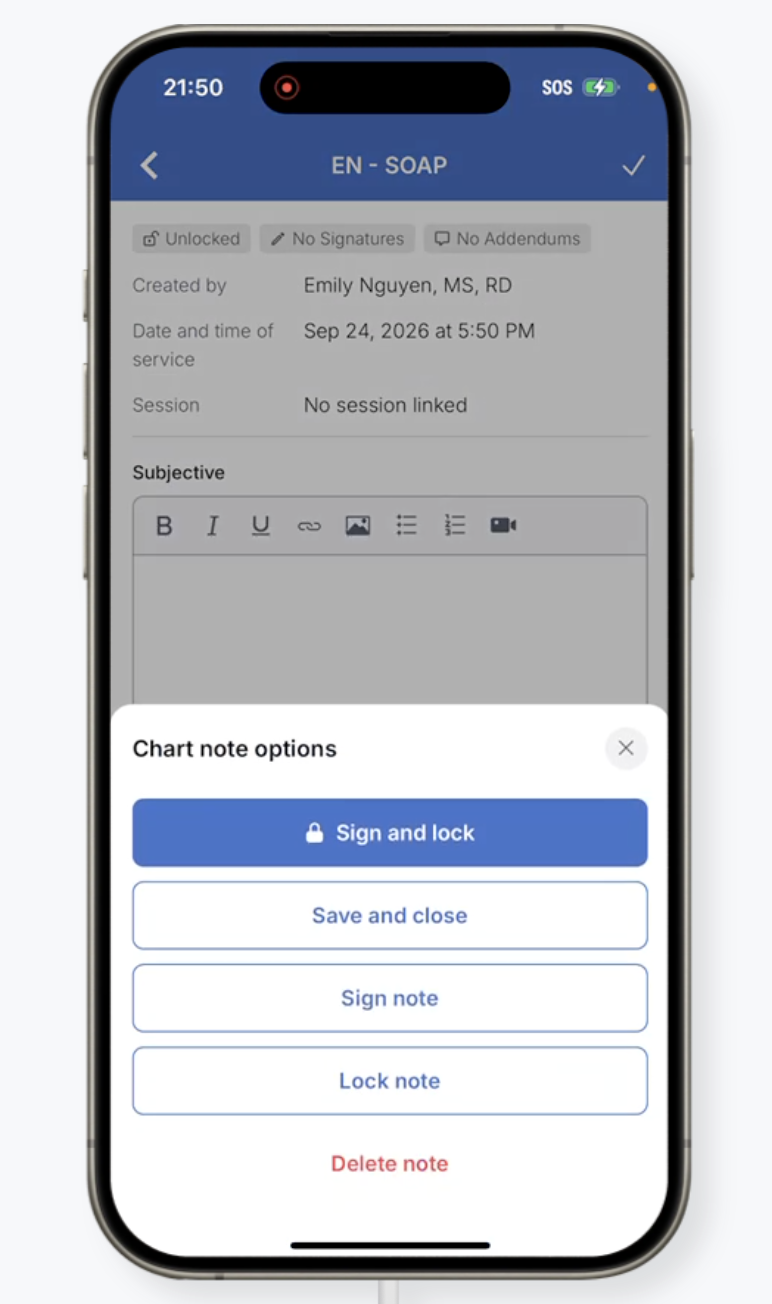
Providers can sign, lock, or sign and lock a chart note from mobile.
Open the chart note > Chart note options > Sign & Lock
More actions are available via Chart note options > More Options
- Sign and lock
- Save and close
- Sign note
- Lock note
A few things to note:
- Signing your own note requires the "Can sign own charting notes" permission. Signing another provider's note requires "Can sign charting notes of other providers."
- Locking your own note requires "Can lock own charting notes." Locking another provider's note requires "Can lock charting notes of other providers."
- Locking a note, including via Sign and Lock, shows a confirmation explaining that locking will prevent further edits or signatures.
Additional Chart Note Actions
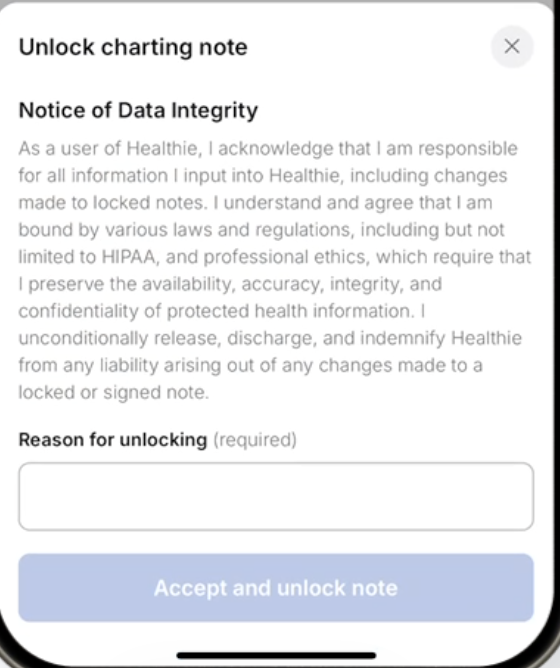
Unlock a Note
Unlocking requires the "Can unlock charting notes" permission.
- Open the locked chart note > Chart note options > Unlock
- Review and acknowledge the Notice of Data Integrity
- Enter a reason for unlocking, then confirm (required)
The reason you enter is saved to the note's history log.
Remove a Signature
Removing a signature is only available on unlocked notes. Providers can remove their own signature at any time. Removing another provider's signature requires the "Can remove other org members' signatures from charting notes" permission.
A confirmation shows the signer's name and the date and time they signed, along with a notice that removing all signatures will make the note editable again.
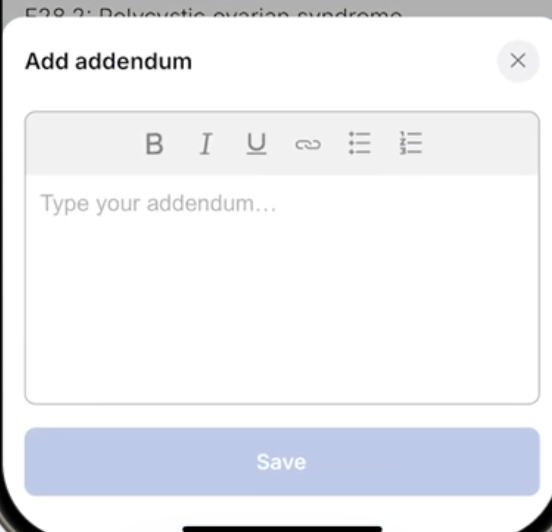
Add an Addendum
Addendums let you append information to a locked chart note without reopening the original entry.
- Open the locked chart note > Chart note options > Add Addendum
- Enter your addendum text > Save
Adding an addendum to your own locked note is available by default. Adding one to another provider's locked note requires the "Can write addendums to charting notes of other providers" permission. Addendums support rich text formatting. Once saved, an addendum cannot be edited.
Deleting a Chart Note
Deleting requires the "Can delete charting notes" permission. Delete is not available for notes that are signed or locked.
- Open the chart note > Chart note options > More Options > Delete